Hit Controller
The Hit Controller sends each hit to one of its submodules, called steps, chosen by a control value between 0 and 1. Play soft to fire the first step and hard to fire the last, blend between two sounds by timbre, or sweep through the steps with an LFO. Anything that can drive a modulator can pick the step.
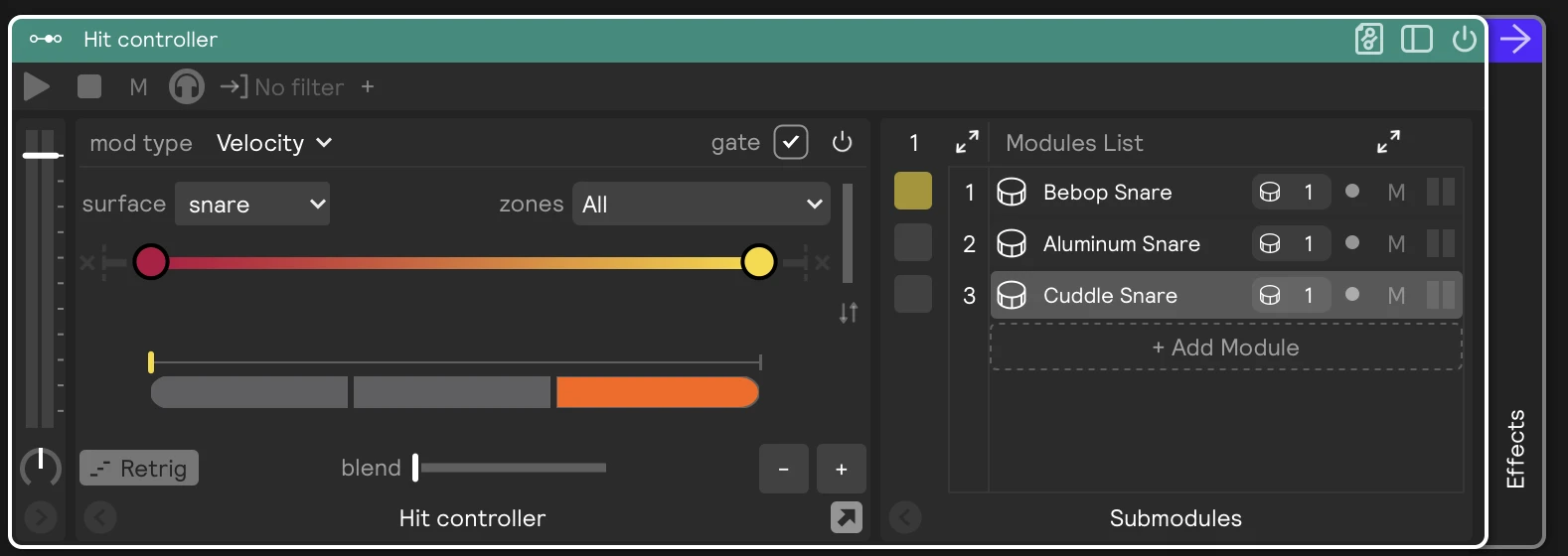
Each submodule is one step. The 0–1 control range is split into one segment per step, and a hit fires the step whose segment holds the current control value.
Let's say you have two samplers and you want soft hits to play one and hard hits to play the other. Drag both into a Hit Controller set to Velocity, with the soft sampler in the first step and the hard one in the second. That's the Hit Controller in a nutshell.
You can also nest any other controller inside, including more Hit Controllers. For example, a Timbre Hit Controller across the center and edge of a Drum Pads head can hold three steps named "Center," "Off Center," and "Edge." If your training is good, that gives you a playable "Off Center" zone between the two. Or use a Speed Hit Controller to play different sounds only when you buzz roll.
Control input
The control value comes from the controller's built-in control input, set up on the top row.
| Control | What it does |
|---|---|
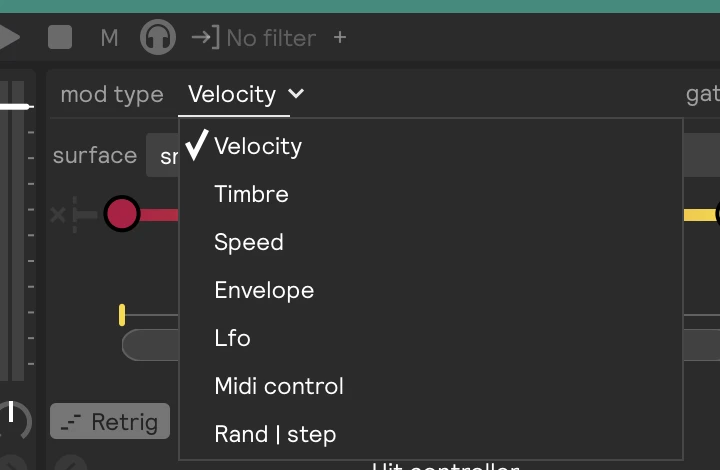
| mod type | What drives the control value: Velocity, Timbre, Speed, Envelope, LFO, Midi Control, or Rand | step. When the controller listens to a hi-hat, Pedal is offered too. |
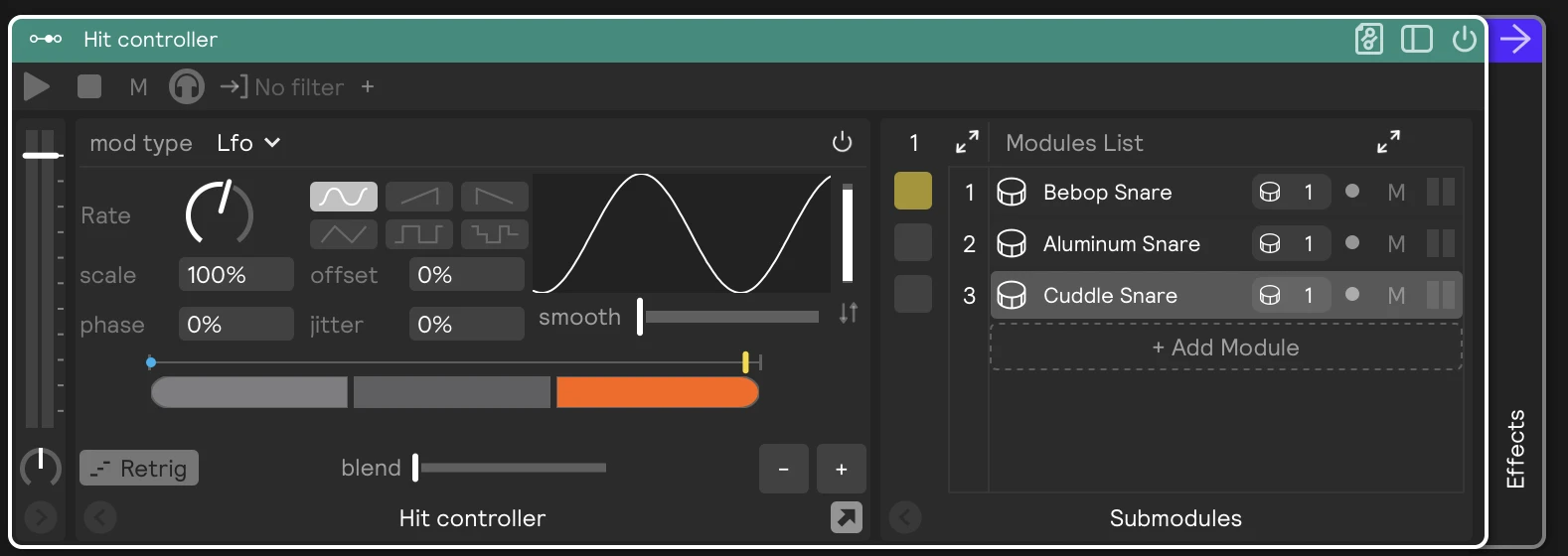
| Mod type settings | Each mod type shows its own settings, such as the input range and which surface and zones to listen to for Velocity, the timbre pads for Timbre, or the rate and shape for an LFO. They work exactly like the same modulator in an assignment. |
| Reverse (⇅) | Flips the control range, so for example hard hits fire the first step. |
| gate | Shown for Velocity, Timbre, and Speed. On (the default), a hit the control input filters out fires no step: a pad outside its selection, or a value outside its range. Off, every hit fires a step, using the latest control value. |
| Power | Turns the control input off. The control slider then keeps its last value, and you can set it by hand or assign something else to it. |
The small vertical meter next to the settings shows the control input's output.
- Mod type menu
- Driven by an LFO
A play that carries no hit information, like a Metro tick or a bare play message over OSC, has no velocity, timbre, or speed to read. It's never gated: it fires whichever step the control slider currently points at.
Control slider
The control slider sits just above the steps, so its marker points at the step it selects. It follows the control input while that's on. Drag it to set the value by hand, or right-click it to assign anything else in the session to it. It's an ordinary assignable parameter.
Steps
| Control | What it does |
|---|---|
| Steps | One segment per step. Drag the borders between segments to change how much of the control range each step gets. Drop modules here to add steps. |
| − / + | Remove or add a step. |
| blend | Spreads each hit into the neighboring steps too, at a velocity that falls off the further a step is from the control value. With blend up high, soft hits play mostly the first steps and hard hits mostly the last, but every hit plays more than one. |
| Retrig | On: a new hit cuts off the sounds started by the previous one. |
Highlight last played step
As with the other controllers, turn on the arrow button at the bottom right of the Hit Controller to highlight the last step that was triggered. It's helpful when you're sound designing while you play and want to see which module just fired.