MIDI Output
You can organize MIDI output of Sensory Percussion using the MIDI notes generator, MIDI CCs generator, and MIDI router.
To drive drum software like Superior Drummer 3 from your whole kit, use a MIDI Kit. It holds one MIDI notes generator per drum and lets you edit them side by side.
To use the different MIDI generators, you must have MIDI outputs added to your Hardware Outputs, one for each MIDI channel you want to send out of Sensory Percussion V2.
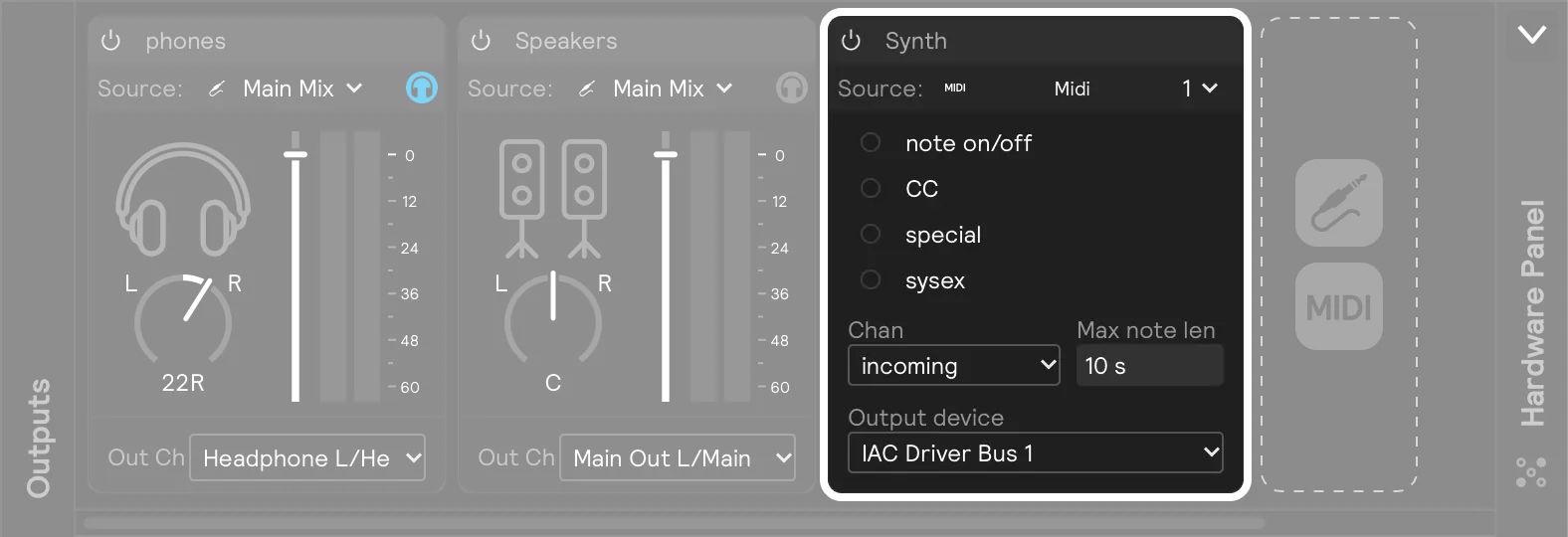
Then drag either the MIDI notes generator or the MIDI CCs generator into your set and then select the corresponding output from the dropdown.
Each of the three generator types include midi channel and output options.
The midi channel option allows you to select the MIDI channel that the generator will send note messages on. However, if the Midi Channel is set to anything besides "incoming" on the Hardware Midi Output, that will take precendence. If both the Generator and Hardware Ouput are set to "incoming" the default MIDI channel is 1.
The output option allows you to select the MIDI Hardware Output badge number (1–16) that the generator will send note messages to. A Hardware Output whose source is set to the same badge forwards those messages on to a real or virtual MIDI device.
MIDI Notes Generator
The MIDI notes generator maps drum zones to MIDI notes and sends them to a MIDI hardware output. It's the building block for driving third-party drum software (Superior Drummer, EZdrummer, and the like) or external hardware from your playing.
To get started, select an input filter from the dropdown. This will determine which pad zones are available to send MIDI notes.

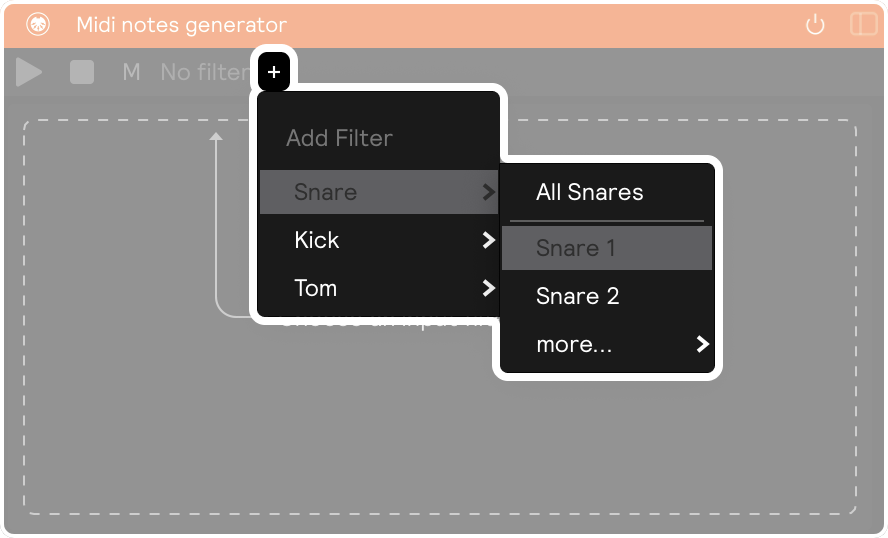
Once you've selected a filter, you can choose the note values, set names for each note, and set the note length. Each row of the pad list is one zone → note mapping: pick the drum type and zone (snare center, cymbal bow, and so on) and the MIDI note it should send. Each pad can have multiple notes, which can be added with the + button. Length sets how long each note is held before the note-off is sent.
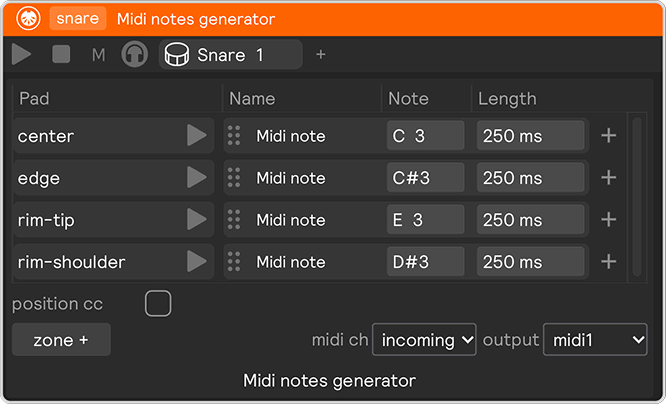
Zones without their own note
A new generator (and Reset to default in the + menu) maps the drum's main zones: center and rim-shoulder for snares and toms, open and rim-shoulder for kicks, bow and crash for cymbals, bow and pedal for hi-hats, and the trained pads for grid pads.
You only need rows for the zones you want to tell apart. A hit on a zone without a row plays the row of its nearest mapped zone, following the same fallbacks as the Drum Pads controllers. With only center and rim-shoulder mapped, edge hits play the center note and rim-tip hits play the rim-shoulder note. The + menu shows where each unmapped zone goes, for example edge → center.
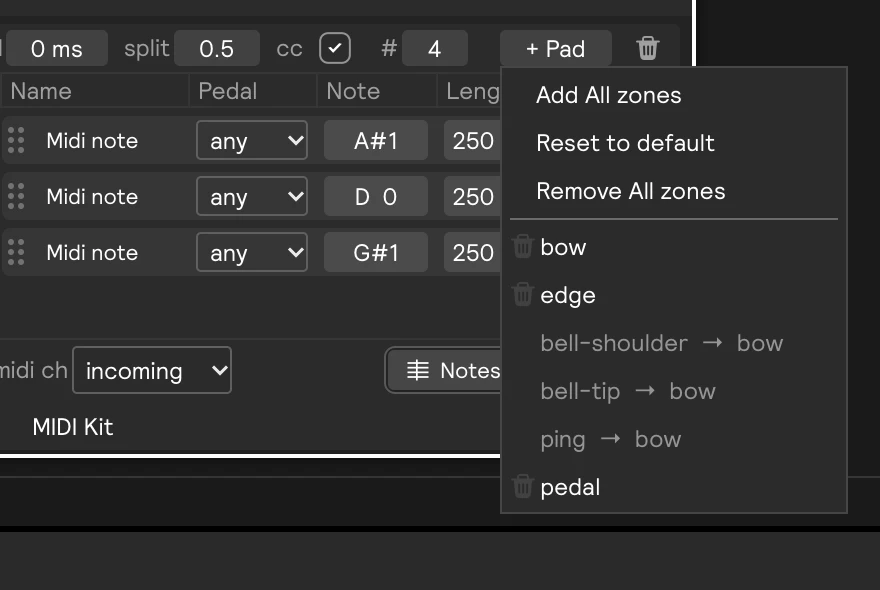
So a single row maps the whole drum to one note, which is handy for a drum machine or sampler with one sound per drum.
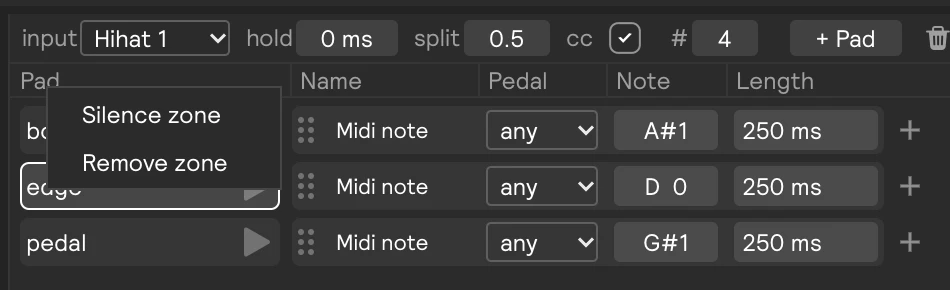
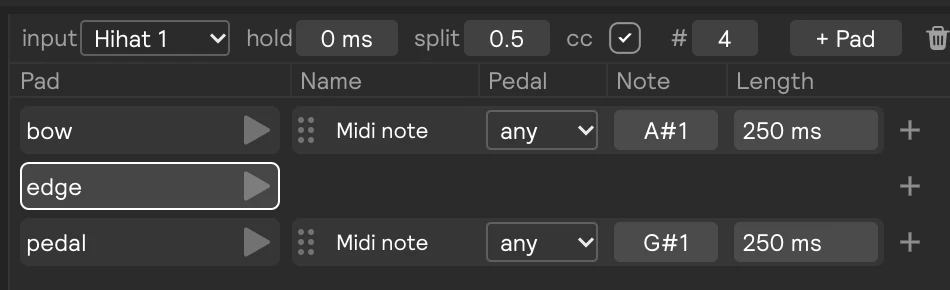
To make a zone play nothing, right-click its row and choose Silence zone (or delete its notes). The zone then sends no note and doesn't fall back to another zone. It shows as (silent) in the + menu. Remove zone in the same menu removes the row, so the zone goes back to playing its fallback.
The generator also shows a handful of controls that depend on which kind of input you've filtered to — chokes for cymbals, pedal controls for hi-hats, and positional sensing for snares.
Choke
When a cymbal input detects a choke gesture (grabbing the cymbal), the generator can translate it into whatever your sound engine expects. These controls appear when the generator's input is a cymbal; on generators mapping kicks, snares, or toms the choke setting is inactive, since chokes only ever come from cymbal-type inputs.
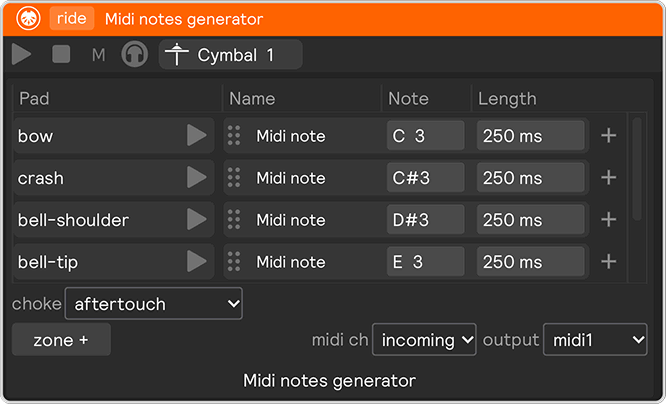
The choke dropdown sets how the choke is sent:
aftertouch(the default) sends polyphonic aftertouch on every note this generator maps. This is what Superior Drummer 3 expects, so chokes work there with no configuration.ccsends a CC message, using thechoke ccnumber andvaluecontrols.noteplays a dedicated choke note, set bychoke note— useful for engines with a choke articulation note.offignores chokes entirely.
In aftertouch mode an aftertouch press is followed immediately by a release, so engines that treat sustained pressure as a held choke re-arm for the next hit.
Hi-hat timing
Some drum software picks the open/closed articulation at note-on time, based on the current pedal CC. That can guess wrong, because the hit fires before the pedal estimate has fully settled. Two controls, shown when the generator's input is a hi-hat, deal with this:
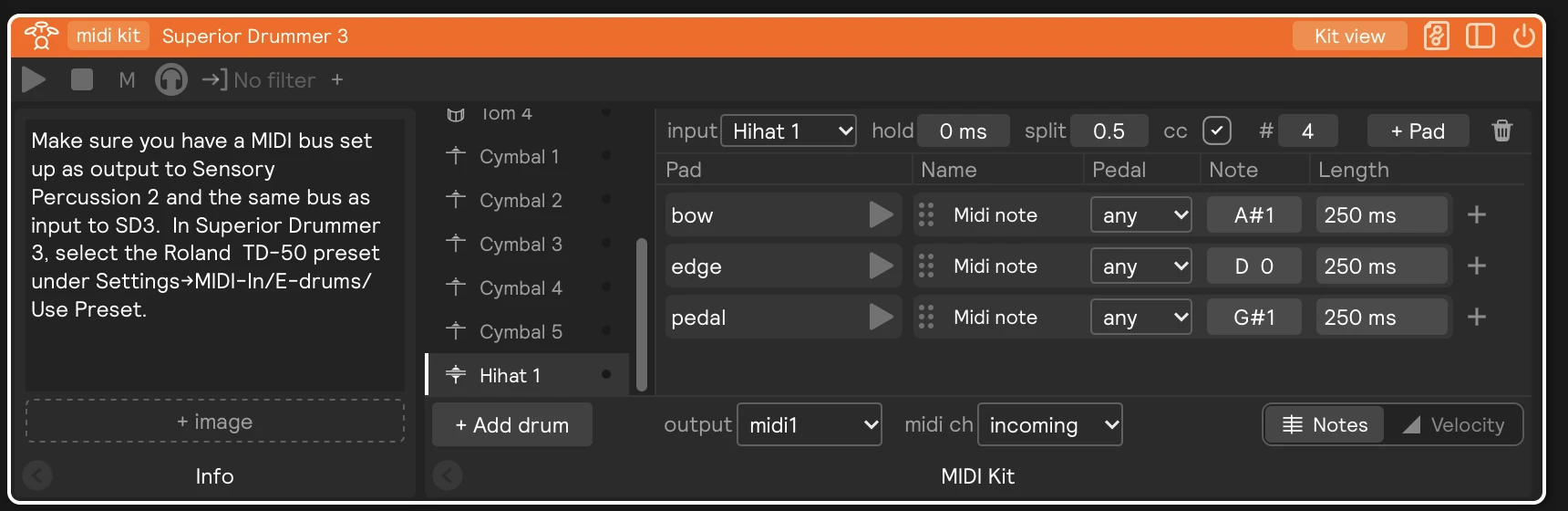
pedal holddelays hi-hat notes by up to 30 ms so the pedal position settles (and the pedal CC goes out) before the note. A few milliseconds is usually enough and is imperceptible — hardware e-drum modules do the same thing internally. Set it to 0 to turn it off.pedal ccstreams the pedal position (0–127) as a MIDI CC alongside the notes, on the CC number set bycc num. This lets one hi-hat generator drive the drum software's pedal input without a separate MIDI CCs generator. Values are only sent when they change, and most drum software listens on CC 4.
Superior Drummer 3 tracks the pedal CC continuously, even after a note has started, so pedal hold can stay at 0 for SD3. Raise it only for engines that pick the articulation once, at note-on time.
Open and closed notes
Drum machines, samplers, and drum racks often have no pedal input at all, just an open hi-hat sound on one note and a closed hi-hat sound on another. On a hi-hat generator, every note has a Pedal setting for this:
| Control | What it does |
|---|---|
| Pedal (per note) | any sends the note on every hit. open sends it only while the pedal is open, and closed only while it's closed. |
| split | The pedal position that separates open from closed, from 0 (fully open) to 1 (fully closed). Notes set to open play below it; notes set to closed play at or above it. |
The usual drum-machine setup is a single bow row holding two notes: the open sound set to open, and the closed sound set to closed. Every other stick zone falls back to the bow row. The default pedal row plays the foot chick: give it the engine's pedal hi-hat note, or silence it if there isn't one.
Rows can mix open, closed, and any notes. The pedal position is read when the note is actually sent, so pedal hold lets the pedal settle before the choice is made. Note-offs always reach every note, whatever the pedal does afterwards.
Snare position
Drum software with positional sensing can shift the snare sound continuously from center to edge based on a MIDI CC. Two controls, shown when the generator's input is a snare, stream the detected hit position:
position ccsends the hit's center-to-edge position (0 = center, 127 = edge) as a MIDI CC just before each snare note, so the drum software plays the hit where it actually landed on the head.cc numsets the CC number the position is sent on. Roland-style positional sensing listens on CC 16.
In Superior Drummer 3, set the E-drums preset to Roland to enable positional sensing on CC 16.
Inside a MIDI Kit
A MIDI Kit holds one MIDI notes generator per drum. Inside a kit, the output and midi ch controls belong to the kit and are shared by every drum. Tick own output on a generator (with Kit view off) to give that drum its own.
MIDI CCs Generator
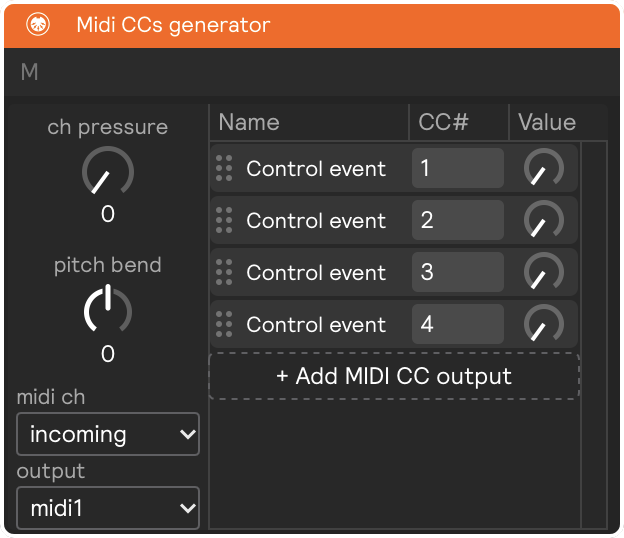
The CC generator allows you to send MIDI control change messages from Sensory Percussion to a MIDI hardware output. This is done by making assignments on each CC knob, which will then transmit the assigned CC message to the selected MIDI hardware output.
MIDI Router
The Midi Router sends Pitch & Scale and Note Controller messages to a MIDI hardware output. This is a somewhat niche, but pretty useful, tool, in that it allows you to sequence notes or send scales out to anything that accepts MIDI. For example, if you wanted to send a C Major Triad arpeggio out a MIDI hardware output, you would:
Create a sequencer, and for step 1 place a MIDI Router with its transpose knob in the default 0 (or C3) position; for step 2 copy/paste or create another Midi Router and set its transpose knob to 4 (or E3); and for step 3 copy/paste or create another Midi Router and set its transpose knob to 7 (or G3).
You can also drag/drop any modulator onto the Note Control parameter of the Midi router's Pitch & Scale panel.
The router passes on whatever MIDI reaches it, whether that's notes from your hits or the messages from a MIDI input, to a MIDI output badge. A MIDI hardware output set to the same badge sends it on to a MIDI device.
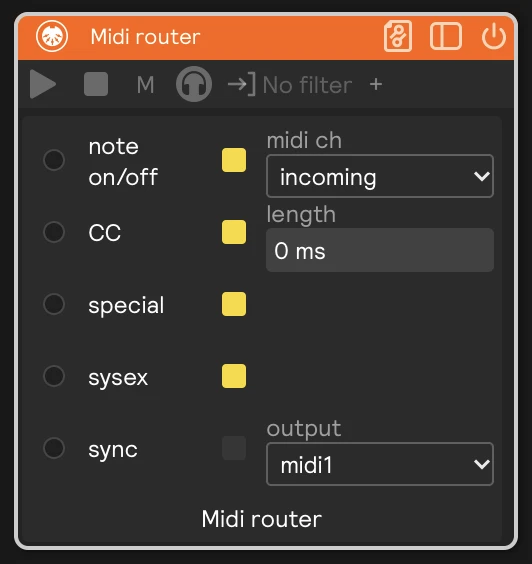
The card has two columns. On the right are the router's settings:
| Control | What it does |
|---|---|
| midi ch | The channel messages go out on. incoming keeps the channel each message arrived on. |
| length | How long each note is held before the router sends its note-off. At 0 the router sends no note-off of its own. Notes are also cut off at the hardware output's Max note len. |
| output | The MIDI output badge (1–16) the messages go to. |
On the left is an activity monitor with one row for each kind of MIDI message. The light at the start of a row flashes when that kind of message reaches the router, and the switch at the end of the row decides whether it's passed on:
| Row | What the switch passes |
|---|---|
| note on/off | Notes. Turning it off stops new notes, but stopping the session still ends the notes the router already started. |
| CC | Control change messages. |
| special | Pitch wheel, polyphonic aftertouch, and channel pressure. |
| sysex | SysEx messages. |
| sync | MIDI clock, and Start, Stop, and Continue, from the router's input. |
Every row except sync starts switched on.
Passing MIDI clock through
Turn on sync to use the router as a MIDI clock thru: the clock from the device on its input drives the device on its output. Don't also send the session's Clock out to the same badge, or that device receives two clocks.