Instruments
Instruments are Sunhouse presets encapsulated into drag-and-droppable and hot-swappable modules. They are a powerful way to quickly build out your working set with sounds from the Sunhouse Library.
For now, instruments are focused on the drumset and its components, but we have plans to expand to other types of instruments in the future.
At this time only Sunhouse presets from the library can be instruments. We plan to let you create your own instruments in a future update, so stay tuned!
You can tell if a module is an instrument by the tags in the header of the layer card: drumset, snare, rack tom, floor tom, kick, hi-hat, ride, and crash. These layers will also have an icon of the instrument instead of the normal module icon.
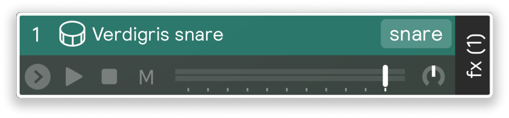
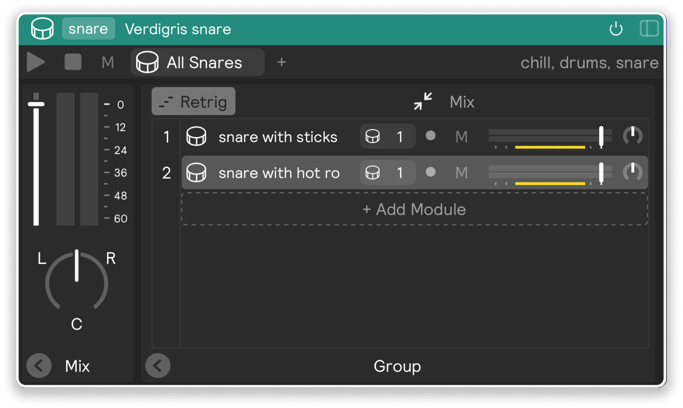
So what is the benefit of Instruments? Why not just build your set with presets like you always have? For one, Instruments are designed to be fully encapsulated and moveable. They don't rely on send effects or cross-control assignments to get their sound, so you can drag and drop them into your set and they will sound exactly like the preset in the library. This makes them a great way to quickly build out your set with presets from the library.
Dragging and Dropping Instruments
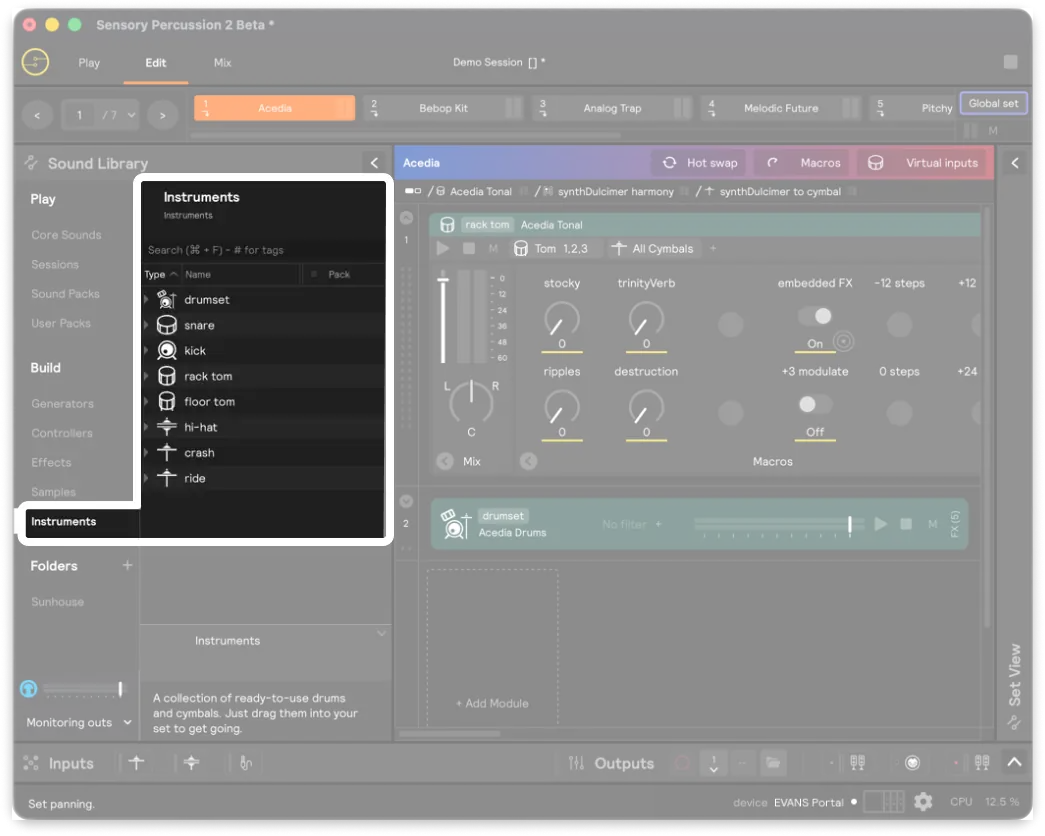
There are two ways to drag and drop Instruments into your set. You can drop the instrument directly onto your workspace in the Edit View, or you can drop it onto your virtual inputs. These have two different results.
If you drag an instrument into the layer workspace, it will be added as a layer with the default input filter for that instrument (see below). If you drag an instrument onto your virtual inputs, the input filter will change to match the virtual input. So, for example, if you drag a Rack Tom Instrument onto your Snare 1 virtual input, the input filter for the Rack Tom Instrument will be Snare 1, allowing that rack tom instrument to be played when you play the drum in your setup connected to Snare 1.
By default, instruments dragged from the library will have the following input filters:
- Kick -
All Kicks - Snare -
All Snares - Rack Tom -
Tom 1 - Floor Tom -
Tom 2 - Hi-Hat -
All Hi-Hats - Ride -
Cymbal 1 - Crash -
Cymbal 2
Hot Swapping Instruments
The other way to work with instruments is to hot swap them in and out of your set. This is a great way to quickly audition different instruments from the library while you are playing or editing. You can hot swap from either the Play View or the Edit View. Check out our Hot Swap documentation for more details on how to do this.