Macros Panel
The Macros panel lets you add knobs, buttons, or sliders that can be assigned to almost any parameter further down the layer. To add a Macro, click the plus button in the Macros panel and feel free to name it.
Macros are themselves parameters, so they respond to the same gestures as any other control and carry the same right-click options, including the live-value items.
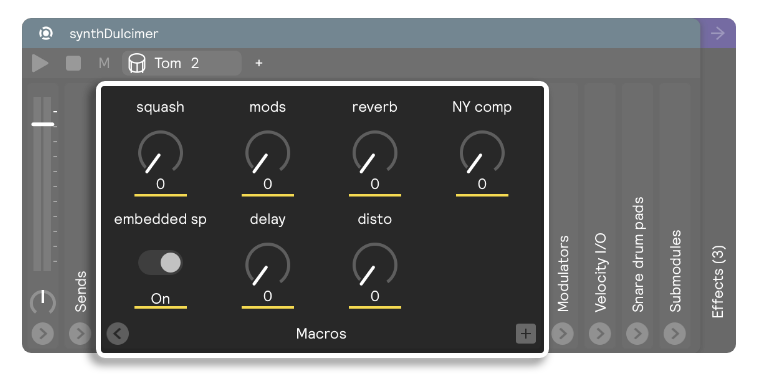
There are four types of macros you can create: Knobs, Sliders, Toggles, and Triggers. A new Macro defaults to a knob, but you can easily change it by right-clicking the macro and choosing a new type from the macro type menu.
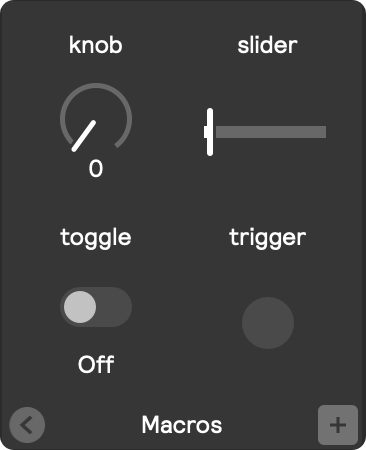
- Knob
- Slider
- Toggle
- Trigger

Knobs are the default Macro type and are used for controlling continuous parameters.

Sliders can also be used for controlling continuous parameters.

Toggle macros are button with two states. You can use them to turn a parameter on/off or to switch between two states. For example, to defined levels of a reverb parameter.

The trigger macro is like a button on a game controller. It sends a single trigger message that can be assigned to buttons like "next" on a sequencer or the stop button on a sampler.
Connecting Macros to parameters
There are two ways to connect a Macro:
-
After creating the Macro, you can simply drag and drop it onto the parameter you want to connect it to. If the drag target it a bit far away, you can achieve the same effect by right-clicking the Macro and finding your target under the assign menu.
-
You can connect the Macro from your target. Simply right-click the parameter you want to control and find your Macro under the assign -> macros menu.