Hi-hat Sensor Inputs
After choosing a Hi-hat sensor type from the add menu in the hardware inputs panel, you'll see a small form to fill out with some information about the Hi-hat you want to add. Some of this info will help us set the right default settings for that cymbal type, and some of the info is just for you to keep your inputs organized.
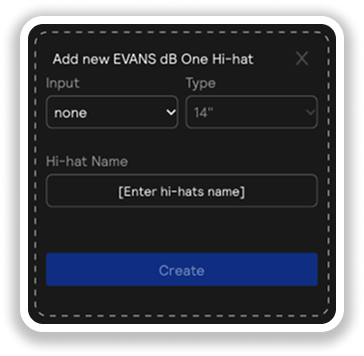
Sensor Input Parameters
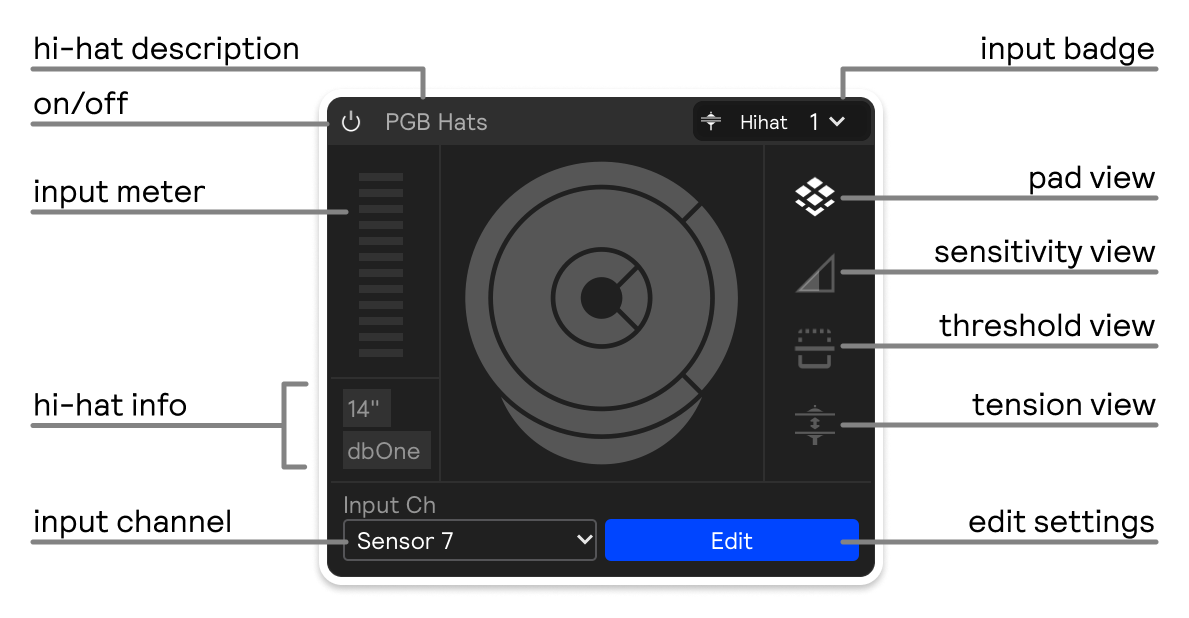
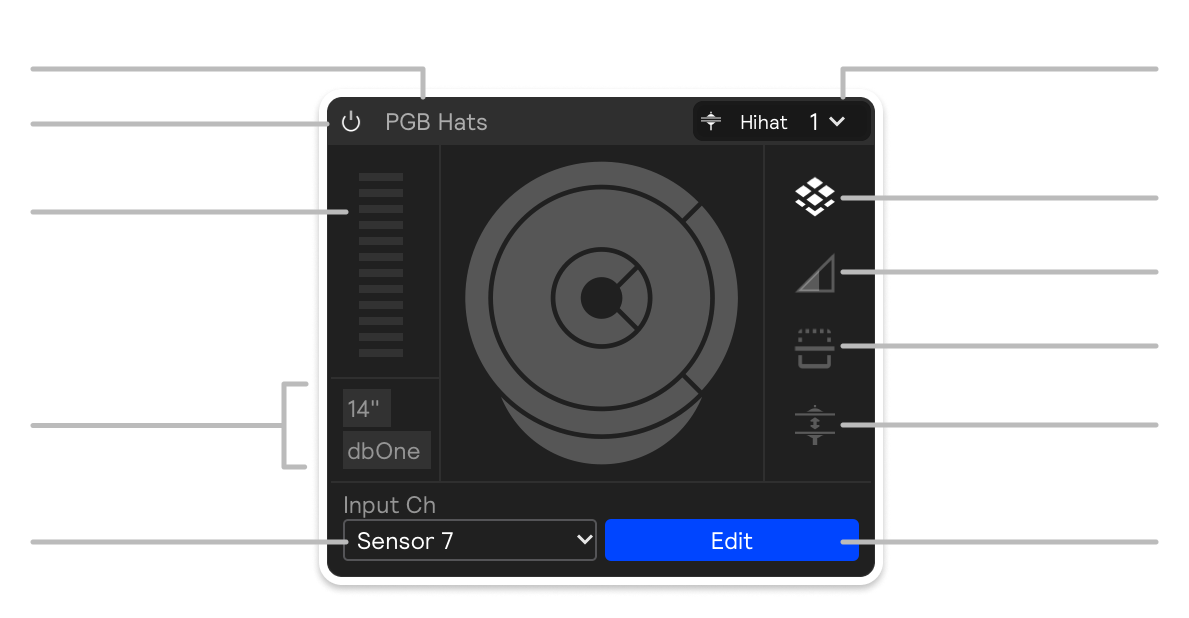
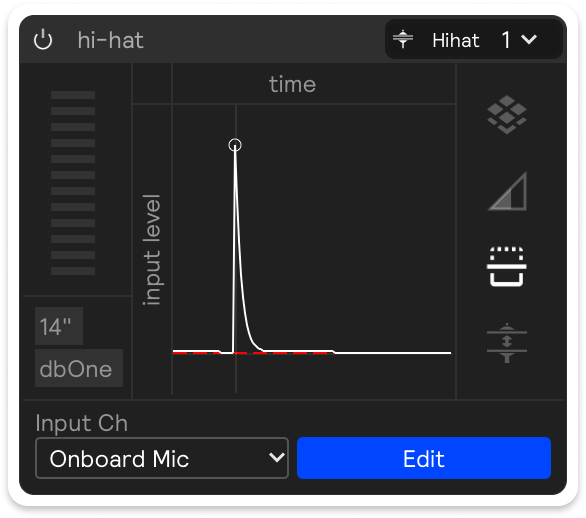
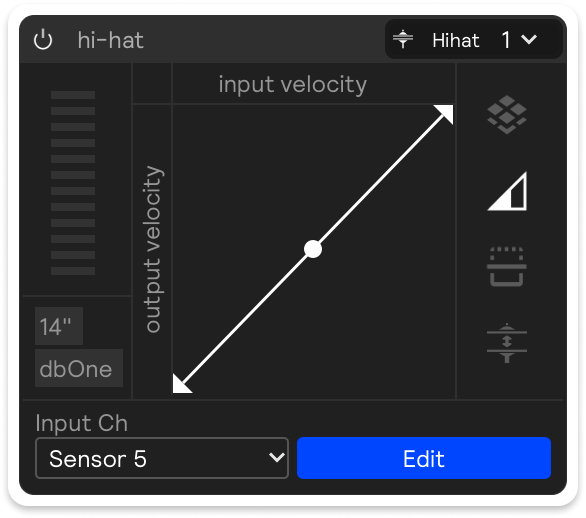
On the right side of the sensor input, you can toggle between Pads, Sensitivity, Threshold, and Tension views:
- Pads
- Sensitivity
- Threshold
- Tension
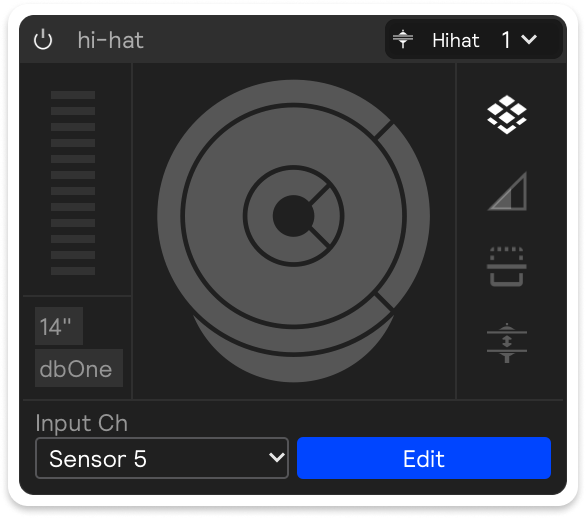
Pedal Tension Editor
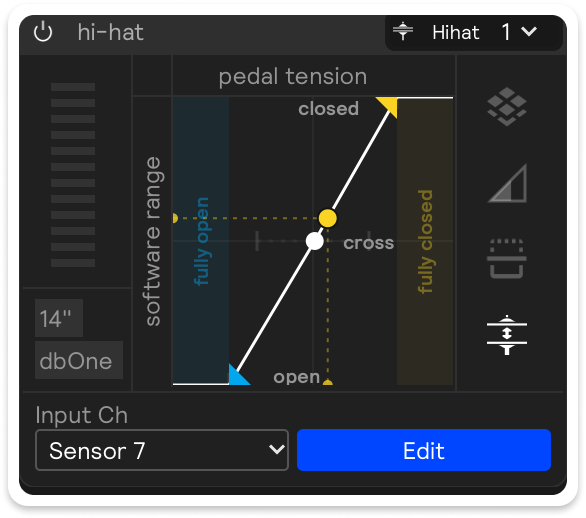
The pedal tension editor maps how far your hi-hat is squeezed into the open/closed value the software plays with. Use this editor to align the physical feel of your hi-hat with the software's response. You can adjust the curve to make the hi-hat feel more or less sensitive to your pedal movements.
- The horizontal axis is pedal tension — the raw amount of squeeze coming from your hi-hat pedal, from fully released on the left to fully pressed on the right.
- The vertical axis is the software range — the value sent on to the rest of the app, from open at the bottom to closed at the top.
A live dot rides the curve to show the current incoming tension and where it lands in the software range.
Open control
The tension threshold below which the hi-hat is considered fully open. Anything to the left of this threshold will be treated as fully open, and anything to the right will be treated as partially or fully closed.
Cross control
The crossover -- the tension that maps to the middle of the software range. Move it to push the crossover closer to open or closed.
Closed control
The tension threshold above which the hi-hat is considered fully closed. Anything to the right of this threshold will be treated as fully closed, and anything to the left will be treated as partially or fully open.