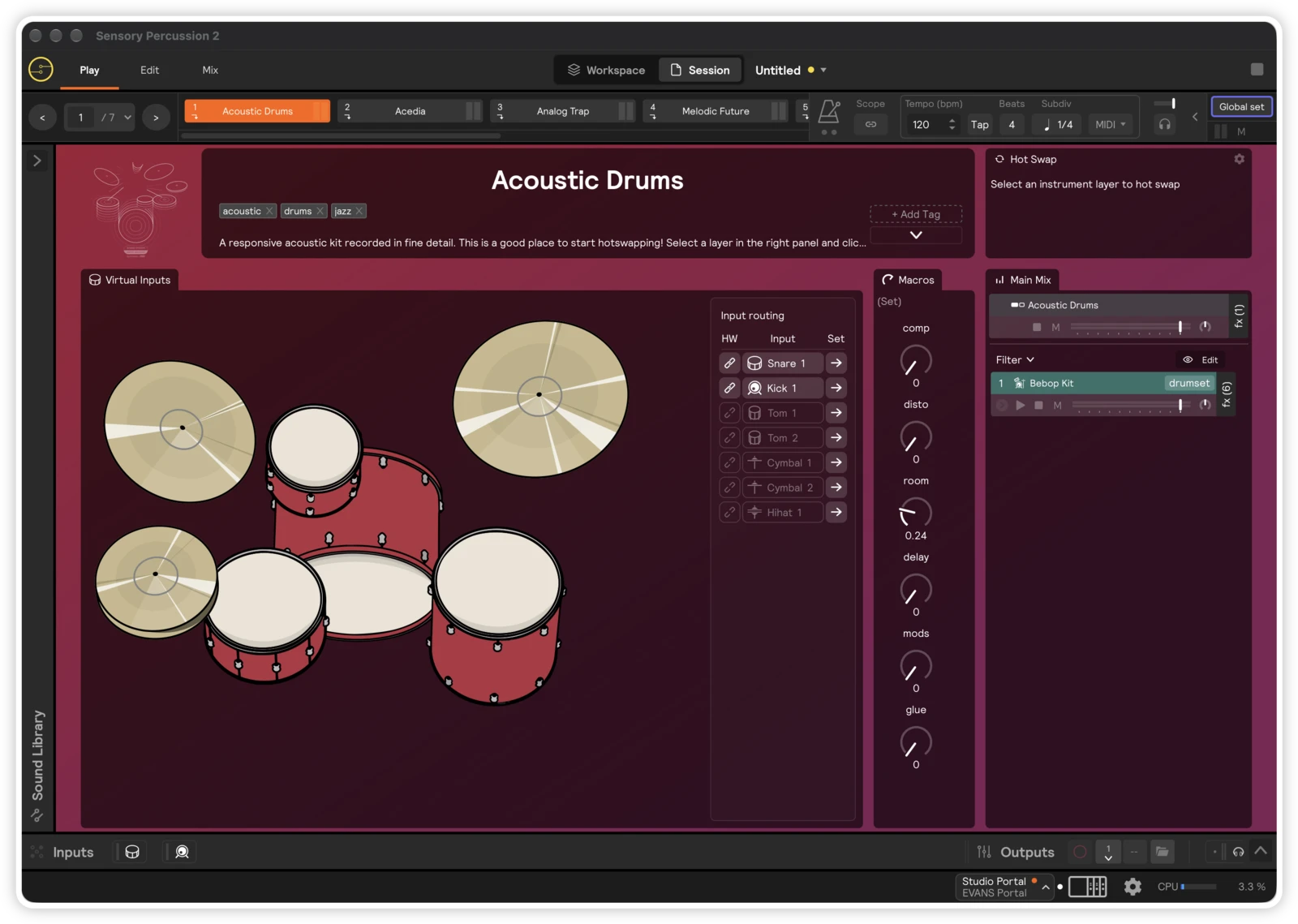
Getting Started in the Software
The first time you open Sensory Percussion, you'll be asked to log-in to the software. Use the email & password you made when you registered the software in the last step. If you forgot your password, you can reset it here.
After you log in, a short guided setup walks you through four steps. You can leave it at any time with Skip guided setup and come back to any of these settings later.
1. Audio settings
Connect your EVANS Portal and switch it on. Sensory Percussion detects it automatically, picks recommended settings, and shows the Portal Audio Settings page. If your Portal isn't connected yet, the setup asks you to connect it first, or lets you choose a different audio device.
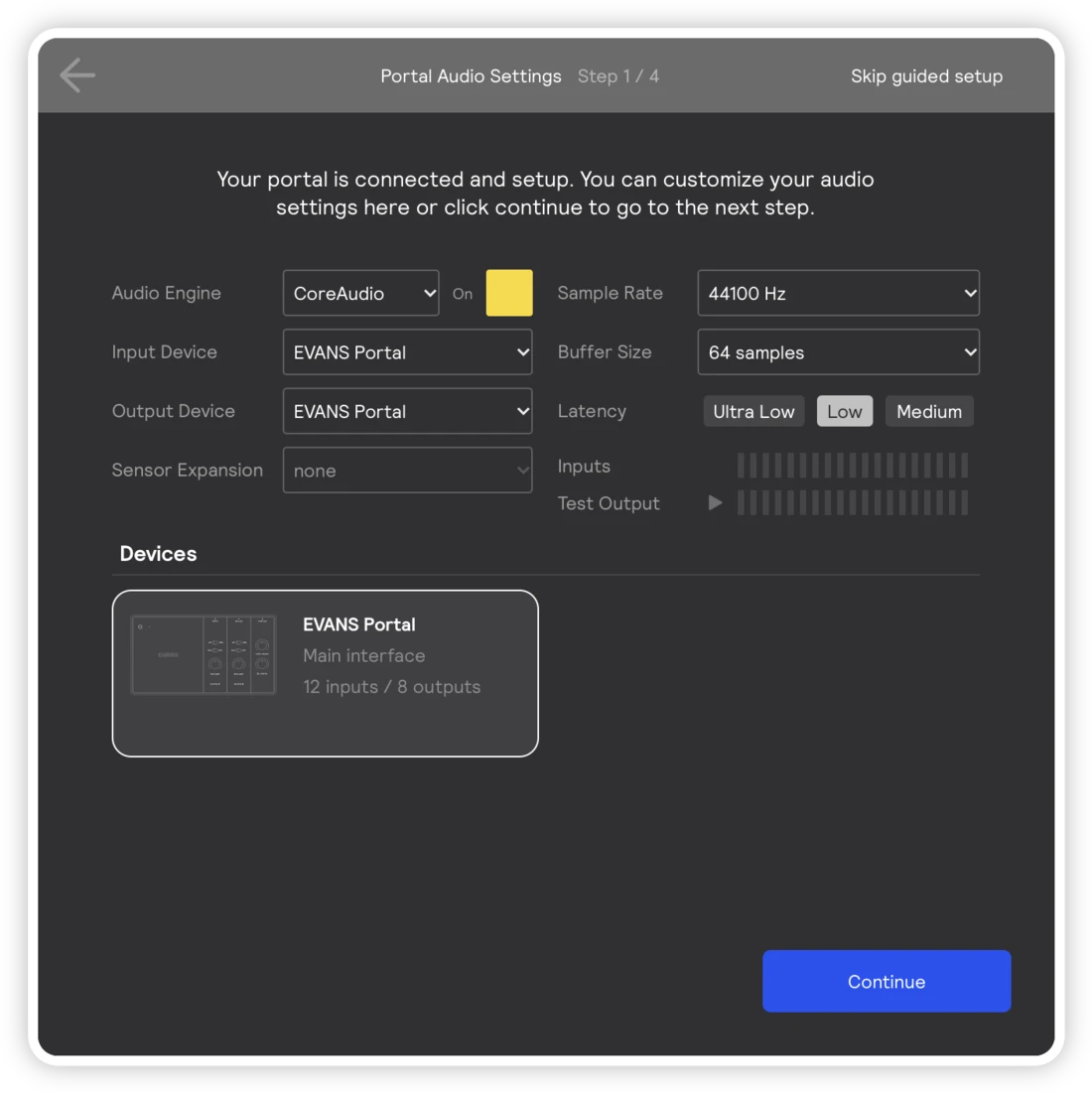
The recommended settings work for most setups, so you can just click Continue. To change something, pick a different Sample Rate, Buffer Size, or Latency. The Inputs and Test Output meters show your signal levels. If you have a second Portal, you can use it as a sensor expansion for seven more sensor inputs.
You can change all of this later in Settings → Audio: click the gear icon at the bottom right of the window, or press ⌘ + ,. That's also where you can turn individual input and output channels on or off.
2. Set up your hardware
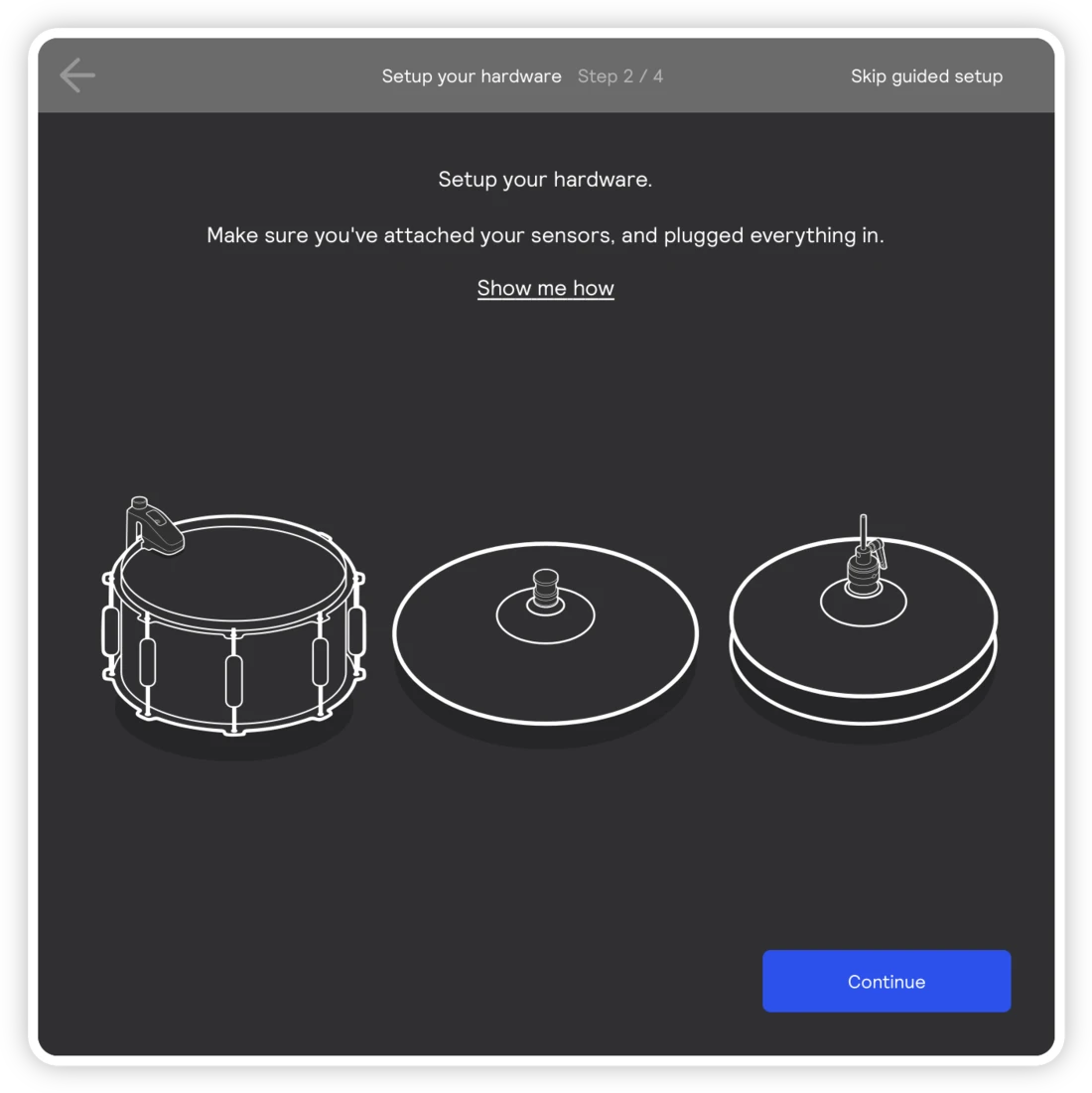
Make sure your sensors are attached and everything is plugged in. Click Show me how for a reminder, or see Setting up Your Gear.
3. Set up your inputs
Add a hardware input for each piece of gear you'll play. These represent your physical setup.
- Sensor inputs: Snare, Rack Tom, Floor Tom, Kick, Ride, Crash, and Hi-hat. Click one, choose the Portal input it's plugged into, fill in a few details like its size and name, and click Create.
- More inputs: an eKit, a MIDI device, Grid Pads, an Analog Input like a vocal mic, or a Drum Trigger.
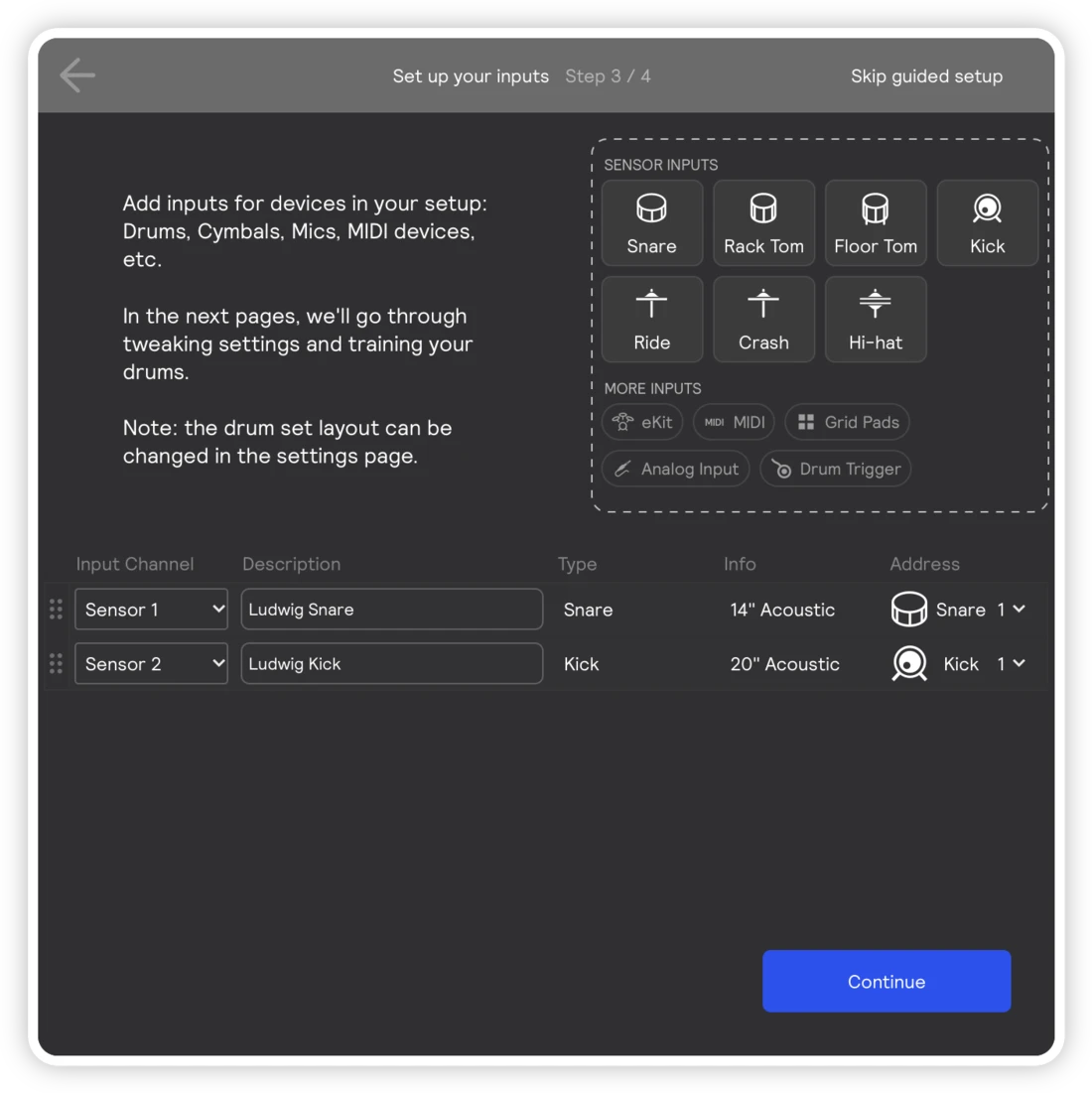
You can add more inputs later from the hardware panel.
4. Train your drums
Next, you teach Sensory Percussion how your drums sound. A short tour shows you around the training page the first time you see it.
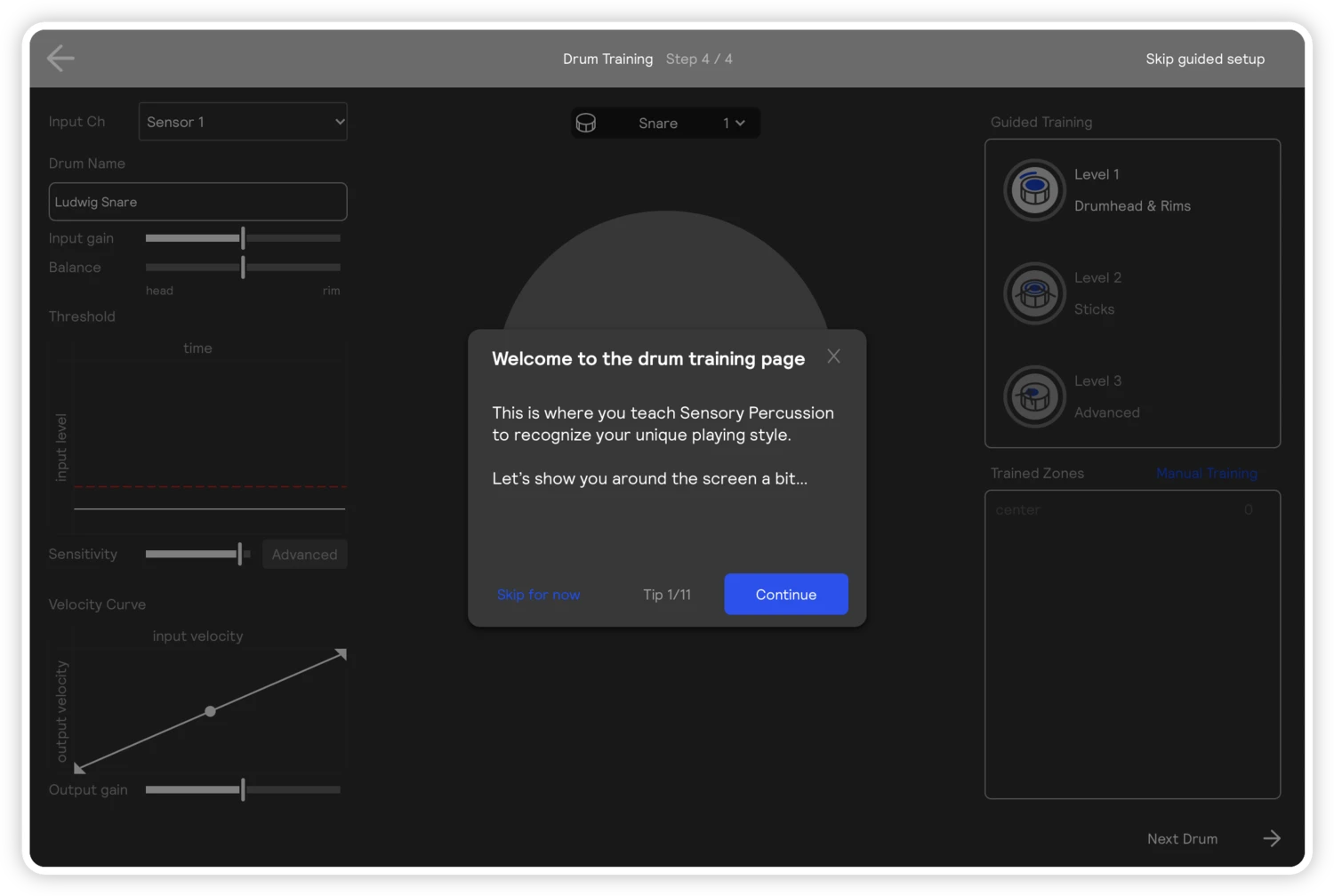
Sound zones are grouped into three levels, from most common to least. Start with Level 1 (drumhead and rims), and add Levels 2 and 3 later if you want more zones. Train only the zones you'll actually use. Click Next Drum to move on to your next drum.
Cymbals and hi-hats don't need training: they use a model that's already trained. See Drum Training for every setting and more tips, and How Sensory Percussion Works for why training matters.
Start playing
When you finish the guided setup for the first time, the Demo Session opens with several sets to get you started. Click the sets at the top of the window to switch sounds. Then build your own with Build Your First Set, or explore the Software Overview.