Settings Window
The settings window is where you can configure various aspects of your audio interface, MIDI connections, and other application-level parameters. You can reach this page by clicking the gear icon on the bottom right of the app or by selecting which settings window you'd like to open from the Sensory Percussion menu on Mac or File on Windows.
There are also some keyboard shortcuts you can use::
- Audio settings: ⌘/ctrl + ,
- MIDI devices: ⌘/ctrl + .
- Keyboard shortcuts: ⌘/ctrl + K
Audio Settings
The Audio Settings page is where you can configure various parameters of your audio interface. If you're using the EVANS Portal, you will see a custom audio settings page with an image of the Portal and the ability to choose Recommended or Custom settings. Sensory Percussion has recommended settings for active channels, sample rate, and buffer size. Although the recommended buffer size is 128 samples, if your machine is fast enough, lowering it to 64 samples will improve performance.
The input and output VU meters are visual indicators of your signal levels. Clicking the play button to the left of the output meter will play a test tone.
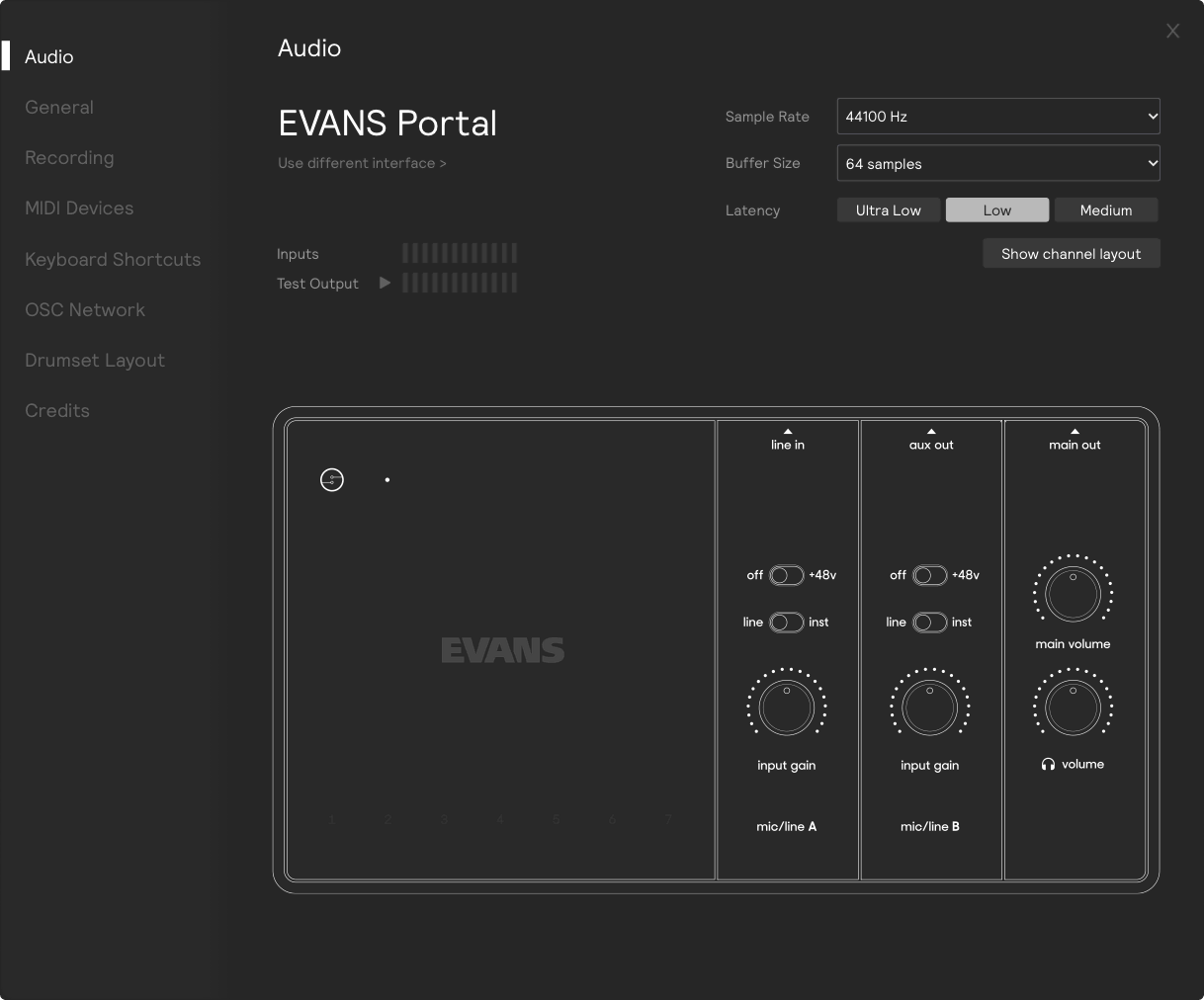
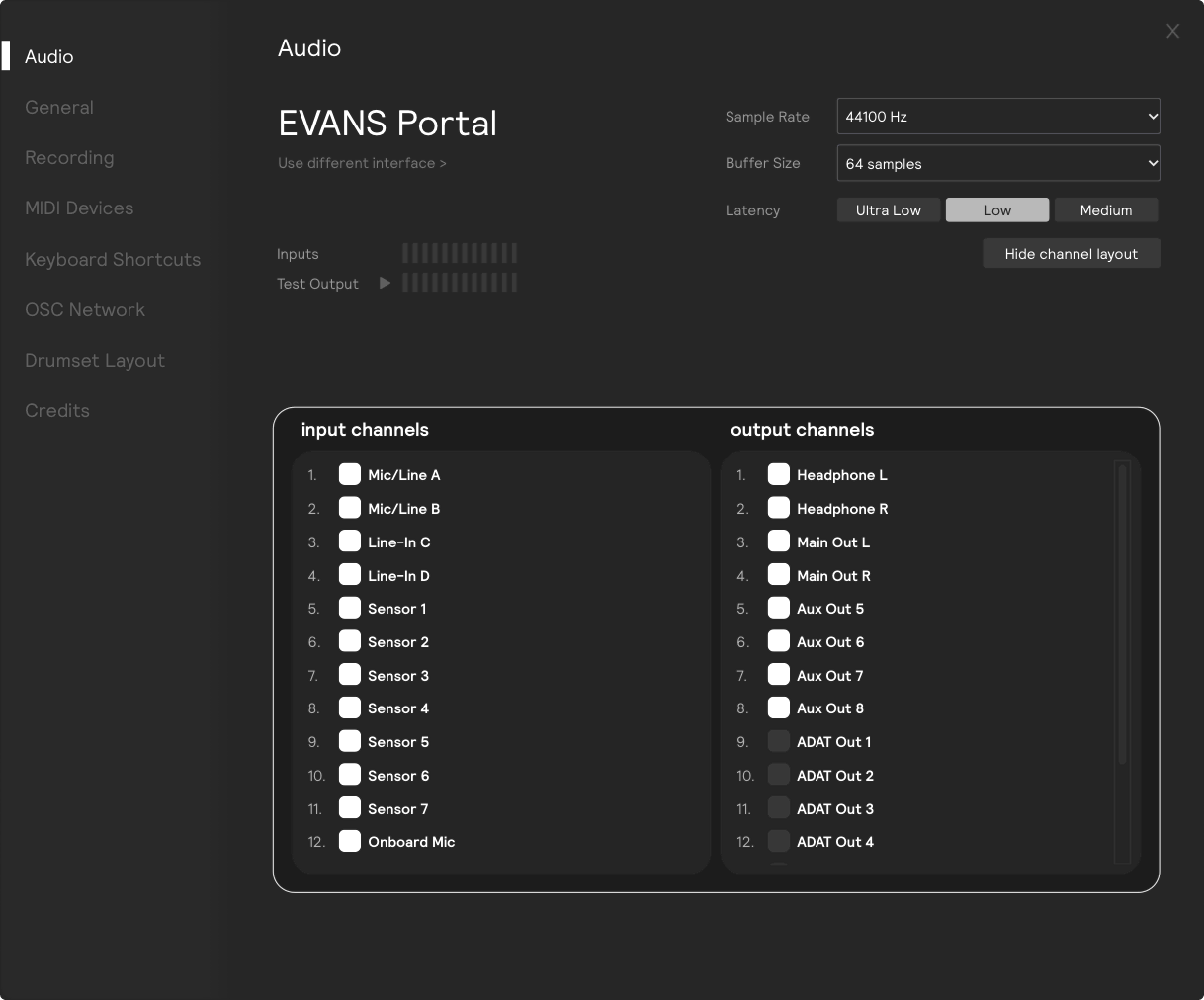
Clicking the Show channel layout button will show you the 12 input and 16 output channels of the Portal, allowing you to activate/deactivate however you'd like:
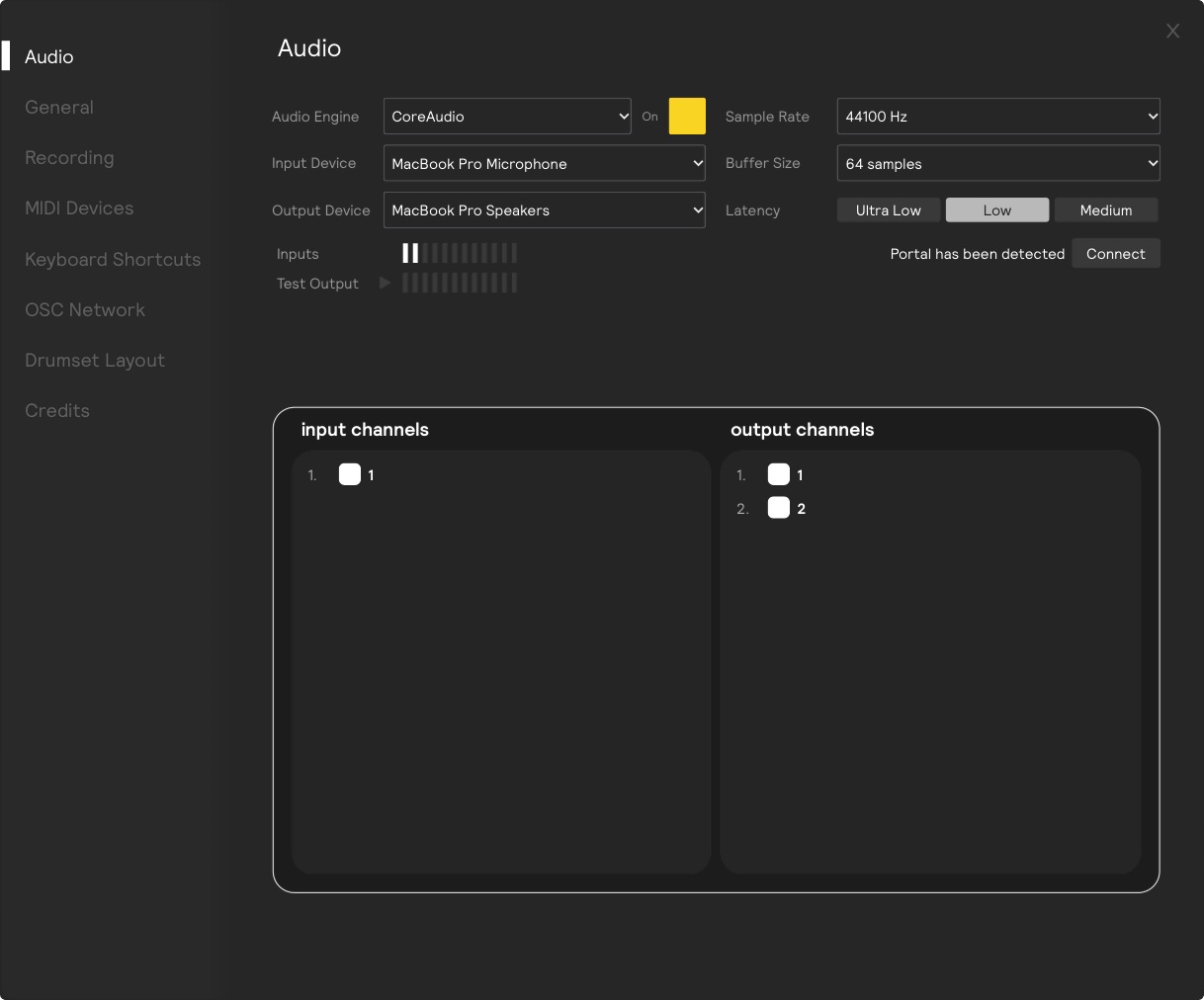
If you're using any audio interface other than the EVANS Portal, your audio settings page will look like this, with the channel layout open by default:
General Settings
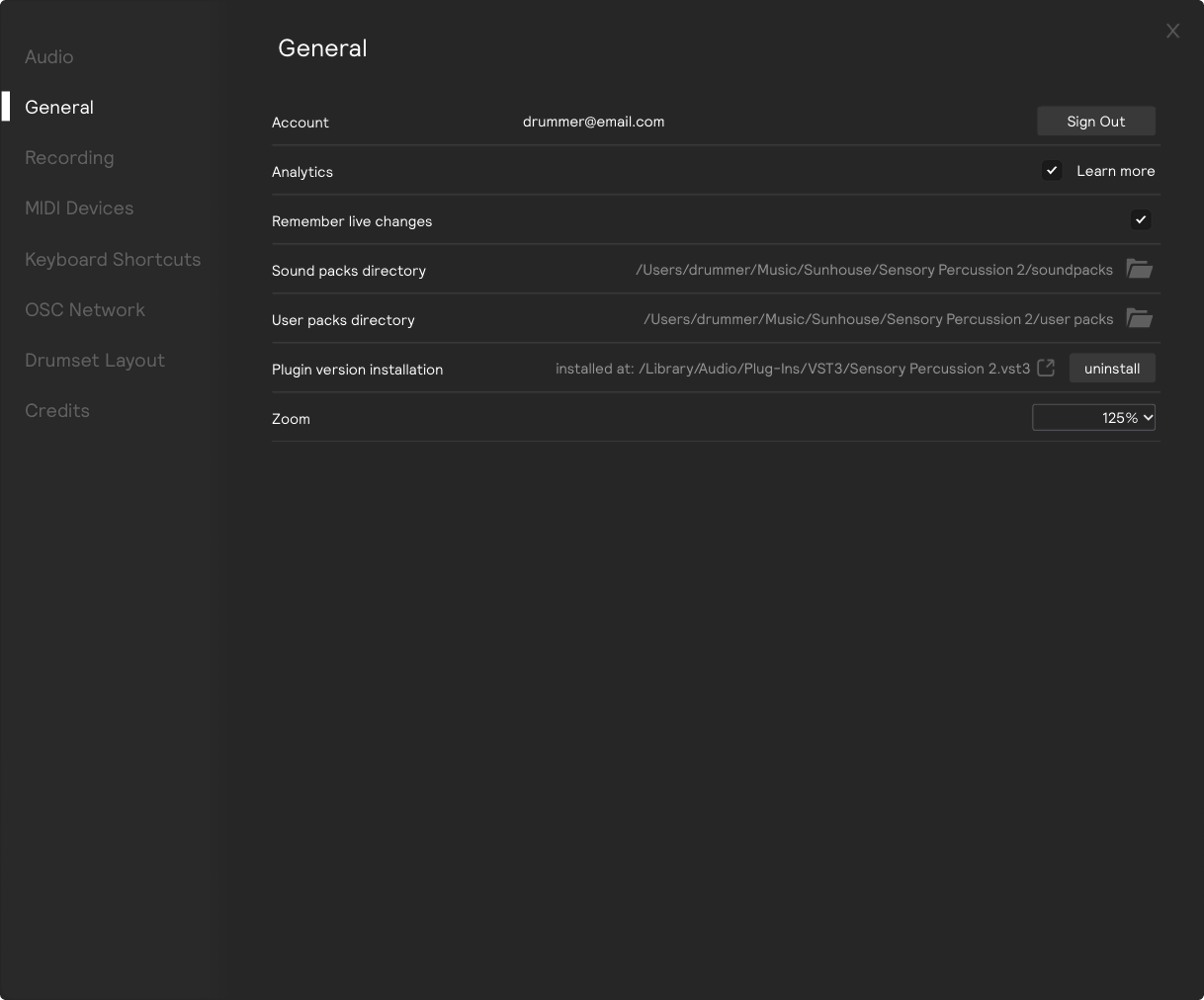
This page allows you to view the email your Sunhouse account is registered to and sign in/out of this account.
Account settings
See which email address your Sunhouse account is registered to and sign in/out of this account.
Analytics settings
You can also opt in/out of our anonymous analytics collections. This data helps us improve the Sensory Percussion software and make it more stable. We don't collect any personal information, just data about how the software is being used that can't be traced to any individual user. Read more about our data collection practices here.
Remember live changes
This sets what happens to values your playing moves. With it on — the default — the values the engine is currently using are written into your session when you save. With it off, only the values you set by hand are saved, and live movement is discarded unless you commit it deliberately.
Individual modules can override this setting for themselves. See Parameters for more information.
Sound packs directory
Choose which folder Sunhouse sound packs are stored in. This is useful if you have a custom folder structure for your sound packs or want to store them on an external drive.
User packs directory
Choose which folder your own packs are stored in. This defaults to Music/Sunhouse/Sensory Percussion 2/user packs, where exported sound packs are installed.
Plugin installation
Manage the installation of the Sensory Percussion 2 VST plugin here. If you're having trouble with the plugin, you can try reinstalling it from this page.
Zoom
You can adjust the zoom level of the Sensory Percussion app window here. This is useful if you're using a high-resolution display and the app is too small to see comfortably. You can scale from 50% to 200%.
Recording Settings
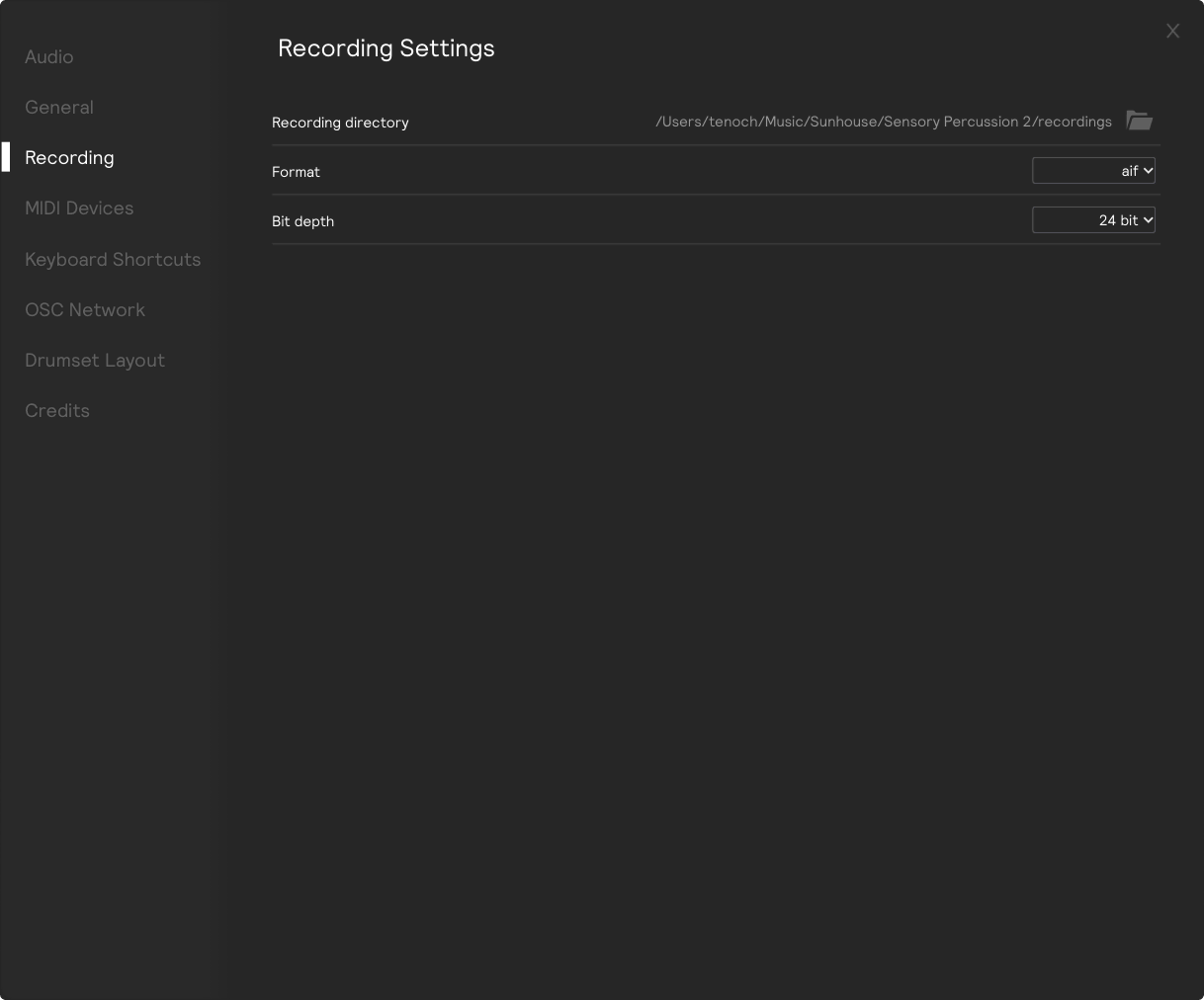
These settings allow you to configure the recording options for your session. You can choose the recording format (WAV, AIFF, or FLAC), the sample rate, and the bit depth. You can also choose the folder where your recordings are saved.
MIDI Devices
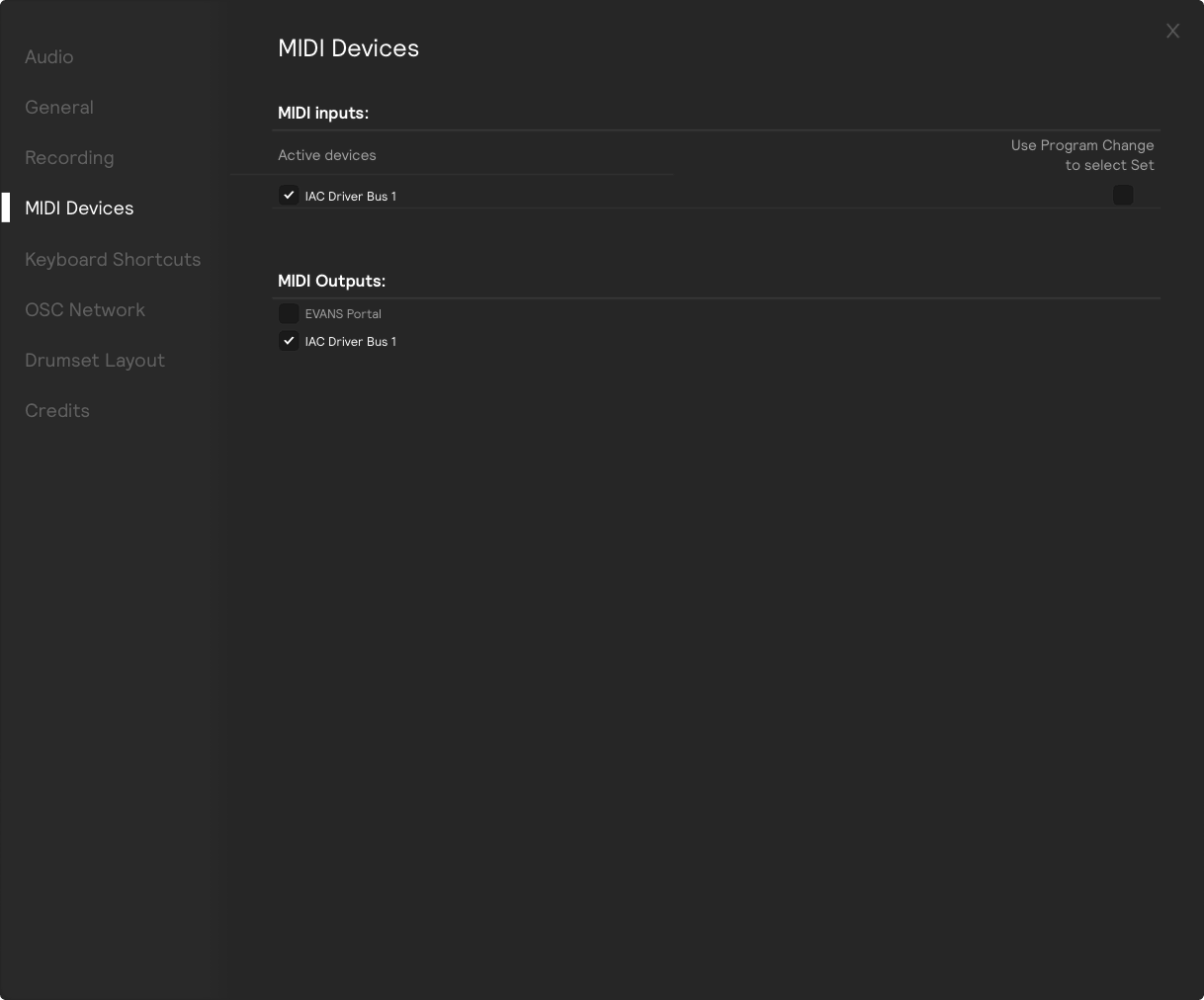
On this page, you can view and activate/deactivate MIDI inputs and outputs. If you're using an interface that has MIDI in/out, it will appear in these dropdowns, as well as any virtual MIDI ports that are active on your computer. For more information on using MIDI with Sensory Percussion, check out our how-to articles on receiving MIDI in and sending MIDI out.
Keyboard Shortcuts
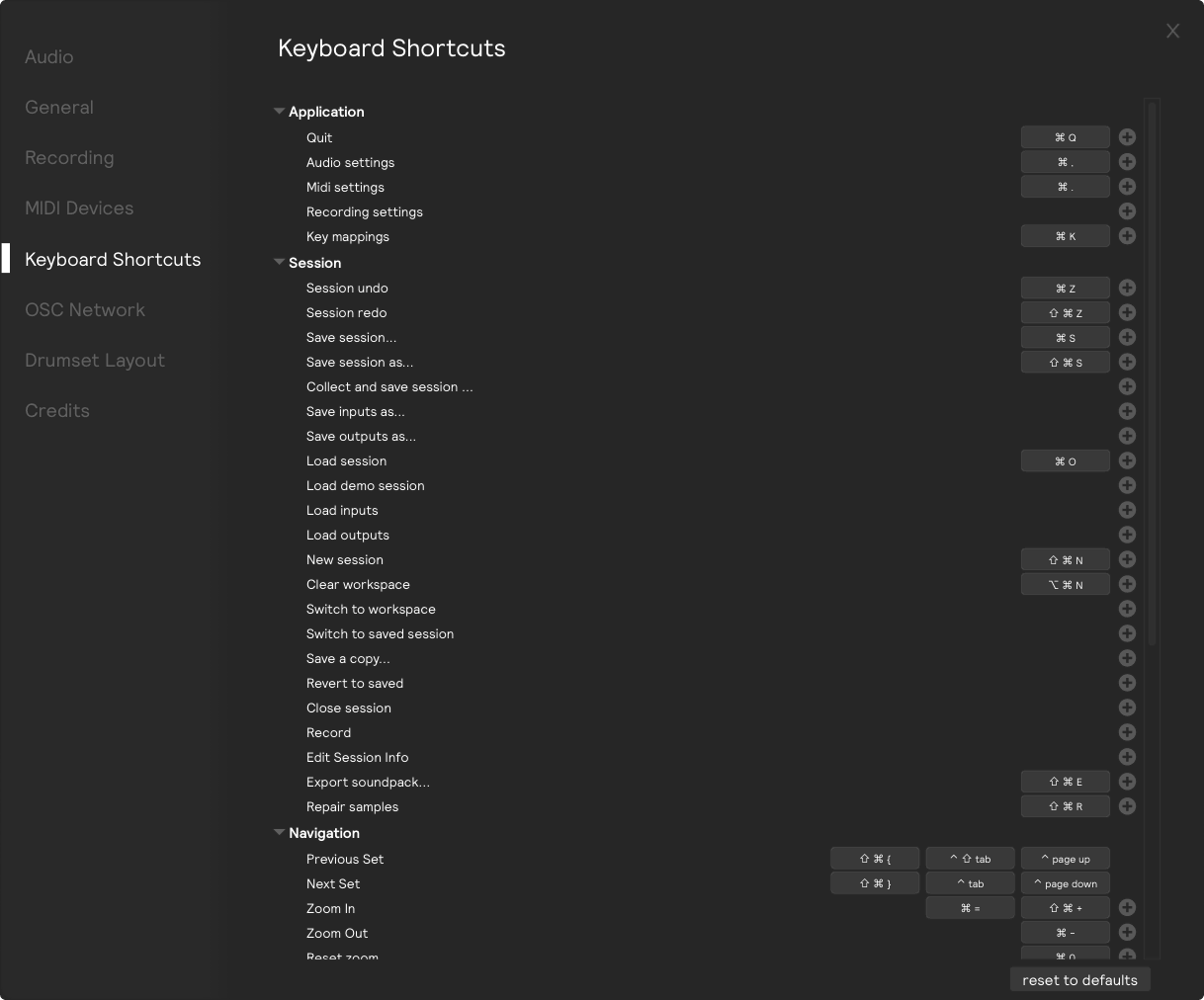
On this page, you can view and edit all keyboard shortcuts for the Sensory Percussion app. Click on any of the existing default shortcuts to change/remove them. You can also add shortcuts that don't exist by default.
OSC Network
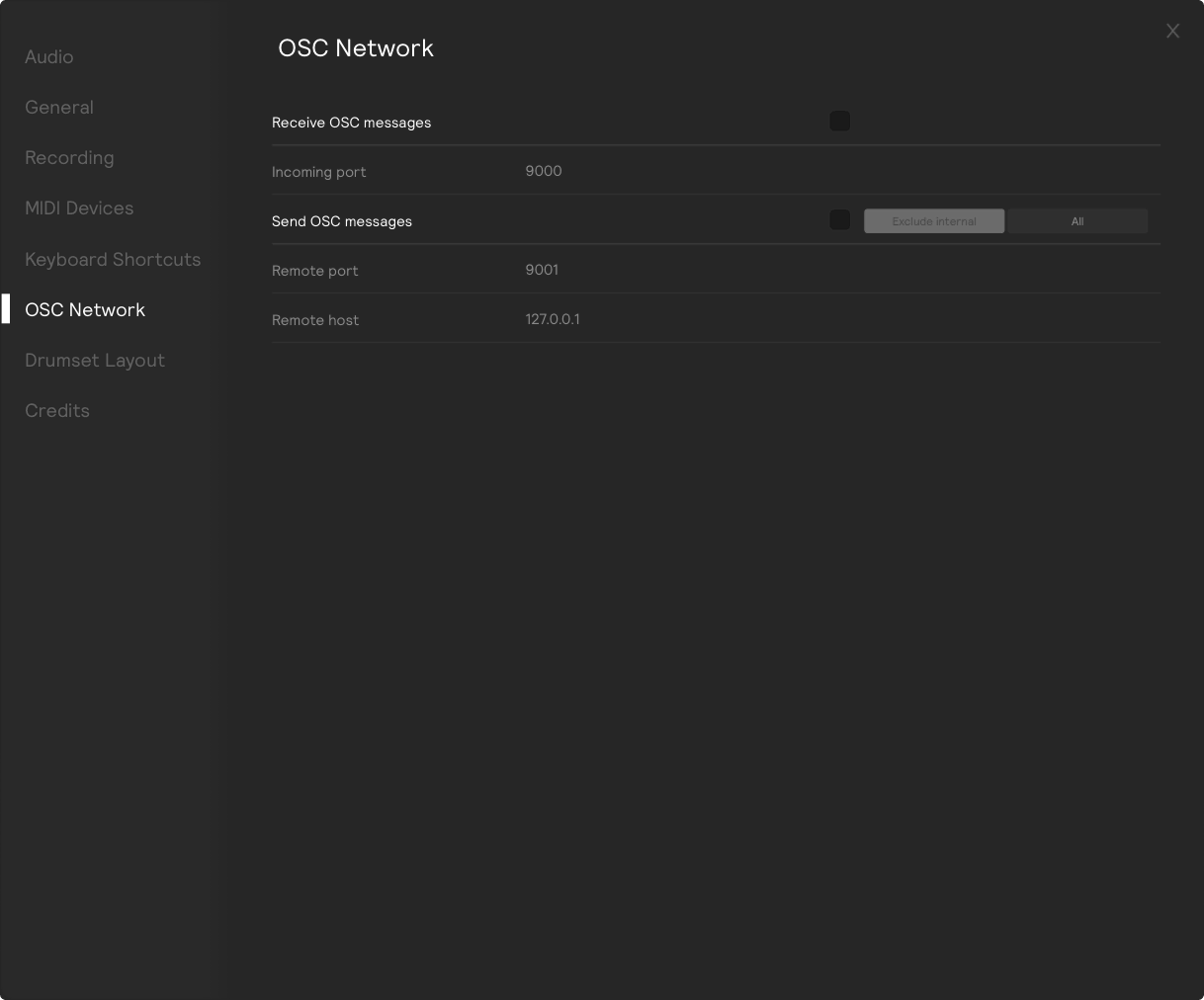
This page connects Sensory Percussion to other software over OSC. It can receive OSC, letting another app trigger and control it, and send OSC, broadcasting what it's doing so another app can follow along. The two directions are independent, so you can turn on either, both, or neither. Both are off by default.
Receive
Turn on Receive OSC messages to listen for incoming OSC, and set Incoming port to the port to listen on. The port defaults to 9000 and has to be between 1 and 65535.
Send
Turn on Send OSC messages to broadcast out to another app or machine.
Remote host is where to send — an IP address or hostname, defaulting to 127.0.0.1, which is this machine. Remote port is the port to send to, defaulting to 9001, with the same 1–65535 rule.
The filter beside the toggle sets how much traffic goes out:
Exclude internalsends only your hardware and hit traffic — the hits and sensor data coming off your controller. This is the default, and it's what nearly everyone wants: it's the setting for driving another app from your playing.Allalso includes the app's internal parameter traffic, so every knob move and internal update goes out too. It's a firehose meant for debugging and deep integration.
Drumset Layout
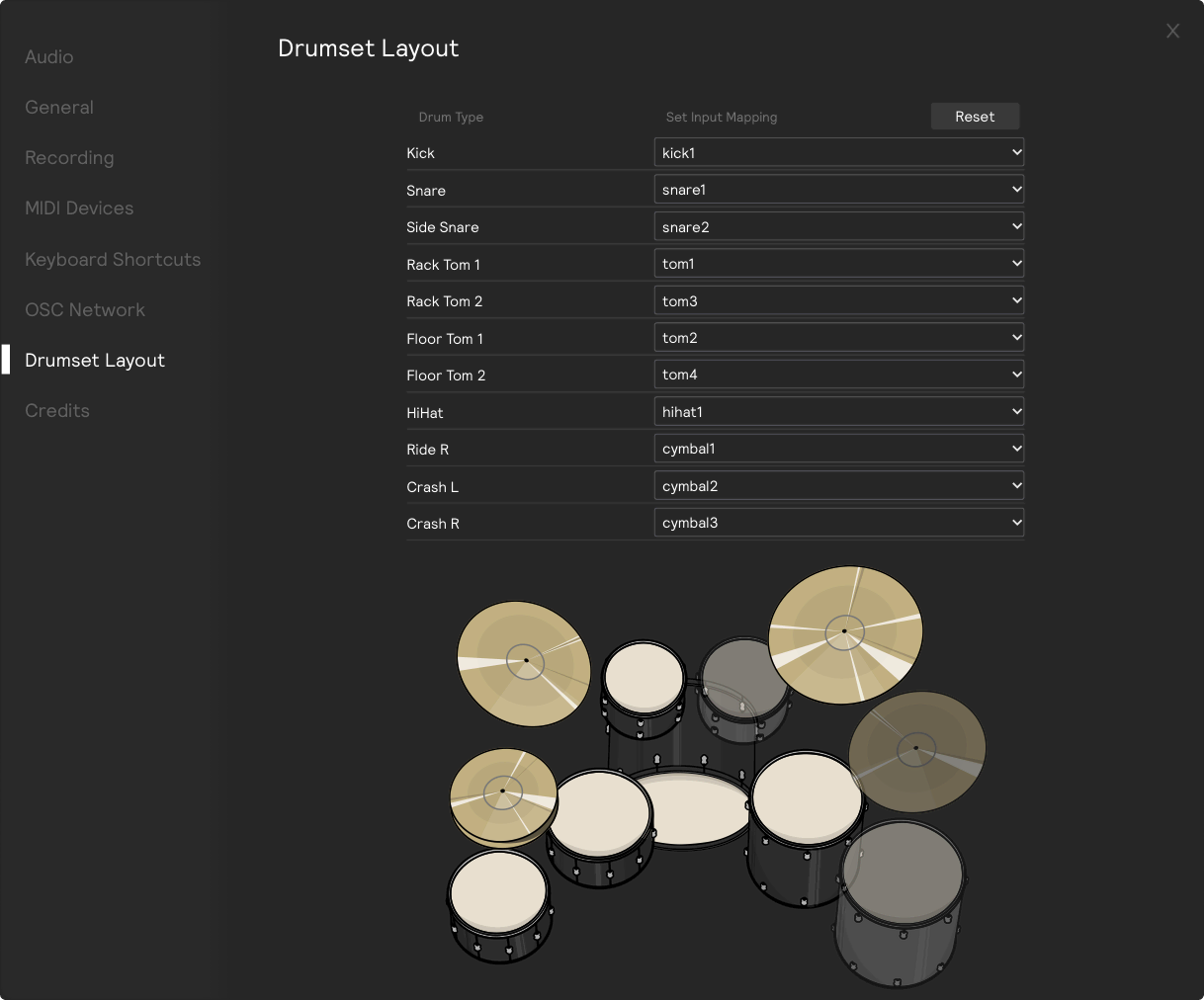
Configure how you arrange your inputs in Sensory Percussion 2. This not only customizes how the drumset appears in the Play view, but also ensures compatibility with any library sets you play.
For example, if you are only using one tom, is it a floor tom or a rack tom? If you are using two cymbals, are they a ride and crash cymbal or two crashes? Establishing the role you intend for each input allows Sensory Percussion to remap the input filters of anything you pull from the library to match your physical setup.