How To Fix Broken Samples Links
If samples in your session were moved, renamed, or deleted on disk, the samplers that use them can't find them anymore. The Relink Samples window finds those broken links and repairs them by searching a folder you choose.
1. Open Relink Samples
- To check the whole session, choose Edit → Repair samples (⌘ + ⇧ + R).
- To check just some sets, select them in the set switcher, right-click, and choose Repair samples.
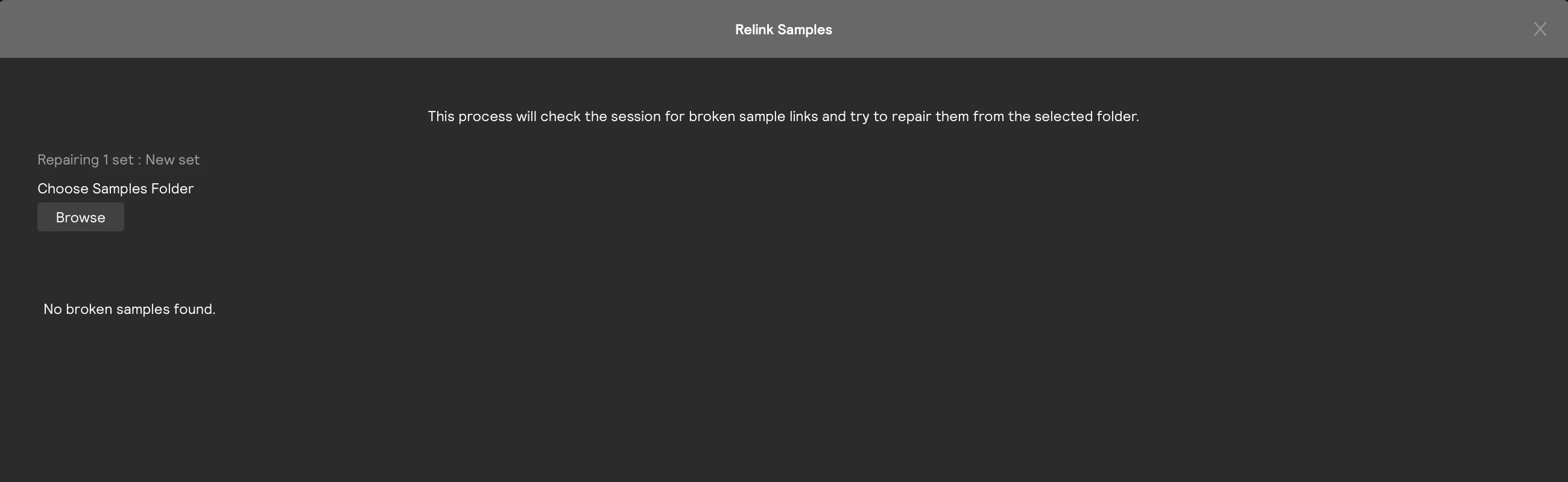
The window checks for broken links as soon as it opens. The Missing tab lists every sample the session can't find, so you can see what needs fixing before you pick a folder. If nothing is broken, it says so and there's nothing to do.
2. Scan a folder
Click Browse and choose one or more folders where your samples are now. Sensory Percussion searches them, including their subfolders, for audio files whose names match the missing samples. Click Cancel to stop a scan that's taking too long.
The results are grouped into tabs:
| Tab | What's in it |
|---|---|
| Matched | Missing samples that were found, with the folder each was found in. When several files match, the one whose path best matches the original location is used. |
| Not found | Missing samples with no match in the folders you scanned. Scan another folder: the results refresh with every scan. |
| Warnings | Files that matched by name but can't be used, because this computer can't play their format or Sensory Percussion isn't allowed to read them. |
| Hidden | Hidden folders that were skipped during the scan. |
3. Apply
Click Apply to relink the matched samples. It only appears once at least one match was found. The window closes, and the new links are saved with the session the next time you save. You can undo it like any other change.
To keep a session's samples from going missing in the first place, keep them in a session folder: File → Collect Samples into Session Folder copies every sample the session uses next to it.