Instruments
An instrument is a whole playable object, like a snare, a kit, or a MIDI kit, saved so you can drop it into any set and swap it for another. Instruments are a powerful way to quickly build out your set with sounds from the Sunhouse library, from sound packs, or from your own saved instruments. For presets in general, see the Presets page.
Every instrument has a role: drumset, snare, kick, rack tom, floor tom, hi-hat, crash, ride, hand drum, or MIDI kit. You can tell a module is an instrument by its role tag in the header of the layer card, and by the instrument icon in place of the normal module icon.
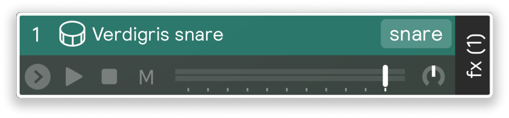
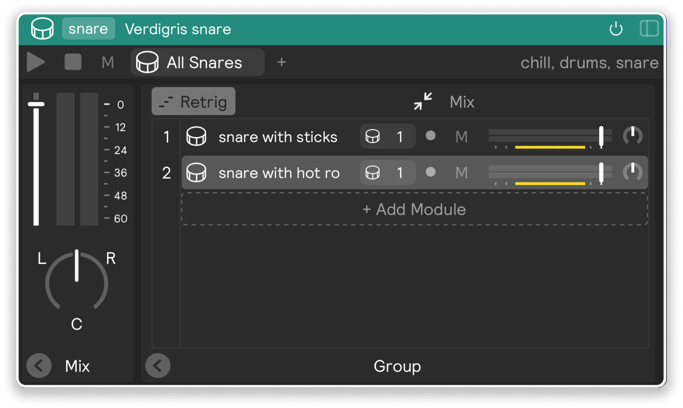
So why use instruments instead of building your set from presets? Instruments are fully encapsulated and movable. They don't rely on send effects or cross-control assignments to get their sound, so they sound exactly the same wherever you drop them.
Adding instruments
There are several ways to get an instrument into your set:
- Drag it from the library. The Instruments tab has a folder per role. See Dragging and dropping below.
- Click + on the Virtual Inputs panel. Hover an empty drum in the kit graphic, or the kit itself, and click + to pick an instrument for it. See Adding instruments to an input.
- Use + Add Module. On an empty layer, + Add Module → Instruments lists every role, with its instruments grouped by library.
- Swap one in place from a module's Instruments menu or with Hot Swap. Both keep the module's input wiring.
Dragging and dropping
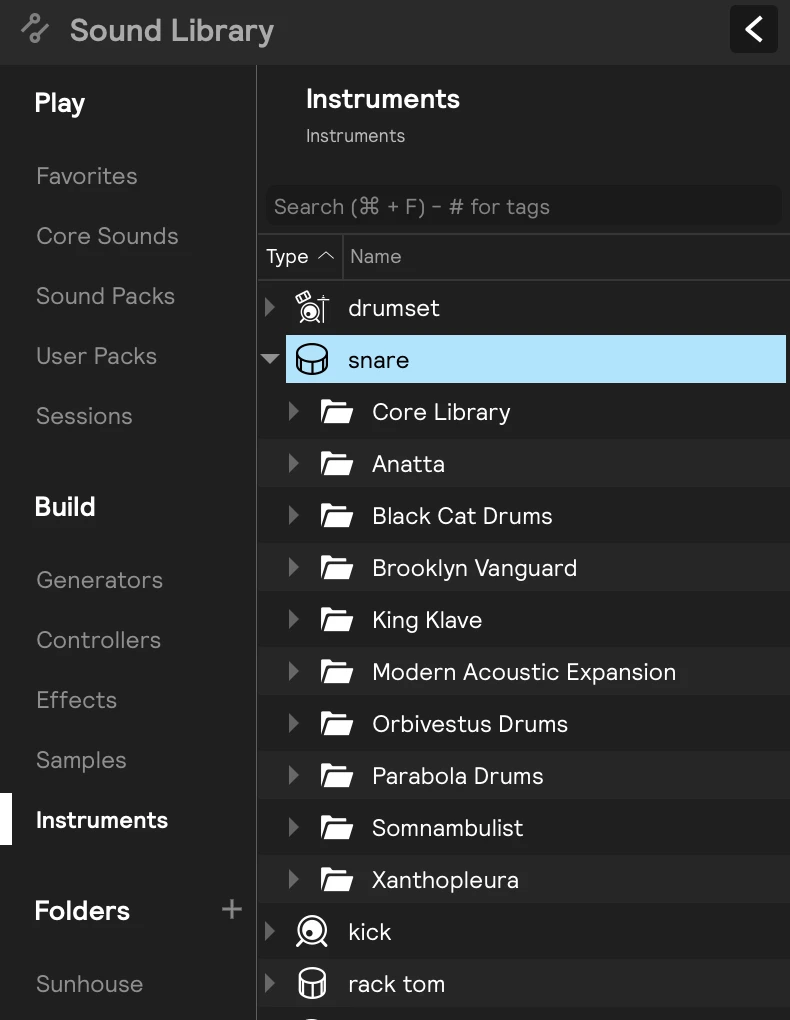
You can drop an instrument directly onto your workspace in the Edit View, or onto your virtual inputs. These have two different results.
If you drag an instrument into the layer workspace, it's added as a layer with the default input filter for that instrument (see below). If you drag an instrument onto your virtual inputs, the input filter changes to match the virtual input. So, for example, if you drag a Rack Tom instrument onto your Snare 1 virtual input, its input filter will be Snare 1, and the rack tom plays when you hit the drum connected to Snare 1.
By default, instruments dragged from the library will have the following input filters:
- Kick -
All Kicks - Snare -
All Snares - Rack Tom -
Tom 1 - Floor Tom -
Tom 2 - Hi-Hat -
All Hi-Hats - Ride -
Cymbal 1 - Crash -
Cymbal 2 - Hand drum - Varies by instrument
The Instruments menu
Every generator and controller has an Instruments menu, inside the preset menu in its header. Choosing an instrument from it replaces the module with that instrument but keeps its input wiring, so you can turn a snare into a different snare, or even into a tom, without rewiring anything.
A module that already has a role lists that role's instruments first. Every other role sits under Other instruments. Within a role, instruments are grouped by library: your own User instruments first, then Core Library, then one entry per installed sound pack.
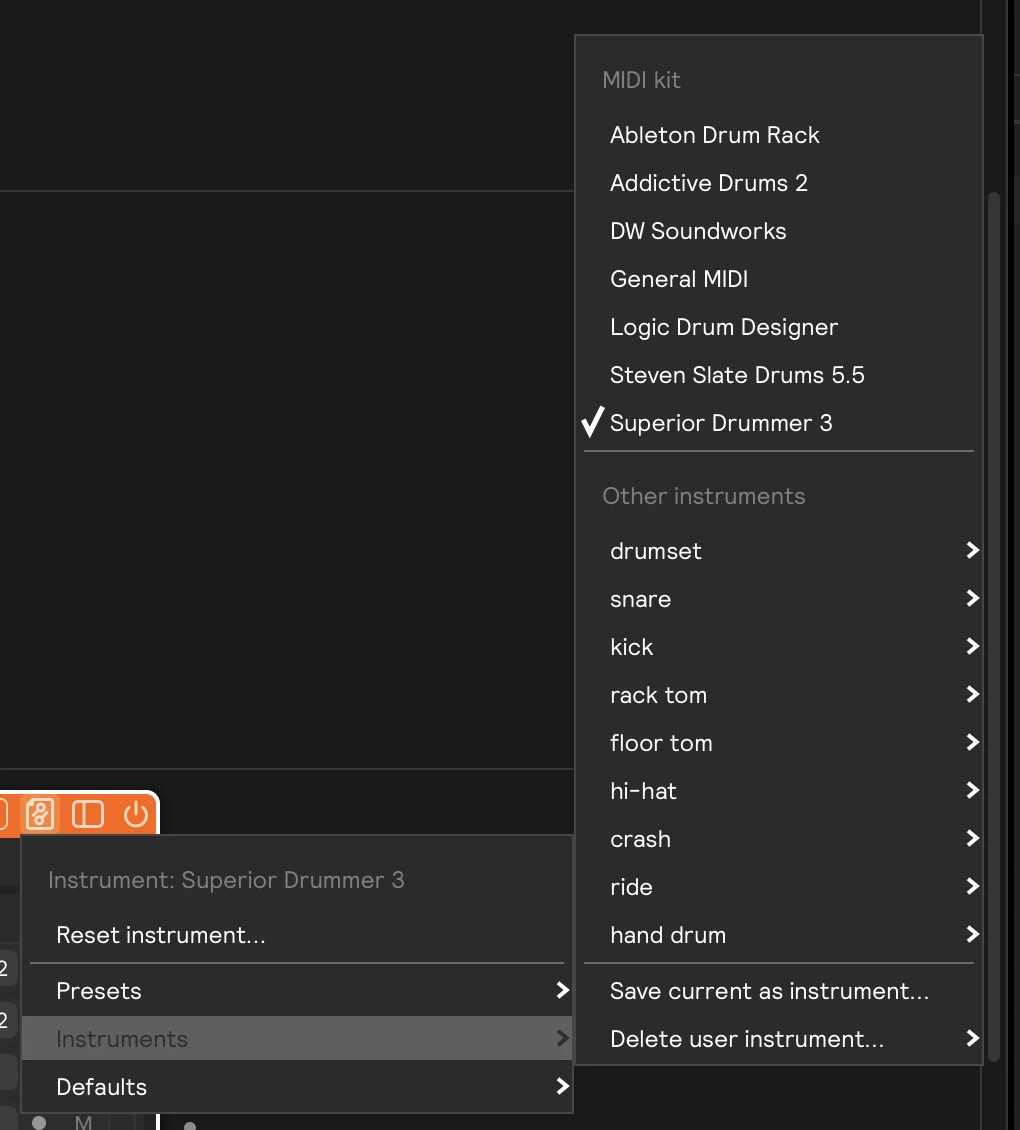
| Item | What it does |
|---|---|
| Save current as instrument… | Saves the module as your own instrument. See Saving your own instruments. |
| Delete user instrument… | Lists your saved instruments by role. Pick one to delete it after confirming. Core Library and sound pack instruments can't be deleted. |
| Reset instrument… | At the top of the preset menu. Puts the module back to the instrument as it's saved in the library, after confirming. |
Saving your own instruments
Any generator or controller can become an instrument, whether it started as a library instrument, a preset, or something you built from scratch.
- Open the module's preset menu and choose Instruments → Save current as instrument….
- Give it a name and pick its Role. The role starts on the module's own role, if it has one.
- Click Save.
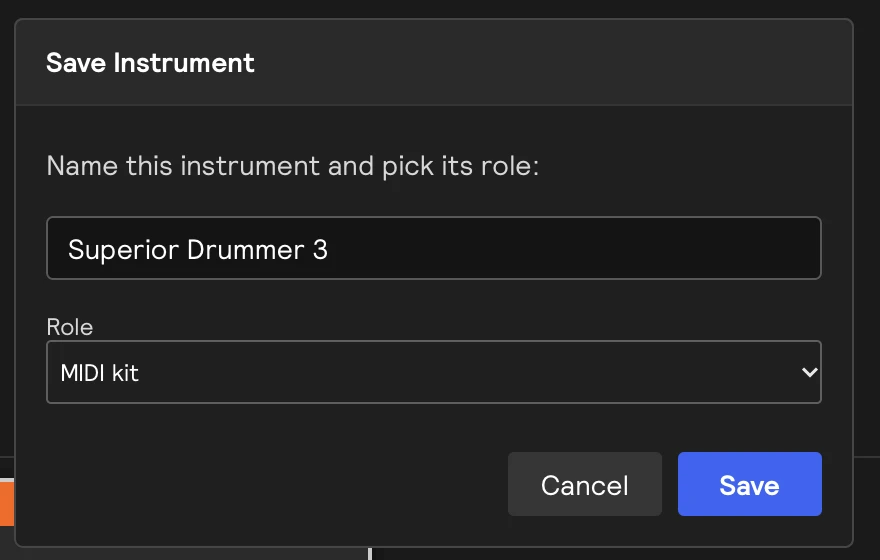
Your instrument appears under User in the library's Instruments tab, in the Instruments menu of every module, and in + Add Module → Instruments. User instruments are saved as .spp files in Music/Sunhouse/Sensory Percussion 2/presets/instruments, in a folder per role.
So that a saved instrument plays the same anywhere, assignments from inside it to anything outside it are left out. Assignments within the instrument are kept.
Hot swapping
The other way to work with instruments is to hot swap them in and out of your set. This is a great way to quickly audition different instruments from the library while you are playing or editing. You can hot swap from either the Play View or the Edit View. Check out our Hot Swap documentation for more details on how to do this.