Global Controls
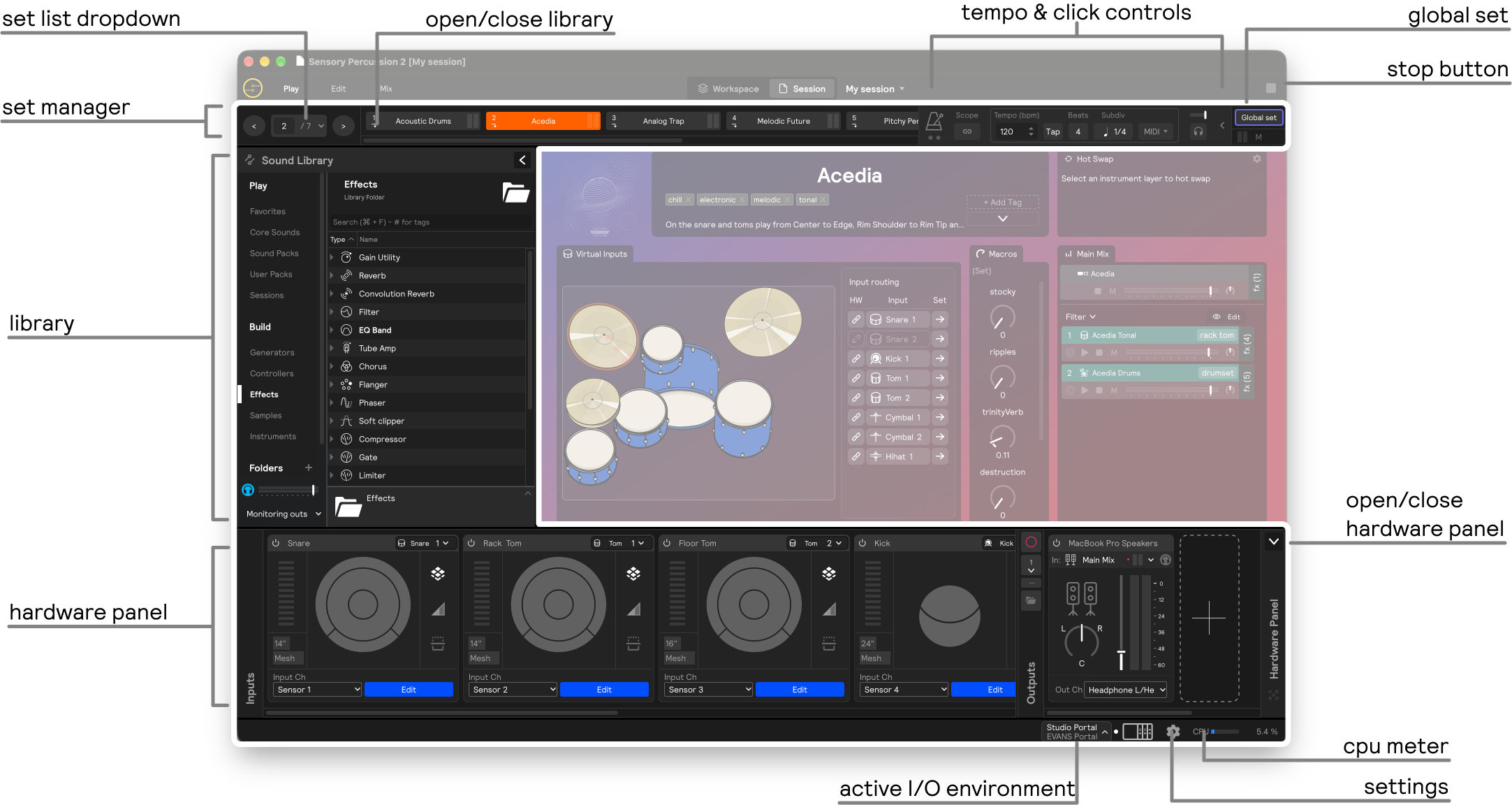
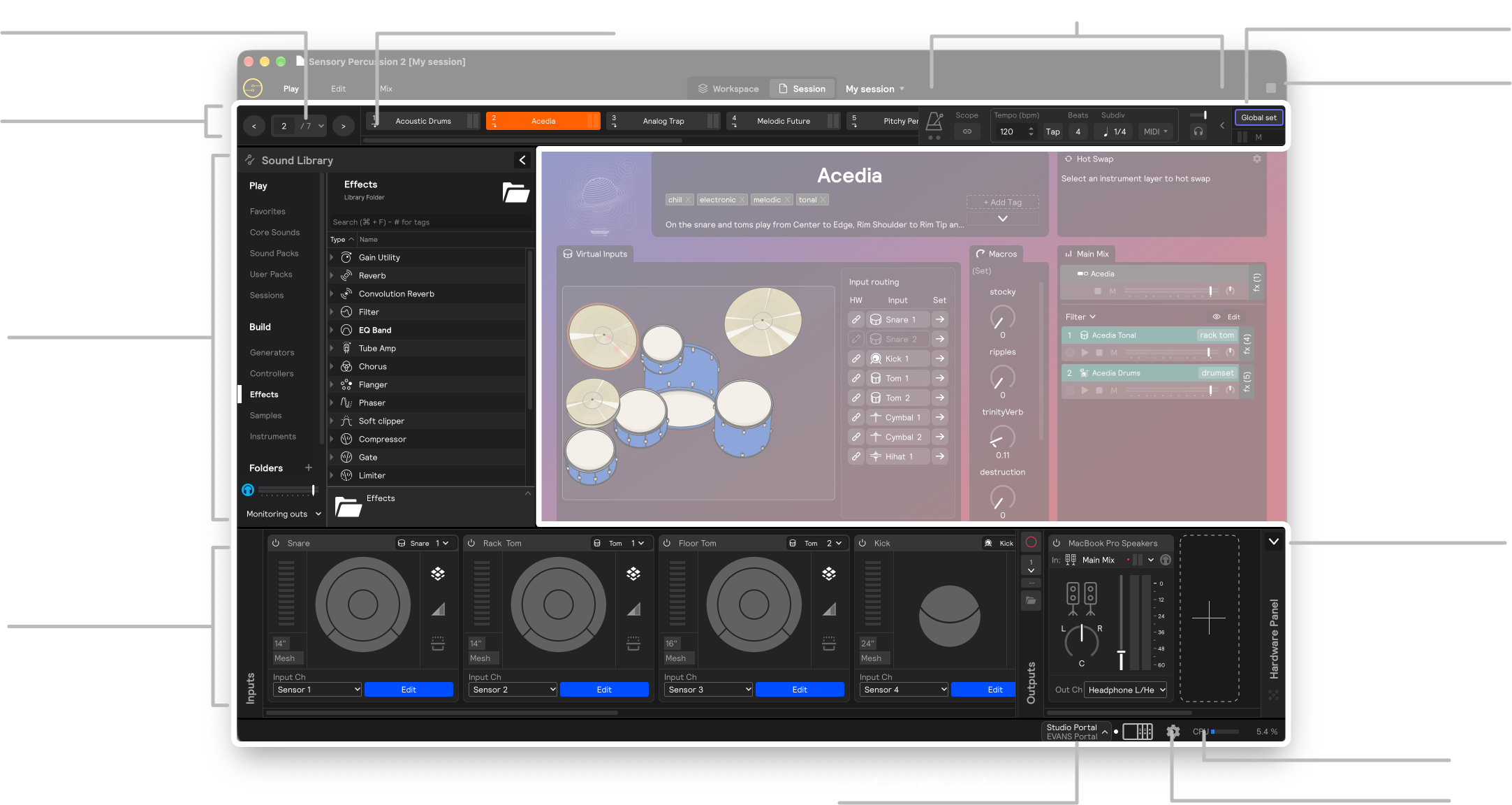
These panels stay consistent across Play/Edit/Mix views, hence the name "global".
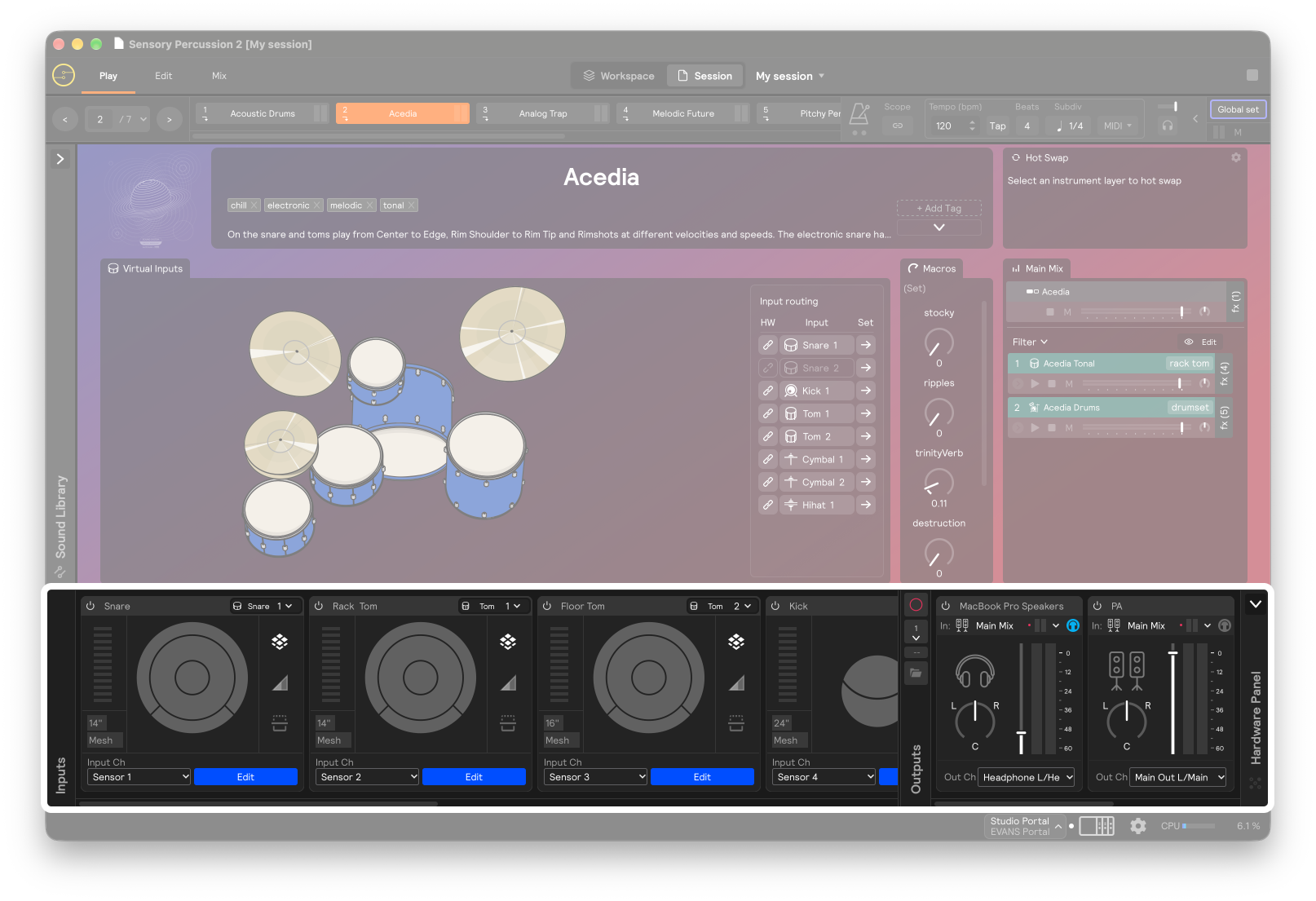
The hardware panel
The hardware panel contains hardware inputs on the left and hardware outputs on the right. Here, you can see all the sensors or analog inputs (like vocal mics) you have connected, as well as your stereo output mixes. You can open and close this panel by clicking the arrow on the top-right of the panel, selecting "Show/hide hardware IO" from the "View" menu, or using the option + ⌘ + I shortcut.
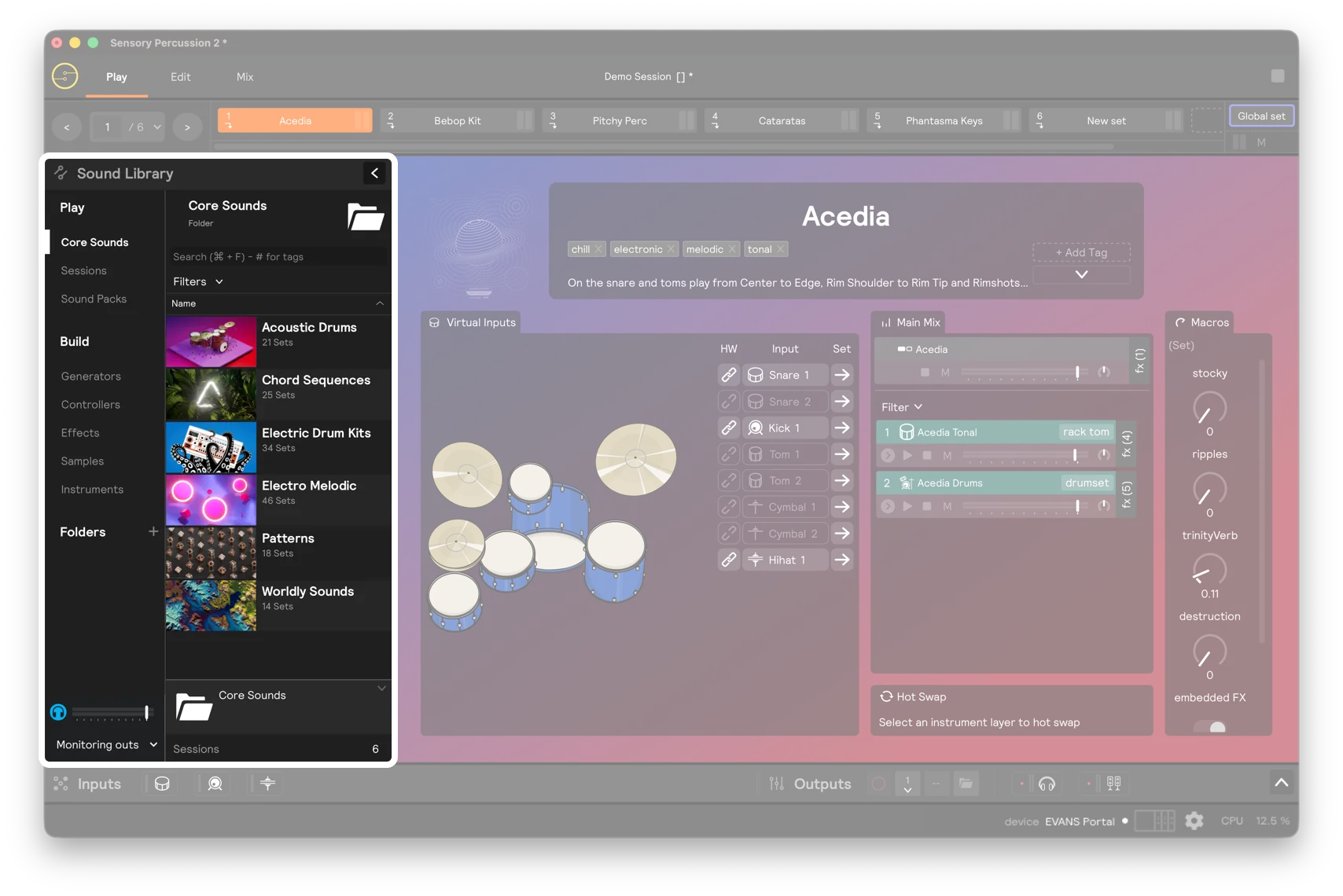
The library panel
The library panel is where you can access saved sessions, Sunhouse library sets and samples, or building blocks for making your own sets like modules and effects. You can open the library by selecting "Show/hide library panel" from the "View" menu, or by using the Option + ⌘ + L shortcut.
Switching between Play and Edit view does not affect the Library and Hardware Inputs panels, meaning you can always have any combination of these two panels open or closed in either view:
Workspace / Session selector
At the very top of the window, the selector shows whether you're working in the always-saved workspace scratchpad or in a named, saved session, with the name of the parked session beside it. Click either side to switch; click the name tag for session actions like save and close.

See Workspace and Sessions for the full picture, including the name tag's states and how work moves from the workspace into a session.
Tempo bar
At the top of the window, the tempo bar holds the session's tempo controls: start/stop, the tempo itself with tap tempo, beats and subdivision, MIDI clock in and out, and the built-in metronome. By default every set shares one tempo, and the Scope button lets a single set have its own.

See Tempo for every control, MIDI clock, and the metronome.
Set Manager
The set manager bar is at the top of the software in every view. It shows all of the sets that you currently have open. All of these sets together comprise your session. The left/right arrow on the left go to the previous/next set, and can be controlled via an assignment.
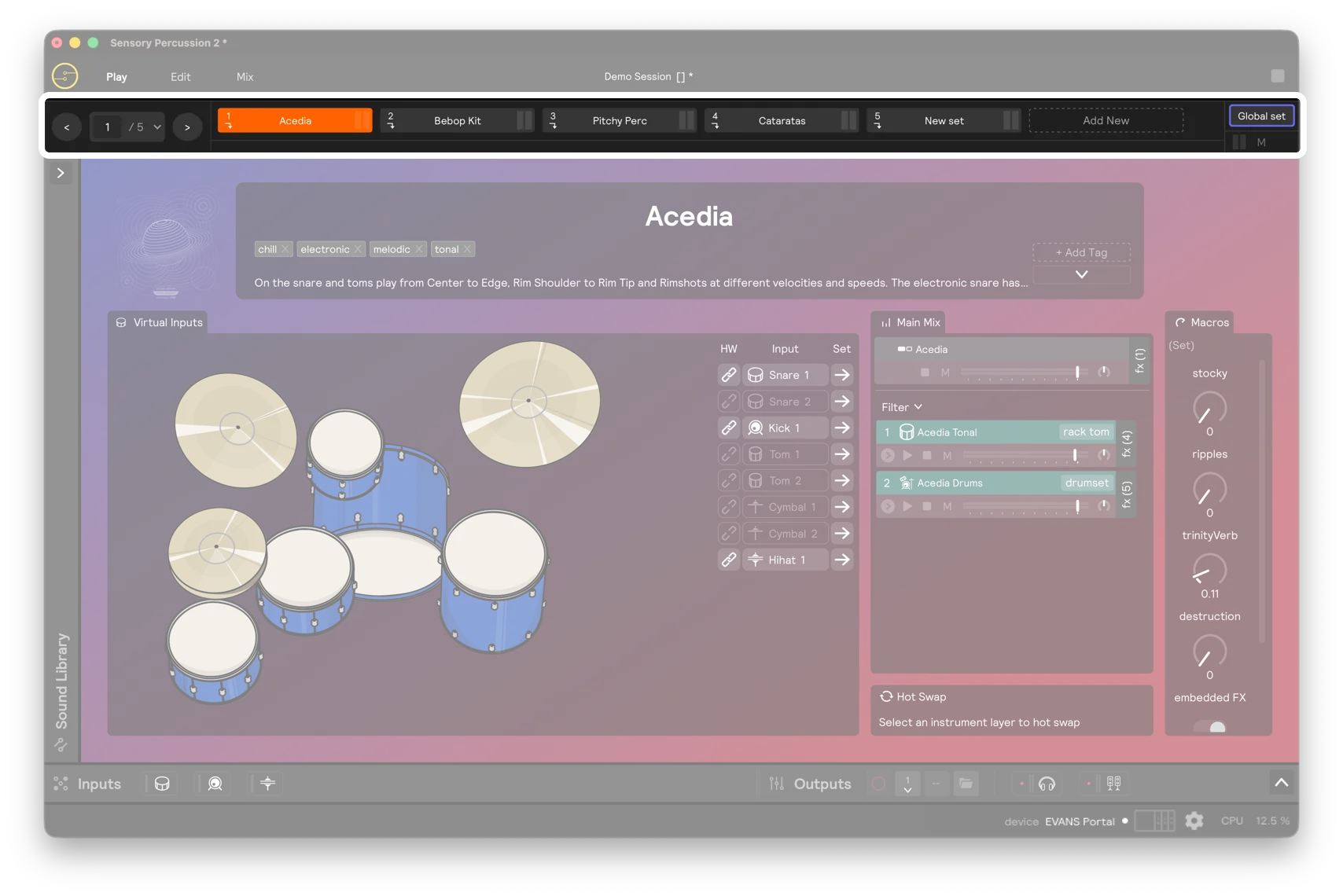
The set manager also has a vertical dropdown view, which you can access by clicking the three dots on the far right of the set manager bar. This dropdown is handy for when you have more sets in your sessions than you can see at one time in the horizontal bar. It also has volume meters next to each set so you can see which set is currently outputting audio.
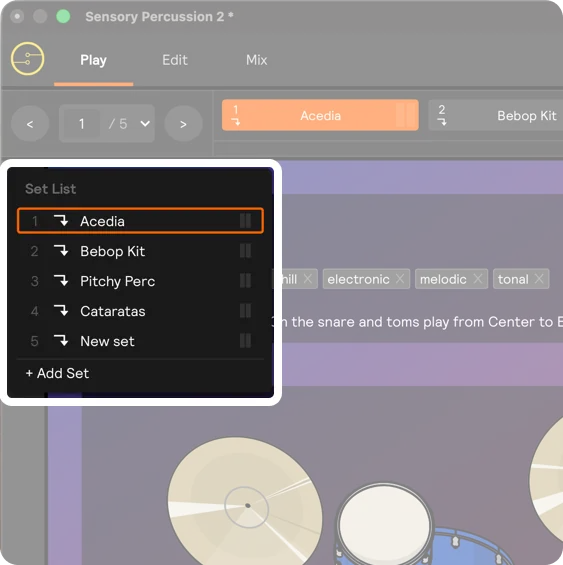
Set Cutoff Modes
By default each set's cutoff mode is set to Nothing Plays Thru, which means that when you transition to the next set, all sounds produced by the original set will immediately be choked.
If you right-click on the set in the set manager, you can change its cutoff mode to either Samples & Effects Play Thru, or Effects Only Play Thru.
In Effect Only Play Thru mode, if you have an effect with a "tail" (like a reverb or delay) active anywhere in the set, then those effects will continue to ring out into the next set.
In Samples & Effects Play Thru mode, samplers will also continue playing into the next set. Usually, this means that the tail of a playing sample will be allowed to ring out and eventually terminate as you switch to the next set. However, if you have an infinitely looping sampler, it will continue looping indefinitely within the next set.
Both of these Play Thru modes will only store playing audio for a few set transitions. This means, for example, if you have an indefinitely looping sampler triggered in a set that is in Samples & Effects Play Thru mode, it will continue looping as you switch to the next two sets. However, it will stop looping after you transition to the third set. If you need a sample to loop indefinitely as you change sets many times throughout your session, consider using the Global Set, which is designed for this -- and similar -- kinds of actions.
Restart clock on select
The same right-click menu has a Restart clock on select option, just below Cutoff Mode. Normally the tempo clock keeps running through a set change, and Metros in the new set come in wherever the beat already is. Tick this option for a set that needs to start on a downbeat: selecting it restarts the clock from beat 1. See Tempo.
Global Stop
If you want to immediately stop all sound being produced by your Sensory Percussion sets, click the Global Stop button. It stops all audio, stops the tempo clock, and stops every Metro in the playing set and the metronome click, including Metros running on their own clock or on MIDI clock. It is an assignable parameter as well: right-click it and add an assignment to stop everything from a MIDI device or one of the zones of your drum.
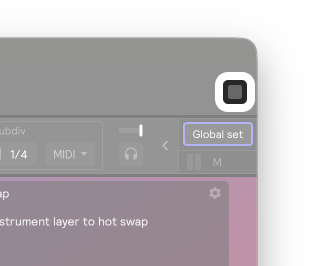
When the tempo is following an external MIDI clock, Global Stop doesn't stop that clock: the tempo keeps following the device. Metros still stop, and wait for the device's next start.
The footer
The strip along the bottom of the window has two rows. The upper row holds compact cards for your hardware inputs and outputs on the left, and the environment, audio settings, and CPU meter on the right. The lower row is the hint bar.
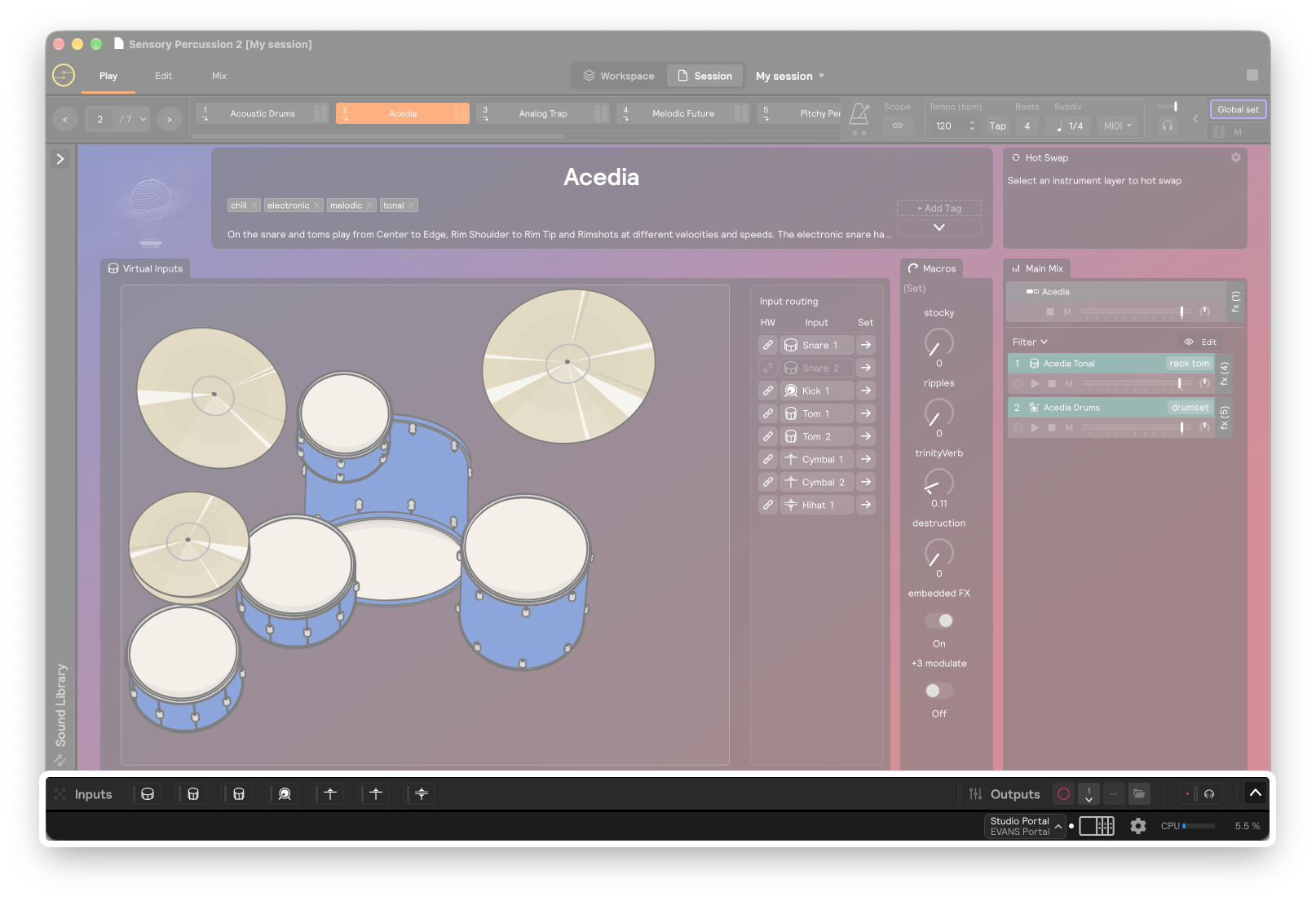
| Part | What it does |
|---|---|
| Inputs and Outputs | Compact cards for every hardware input and output, with the record panel next to the inputs. The arrow at the right opens the full hardware panel. |
| Environment | Shows the active environment (or No environment) above your audio devices: input → output, or one name when both are the same device. An orange dot means unsaved changes. A +1 after the input means a sensor expansion is in use, orange if it isn't found. Click it to load or save an environment, or choose Manage environments…. |
| Settings (gear) | Opens the settings window. |
| CPU | How hard the audio engine is working. See below. |
| Hint bar | Describes whatever control the mouse is over. Live readouts, like the CPU meter, add their current numbers. |
CPU meter
The CPU meter shows how much of the time available for each block of audio the engine is using.

| Element | What it shows |
|---|---|
| Bar and percentage | The load, smoothed over recent blocks. |
| Lighter bar | The single worst block since the last update, so a short spike shows even when the smoothed load barely moves. |
| Light blue line | The recent peak. It holds for two seconds, then falls back slowly. |
| Red dot | A dropout: one block took longer than it had, which you'd hear as a glitch. The dot lights fully, then fades over about twelve seconds, so you can still spot a recent dropout after the glitch itself is over. |
Hover over the meter to see the current peak and the number of dropouts since it was last reset. Click it to reset the peak line and clear the dot.
If the meter sits high or dropouts keep appearing, raise the buffer size in Settings → Audio, or reduce what the session asks of the engine.