Why am I not getting sound when I hit the drum?
There are a few possible reasons for not getting sound output. If you haven’t already, check out our getting started video, which goes over the initial setup process. If you’ve followed that video and still aren’t getting sound, read on:
Start here: is Sensory Percussion hearing your drums?
Before you look at outputs and mixes, find out whether your hits are reaching the software at all. Hit one drum at a time and check these three places, in order:
- The hardware inputs panel. The meter on the left of each input card should move when you hit that drum, and on a sensor input, the pads display lights up the zone you hit. If you play an eKit or another MIDI device, its card lights up instead.
- Settings → Audio (⌘ + ,). Check that your Portal (or your interface) is selected as the input device, that the channels your sensors are plugged into are turned on in the input channels list, and that the Inputs meter moves when you play.
- The Play view. A small red mark flashes on the kit graphic where you hit, on the drum and zone that played. It's quick, so watch closely. In the Input routing list next to it, a filled HW marker means your hardware is sending that input, and a filled Set marker means something in this set plays from it.
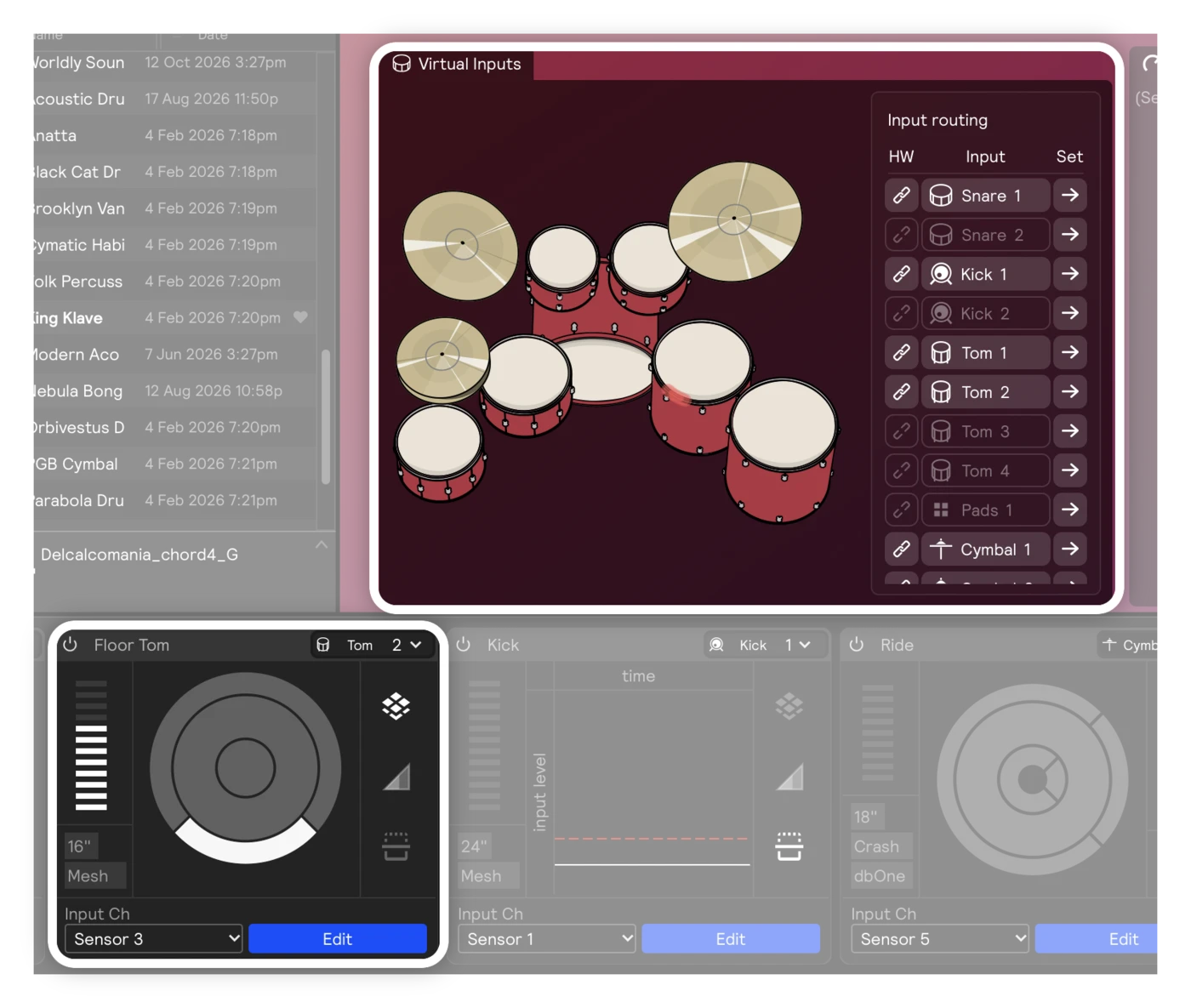
What you see tells you where to look next:
| What you see | Where the problem is |
|---|---|
| Nothing moves anywhere, not even in Settings → Audio | The signal isn't reaching your computer. Check microphone permissions, your cables and Portal, and that the right input device is selected. |
| Settings → Audio moves, but the input card's meter doesn't | The input card is listening to the wrong channel. Check its Input Ch, or see whether your hardware inputs were deleted. |
| The input card moves, but the kit graphic doesn't light up | A drum sensor that hasn't been trained yet can't play zones. Train it, or check that the input's Threshold isn't set above your hits. |
| The kit graphic lights up, but the input is dimmed with a dashed + in its Set column | Your hardware is fine, but nothing in this set plays from that drum. Click the + to add an instrument, or load another set. |
| The kit graphic lights up and the Set marker is filled, but you hear nothing | Your inputs are fine. The problem is on the output side: work through Hardware Outputs, muted modules, and missing samples below. |
If the input meters move but the levels are very low, see Low input gain on all sensors.
1. Microphone permissions on macOS
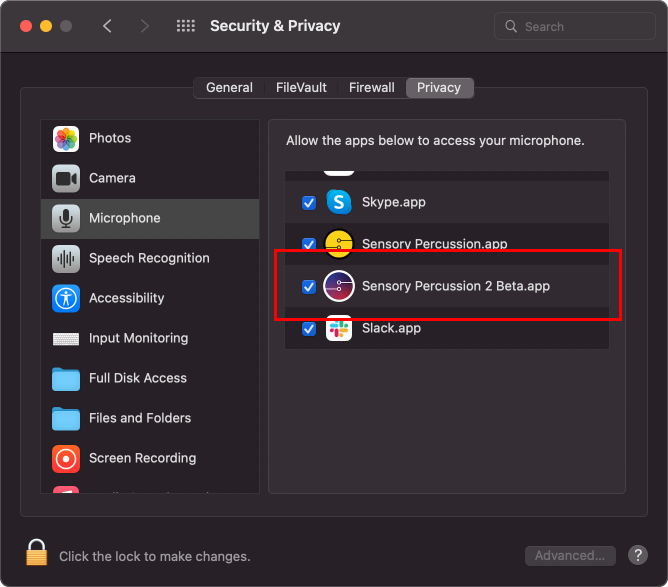
After installing Sensory Percussion and opening it for the first time, you'll be prompted to grant microphone permissions. If you don't grant microphone permissions, Sensory Percussion will not be able to access the audio from any channels on the Portal device.
You can grant permissions by going to System Preferences > Security & Privacy > Microphone and checking Sensory Percussion 2.app.
2. Your Hardware Outputs are inactive
When you connect your Portal, it is set by default as both the input and the output device. Active hardware outputs are automatically created in the Hardware Outputs panel. So you shouldn’t need to do anything in the “hardware outputs” section to get sound. But if, for example, you plug your headphones directly into your computer (rather than the portal) and switch your output device to “external headphones,” the hardware outputs will be deactivated. The channel numbers will appear gray rather than white and you won’t see anything in the volume meter bars when you play your drums (see below):
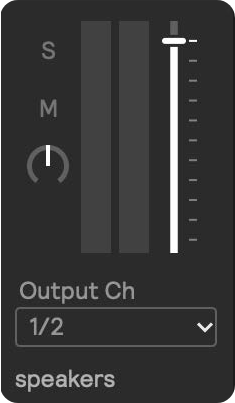
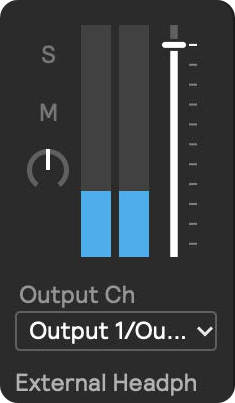
To reactivate, simply click on the output channel dropdown of your hardware output and choose the channel you want to use. You will then see blue volume indicator bars and hear your sounds!
3. Something in your hardware is physically disconnected/turned down
This one might seem obvious, but it doesn’t hurt to double check that all of your sensors are physically connected to the interface, your headphones are plugged in and the volume knob is at a reasonable level, and that the portal is connected to your computer via the provided USB cable.
4. Something is muted inside of your set
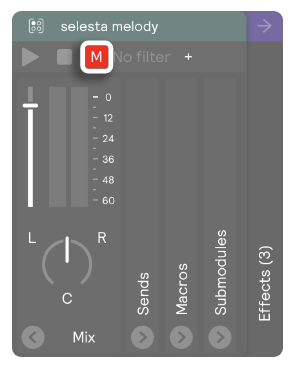
It’s possible that everything is connected correctly in your hardware, but your sounds are muted inside of the software. Check your layers and look for the red “M”. Anything module with this “M” is muted and you can simply click it to unmute.
5. You’re missing samples
When you download the demo set, you will automatically download all of the samples that go with it, so this won’t be a problem until you start making your own kits. If you use samples from your hard drive and then open the set without your hard drive connected, you will get empty samplers that don’t generate sound (see below):
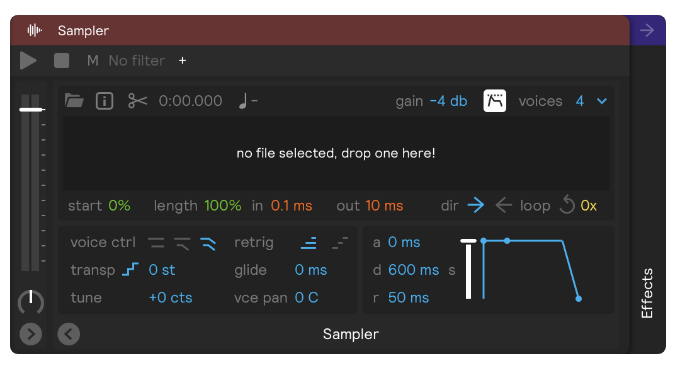 Samplers are always the last object in the chain (meaning it’s the farthest to the right on your screen). So just scroll all the way to the right and make sure that there are no empty samplers in your set.
If your samples were moved or missing and you have broken sample links in your set, you can use the Relink Samples feature to fix them.
6. You deleted your hardware inputs
If you followed along with the Quick Start guide, then you will have created hardware inputs. If at any point after that, you deleted them, you will not be getting sound, so make sure that they’re still there and that they correspond correctly with your actual hardware.