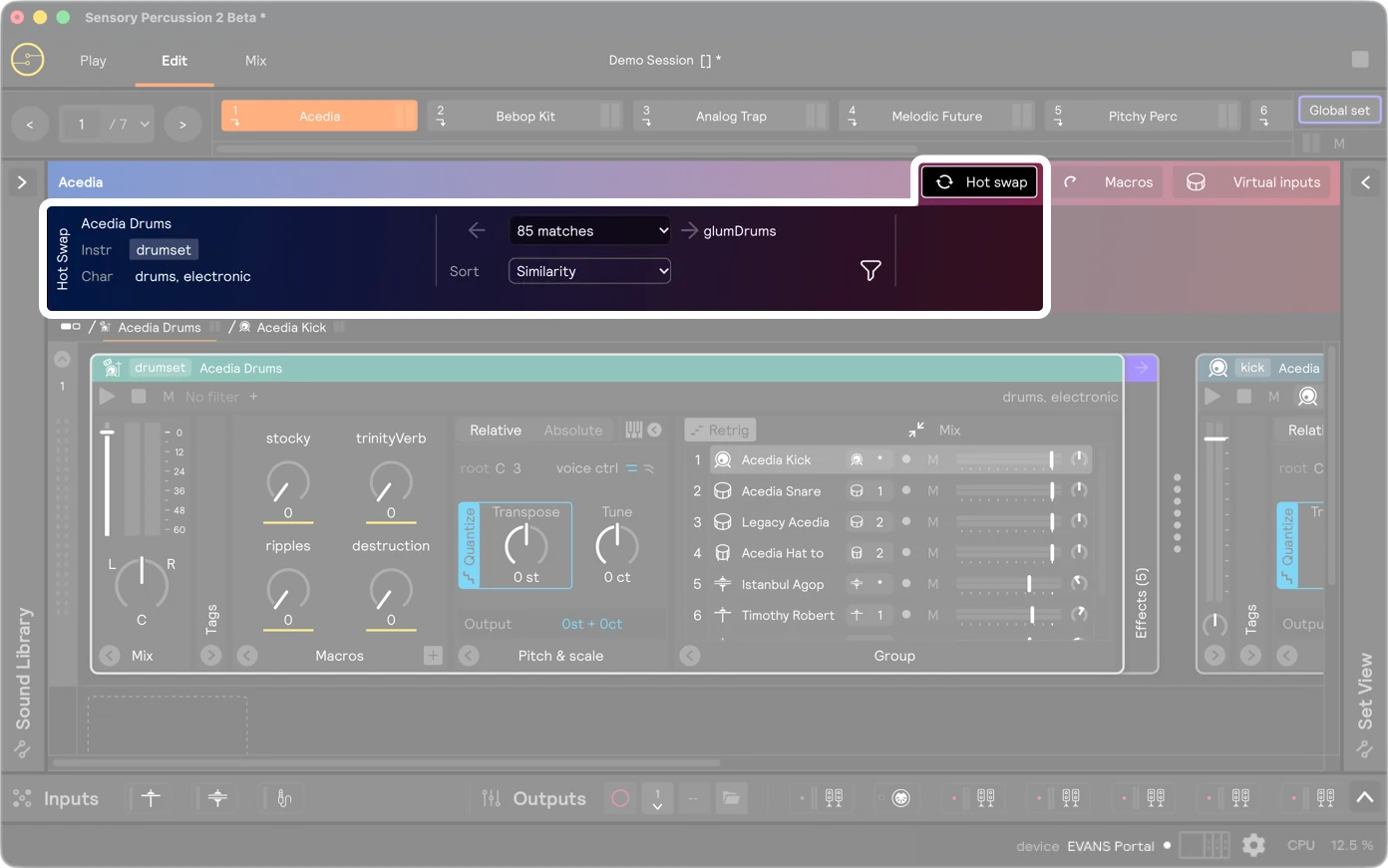
Hotswap
Hot Swap is a feature that allows you to swap instruments in and out of your working set with a few simple clicks. Love the sound of the kick and toms of the set you have selected, but want to try some different snare options? Want to page through cymbals while playing to find the one that is just right? Then Hot Swap is for you!
Only layers that are Instruments can be hot swapped. You'll see these tags in the header of the layer card: drumset, snare, rack tom, floor tom, kick, hi-hat, ride, and crash. These layers will also have an icon of the instrument in the top left.
Hot Swapping from the Play View
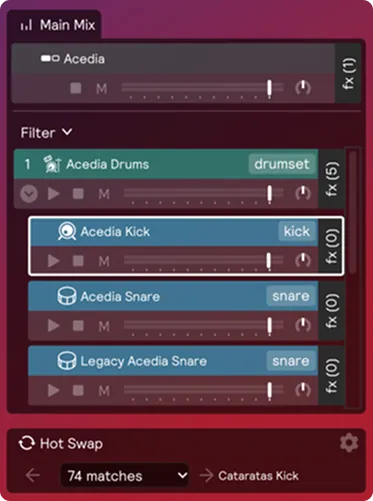
Select a layer in the Main Mix panel in Play View. You can access the top two layers of the module tree from the Play View - this is usually enough to see the relevant instruments. Most drumset presets will have the drumset module as the top layer, and then the individual drum components as the second layer. If you have an instrument module that isn't organized this way, don't worry - you can still hot swap it!
Once you select an instrument layer, you'll see that the "Hot Swap" panel will activate with the options to hot swap that instrument. You can click "next" or "previous" to page through the instruments in the library that match the character tags of the instrument you are hot swapping. You can also click the drop-down to see a list of all the instruments you can hot swap to.
If you need more control over the hot swap, you can click the "gear" icon to hop over to the Edit View, where you can access more hot swap options, like filtering by character tags and sorting the drop-down by similarity or alphabetically. Check out the next section for more details on hot swapping from the Edit View.
Hot Swapping from the Edit View
Open the "Hot Swap" panel by clicking the button named "Hot Swap" in the top right of the Edit View. Select an instrument or layer to begin hot swapping. Any kick drum pad, snare drum pad, tom drum pad, hi-hat pad, or cymbal pad, or any module tagged as an instrument, can be hot swapped.
Exactly like in the Play View, you can hot swap with "next", "previous", or the drop-down. In the Edit View, the drop-down can be sorted either by "similarity" (based on character tags) or alphabetically.
If you click the funnel/filter icon, you can change the instrument you are hot swapping without changing the input. For example, if you have a snare layer selected but you want to hear how a rack tom will sound mapped to your snare virtual input, you can do that!
You can narrow your Hot Swap filter with character tags. Select the "Add Tag" button to hone in on an instrument that meets your needs.