Why isn't Sensory Percussion responding to my MIDI device?
MIDI has to make it through a few steps before it plays a sound or moves a knob: your computer has to see the device, Sensory Percussion has to have it turned on, a hardware input has to be listening to it, and something in your set has to respond. Work through the checks below in order, and stop when your device starts working.
1. Your computer sees the device
- Check the cable, and that the device is switched on. Try a different USB port or cable, and connect directly rather than through a hub.
- If your device only has a 5-pin MIDI Out, you'll need a USB MIDI interface to plug it into. The EVANS Portal's MIDI port is an output only: it can send MIDI, but it can't receive it.
- On a Mac, open Audio MIDI Setup (in Applications/Utilities) and choose Window → Show MIDI Studio. Your device should be there, and not greyed out.
- On Windows, check that the device shows up in Device Manager. Some devices need a driver from the manufacturer.
2. It's turned on in Sensory Percussion
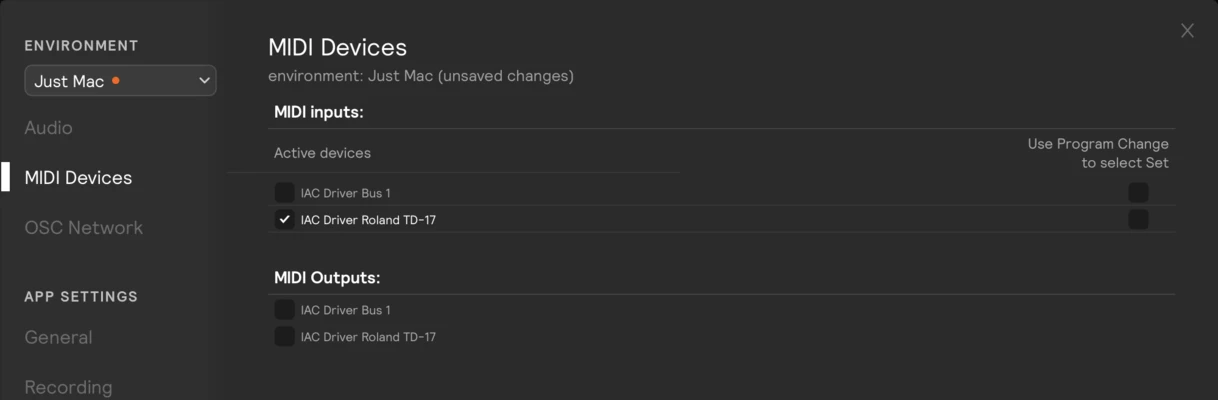
Open Settings → MIDI Devices (⌘ + .) and make sure your device is ticked under MIDI inputs.
A device you plug in while Sensory Percussion is open shows up in the list straight away, and ticking it works right away. If it doesn't appear, quit and reopen Sensory Percussion.
On Windows, most MIDI devices can only be used by one app at a time. If your DAW, drum software, or the manufacturer's editor app is open, it may be holding the device. Close the other app, then quit and reopen Sensory Percussion.
3. A hardware input is listening to it
Ticking a device in Settings makes it available. A hardware input is what actually uses it. Which kind you need depends on what you want the device to do:
| You want to… | Hardware input | Guide |
|---|---|---|
| Play your eKit like a drum kit | eKit | How To Use Your eKit |
| Trigger a grid of sounds from a pad controller | Grid Pads | How To Use a MIDI Sample Pad |
| Control knobs, buttons, and other parameters | MIDI | How To Control Parameters with MIDI Input |
In the hardware inputs panel, check that:
- the input exists, and its device is set to your device
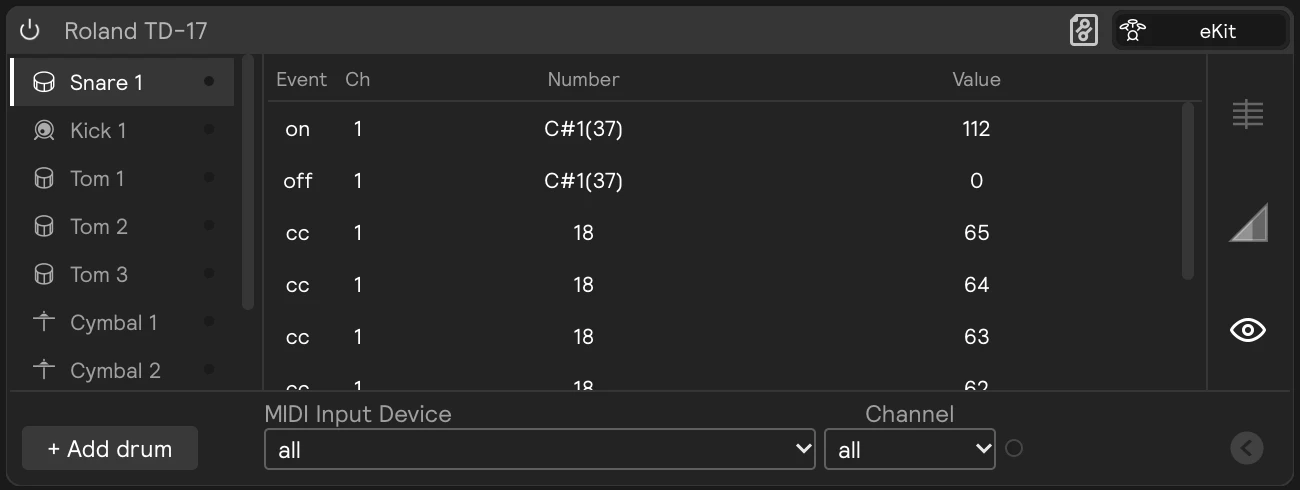
- if the input has a Channel setting, it matches the channel your device sends on, or is set to receive on all channels. Most eKits send on channel 10.
- on an eKit input, Power is on
Then play the device and watch the input light up. If it doesn't, open its log (MIDI log on an eKit input, Log on a Grid Pads input). If nothing appears there, go back to steps 1 and 2.
4. The notes are mapped
If the log shows notes arriving but nothing plays, the input doesn't know what those notes mean yet:
- eKit input: load your kit's preset from the card's title bar, then check the pads that don't light up. Click the drum, then Learn on the right pad and hit the pad on your kit.
- Grid Pads input: use Learn to match each cell to a pad on your device.
- MIDI input: there's nothing to map on the input itself. Map notes and knobs on the assignment instead (step 6).
5. Something in your set responds
Your hardware input can be working perfectly with nothing in the set listening to it. In the Play view, look at the Input routing list in the Virtual Inputs panel:
- A filled HW marker means your device is sending.
- An input that's dimmed, with a dashed + in its Set column, means nothing in this set listens to it. Click the + to add an instrument, controller, or generator for it.
If something does listen but still doesn't play, check that module's input filter, that Block all input isn't on (a red icon and a hatched red tray in the filter row), and that it isn't powered off or muted. See Input Filtering.
6. Your assignment matches what the device sends
For knobs, buttons, and footswitches mapped with assignments:
- Open the assignment and check its Type: a key or pad sends notes, a knob or fader sends MIDI Control (CC).
- Use Learn to capture exactly what the device sends, rather than typing it in.
- Check that the assignment uses the right MIDI virtual input, if you have more than one device.
Special cases
MIDI from another app on the same computer
To send MIDI from a DAW or another app into Sensory Percussion, you need a virtual MIDI port: an IAC Driver bus on a Mac, or a tool like loopMIDI on Windows. See How to Set Up Virtual MIDI Routing. If you send MIDI both ways, use two separate buses, or MIDI will loop back on itself.
In the plugin
In the plugin, MIDI comes from your DAW, not straight from the device. Enable the device in your DAW's MIDI preferences, set a MIDI track's input to it, and route that track into the Sensory Percussion plugin. See Getting MIDI into the plugin.
MIDI clock
If Sensory Percussion should follow another device's tempo, enable the device in Settings → MIDI Devices, then click MIDI in the tempo bar and set Clock in to it. See MIDI clock.
Still not working?
Send us a Diagnostic Report from Help → Generate Diagnostic Report, and tell us the make and model of your MIDI device and how it's connected.