Why is the input level low on all of my sensors?
When every sensor is quiet at once, it usually shows up as:
- having to hit hard to get any sound
- ghost notes and soft strokes going missing
- the input meters barely moving, even on solid hits
- nothing ever reaching full volume, however hard you play
When one drum is quiet, the cause is usually that drum. When all of them are, look for something they share: your computer's sound settings, the Portal, the channels, a setting copied to every input, or the same mistake made when attaching each sensor. Work through the checks below in order.
First, look at the signal
Open the hardware inputs panel and hit each drum at a normal playing volume. Watch the meter on the left of each sensor card, and switch the card to its Threshold view: every hit that will play gets a dot on its peak, above the threshold line.
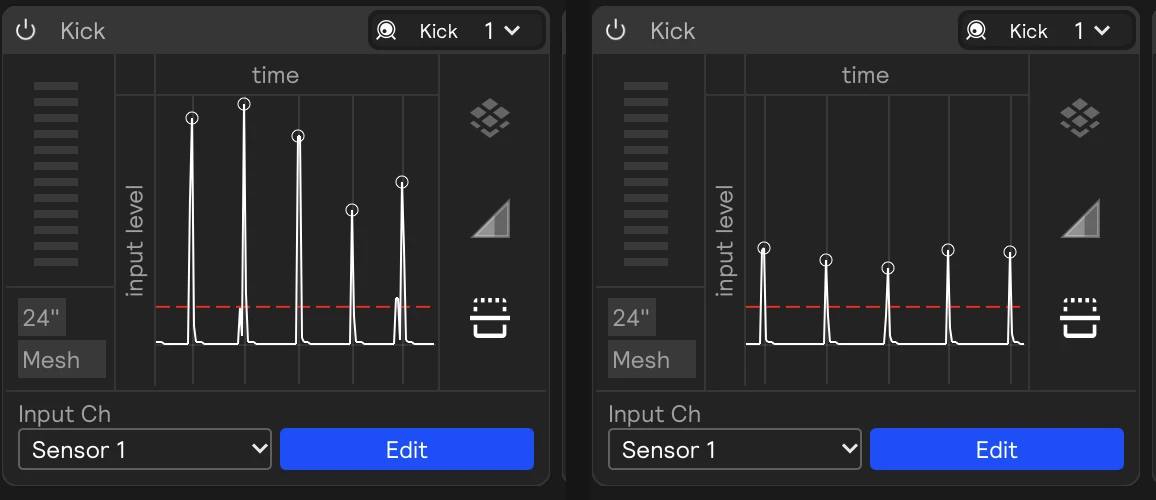
Then open Settings → Audio (⌘ + ,) and watch the Inputs meter while you play. It shows the signal exactly as your computer hands it to Sensory Percussion, before any of the app's own settings. If it's low here too, the problem is before Sensory Percussion: in your computer's settings (check 1), the Portal (check 2), or the sensors themselves (check 5).
1. Your computer isn't turning the Portal's input down
This is one of the most common causes. Your operating system has its own input level and mute for every audio device, and they apply before Sensory Percussion ever sees the signal. Since they act on the whole Portal at once, every sensor gets quieter together. They can get turned down without you noticing: by another app, by a video-call app adjusting the level automatically, or by picking the Portal as your computer's microphone.
On a Mac
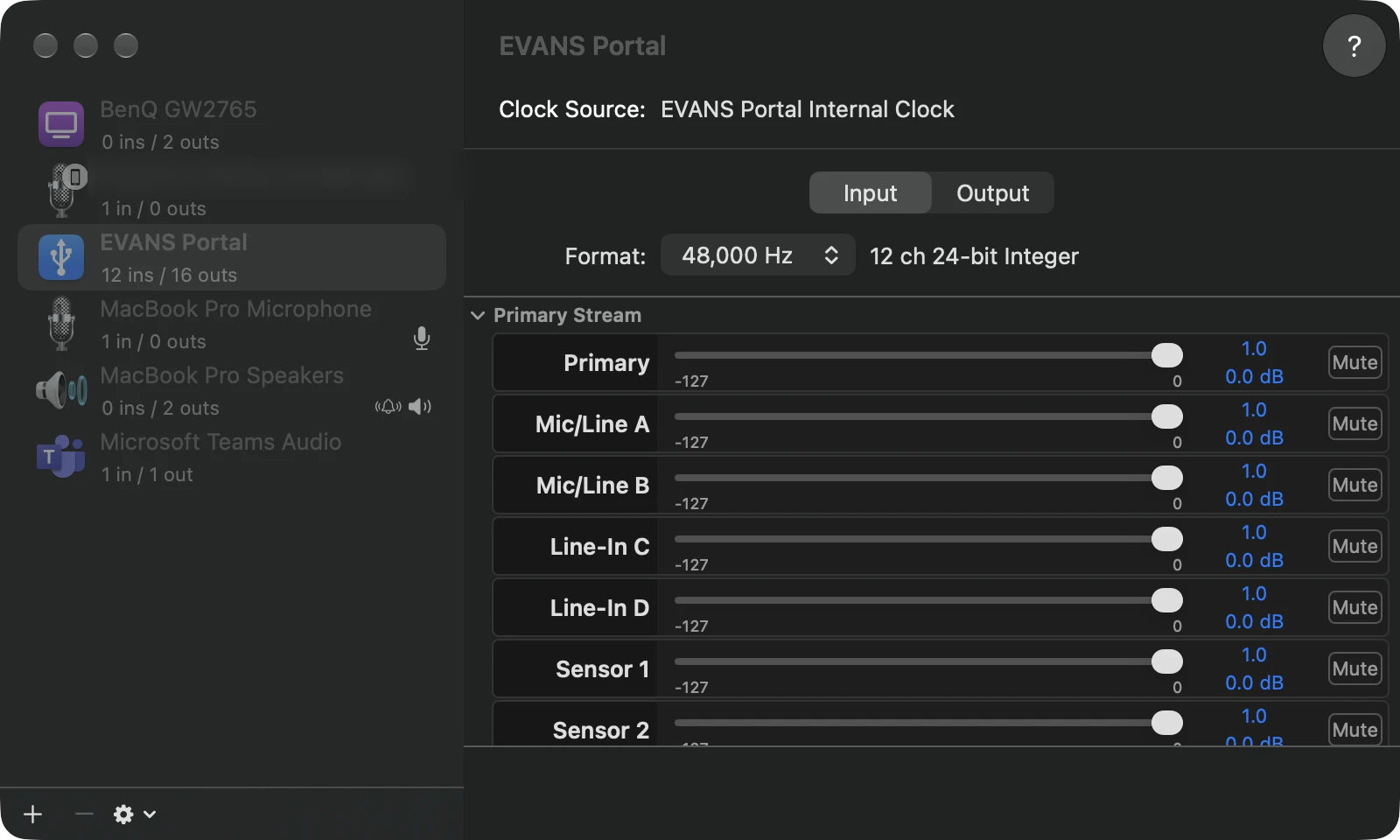
- Open Audio MIDI Setup (in Applications/Utilities).
- Select EVANS Portal in the list on the left, then click the Input tab.
- If the Volume sliders can be moved, drag the main slider and every channel's slider all the way up, and make sure no Mute box is ticked. If they're greyed out, the level can't be changed here, and you can move on.
Also open System Settings → Sound → Input. If the Portal is selected there as your Mac's input, its Input volume slider sets the same level: drag it all the way up.
On Windows
- Open Settings → System → Sound, and under Input, select the Portal.
- Set Input volume to 100.
- For the full controls, click More sound settings, open the Recording tab, select the Portal, and click Properties. On the Levels tab, set the level to 100 and make sure the speaker button next to it doesn't show a mute symbol. If there's a Balance button, check that no channel is turned down.
Go back to Settings → Audio in Sensory Percussion and watch the Inputs meter again while you play.
2. The sensors are in the Sensor inputs, and the Portal is powered
- Sensors must be plugged into the Sensor 1–7 inputs on the front of the EVANS Portal. The Mic/Line and Line-In inputs aren't made for sensors.
- When a sensor is connected properly, its indicator light turns on, and so does the number above its Sensor jack on the Portal. Those lights come from the hardware itself, so they work even when Sensory Percussion isn't running. If a light is off, try another cable.
- The Portal needs its own 12 V power supply plugged in and switched on. It can't run on USB power alone.
3. Each sensor input is listening to the right channel
Check the Input Ch on each sensor card. A sensor input set to the wrong channel, like Mic/Line A or the Portal's Onboard Mic, shows a low, noisy signal: it's hearing the room instead of the sensor.
This often happens after you:
- switch to a different audio interface, or use another interface as your main device with the Portal as a sensor expansion
- load hardware inputs made on another computer
- remap your inputs to a new device with Hardware Remap, which moves each input to the same channel number on the new device
If that's what happened, set each sensor input back to its Sensor channel, or switch back to the device it was set up on. If you use different setups, save each as an environment so this doesn't happen again.
4. Gains, thresholds, and curves are near their defaults
Click Edit on a sensor card to open its settings window. These settings are per input, but they're often changed on every input at once, or carried over from an old inputs file:
| Setting | Default | If it's off |
|---|---|---|
| Input gain | 0 dB | Turned down, every hit reads quieter. Bring it back toward 0 dB. |
| Output gain | 0 dB | Turned down, every hit plays quieter, even when the input looks healthy. |
| Threshold | Low, just above the noise | Set high, soft notes are thrown away. Lower it until your quietest strokes get a dot. |
| Velocity Curve | A straight line | A curve that sags, or starts above the bottom left, makes everything quiet. Drag it back toward a straight line. |
See Drum Training for more on each one.
Fix the cause before you reach for Input gain. Turning the gain up on a sensor that's sitting badly, or on a Portal your computer has turned down, also turns up noise and cross-talk.
5. Each sensor is sitting right over its pickup element
The sensor reads the small pickup element stuck to the head. The further away it is, the weaker the signal. If every sensor was attached the same slightly-off way, every drum will be quiet. On each drum, check that:
- the pickup element is there and stuck down flat (it can come off with heavy playing, and should be replaced, not reused, when you change heads)
- the sensor's head is directly over the pickup element, with the indicator light shining just behind it, not on top of it
- the sensor sits parallel to the drumhead, not tilted up or down
- the thumbscrew is tight, so the sensor doesn't creep away from the head as you play
See Setting up Your Gear.
If you moved sensors or replaced pickup elements, retrain those drums afterwards so zone detection matches the new signal.
6. The input is fine, but the sound is quiet
If the meters and dots look healthy but you still don't hear much, the input isn't the problem. Your computer can turn the Portal's output down too, in the same places it turns the input down:
- Mac: in Audio MIDI Setup, select the Portal and check the Output tab the same way: sliders up, no Mute boxes ticked. If the Portal is also your Mac's sound output, the volume keys and System Settings → Sound → Output turn it down as well.
- Windows: open Settings → System → Sound → Volume mixer. Check the Portal's output volume, and the separate volume Windows keeps for Sensory Percussion 2. Either one can be turned down or muted on its own.
Then check the sound side inside Sensory Percussion:
- the layer faders in the Main Mix and the volume of each module
- the Global Set's main mix, which every set runs through
- a module's own Velocity I/O curve
- the Portal's Main Outs and Headphone volume knobs
See No sound for more.
Still low?
Send us a Diagnostic Report from Help → Generate Diagnostic Report, and record a few seconds of playing each drum, soft and loud. The recording captures the raw signal from every sensor, which lets the support team see exactly what the Portal is receiving.