Tempo
Every session has a single tempo that everything tempo-based runs on: Metros, tempo-synced effects like the Stereo Delay and Modeled Delays, the built-in metronome, and the MIDI clock sent to other gear. You set it in the tempo bar at the top of the window.

The tempo bar
| Control | What it does |
|---|---|
| Start/Stop | The metronome icon at the left end. Starts and stops the tempo clock. The two dots below it blink on the beat. You can also press the space bar (the Start/Stop Tempo Clock shortcut, which you can change in Settings → Keyboard Shortcuts). |
| Scope | The link button. Grey with a joined link while the set follows the global tempo. Orange with a broken link once the set has its own tempo settings. See Giving one set its own tempo. |
| Tempo (bpm) | The tempo in beats per minute. Drag the value up or down, or click it to type. |
| Tap | Tap repeatedly to set the tempo by ear. |
| Beats | How many beats make a bar. This is what the accent on beat 1 counts. |
| Subdiv | The subdivision: the note value of one step of the grid, relative to the beat. |
| MIDI | Opens the MIDI clock routing. See MIDI clock. |
| Metronome | The headphone toggle and level slider at the right end. Turns the built-in click on and off. See Metronome. |
| Collapse | The small chevron at the right end. Folds the bar down to the Start/Stop button. Click it again to open the bar back up. |
When the bar is collapsed, only the Start/Stop button, its beat dots, and the chevron to expand it are left:

The Tempo, Tap, Beats, Subdiv and MIDI controls sit inside a frame. The frame is grey while the set follows the global tempo, and turns orange, like the Scope button, once the set has its own.
One tempo for the whole session
Out of the box there is one tempo for the whole session. It doesn't matter which set you have on screen: changing the tempo, beats, subdivision, or either MIDI clock bus changes the global settings, and every set follows. Switching sets doesn't change the tempo.
Switching sets keeps the clock running
The clock keeps counting through a set change. When you switch sets, the Metros in the new set pick up the clock where it already is instead of jumping back to beat 1, so switching sets mid-bar doesn't restart the groove. A Metro that spans several bars keeps its place in the cycle too: switch during bar 2 of a 3-bar Metro and it comes in on bar 2.
Metros in the set you're leaving stop at the switch and stay stopped until you select that set again, whatever the set's cutoff mode.
A Metro whose Clock Sync scope is set to start only follows the global start and stop, not the global tempo. Since its beat isn't the global beat, it has nothing to line up with and restarts from beat 1. See Metro: Clock Sync.
Restart clock on select
If a set needs to come in on a downbeat, right-click it in the Set Manager and tick Restart clock on select, just below Cutoff Mode. Selecting that set then restarts the clock from beat 1.
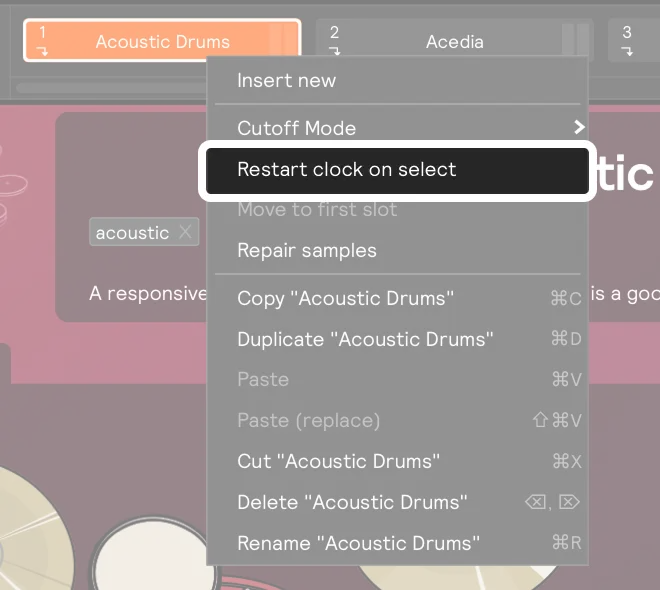
This only applies to the internal clock. When the tempo is following MIDI clock, the external device decides where the downbeat falls and this setting has no effect.
Giving one set its own tempo
Click the Scope button so it turns orange, and the set you're looking at stops following the global settings. The tempo, beats, subdivision, and both MIDI clock buses now belong to that set alone. You can give it its own tempo or its own MIDI clock source without touching the rest of the session. Later changes to the global settings no longer reach it.

Switching it on copies the current settings onto the set first, so nothing changes at the moment you click. The set carries on at exactly the tempo it was already playing, and you edit from there.
Click Scope again so it turns grey, and the set goes back to following the global tempo immediately.
The Scope button applies to the set you're looking at. With the Global Set on screen, it applies to the currently playing set, so the tempo bar always shows what you're actually hearing.
Tap tempo
Tap writes the tempo you tapped wherever the tempo is currently coming from: the playing set if it has its own tempo, otherwise the global tempo. A tap always changes the tempo you're hearing.
Tap is assignable, so you can tap the tempo from a footswitch, a pad, or a zone on your drum. Right-click it and add an assignment.
MIDI clock
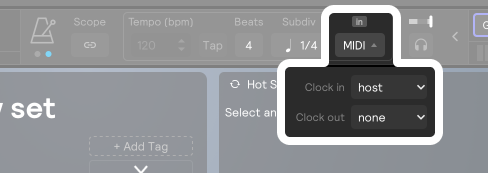
Click MIDI to open the clock routing:
| Control | What it does |
|---|---|
| Clock in | A MIDI bus whose clock drives the tempo instead of the internal clock. Its start, stop, and tempo drive the session. In the plugin, host follows your DAW instead; see Following your DAW. |
| Clock out | A MIDI bus the tempo sends its clock to, so other gear can follow Sensory Percussion. The MIDI hardware output on that bus needs its sync switch on, which it is by default. |

Small in and out tags above the MIDI button show which ones are set.
While a Clock in bus is set, the Start/Stop button, Tempo, and Tap grey out: the external clock owns them. Set Clock in back to none to return to the internal clock.
Like everything else on the bar, MIDI clock follows the Scope setting. A set with its own tempo can follow MIDI clock while the rest of the session runs on the internal clock, or the other way round.
To send or receive MIDI clock, the MIDI device needs to be enabled in Settings → MIDI Devices first. To sync with a DAW on the same computer, use a virtual MIDI bus (the IAC Driver on macOS, or a virtual MIDI port on Windows). See How to set up MIDI routing.
Following your DAW (plugin)
In the Ableton plugin, Clock in also offers host, and a new session starts on it. The session's tempo then follows your DAW: pressing play in the DAW starts the clock, stop stops it, and the DAW's tempo drives it, including tempo changes while it plays.
If you start the DAW mid-bar, Metros come in on the right beat of that bar instead of treating the start as a downbeat, and when a loop wraps around they restart where the DAW's bar does. The DAW's beat is a quarter note, so set Beats to match the DAW's time signature.
DAWs don't send MIDI clock into a plugin, and a plugin can't send MIDI clock back to one. In the plugin, use host rather than a MIDI bus for Clock in. Clock out set to the plugin's MIDI output sends nothing your DAW can hear.
Metronome
Every session has a built-in metronome click. Its controls sit at the right end of the tempo bar:
| Control | What it does |
|---|---|
| Headphone toggle | Turns the click on and off. Off by default, and lights blue while on. |
| Level | The small slider above the toggle sets how loud the click is. Its meter shows the click playing. |

The click plays a higher accent on beat 1 of each bar and a lower tick on every other step of the grid. Set Subdiv to 1/8 and you get eight clicks per bar, with the accent still on beat 1. The click sound itself is fixed.
Where you hear it
The metronome only plays through your monitoring outputs: the same outputs you use to audition samples in the library, usually your headphones. It never reaches the main mix, any other output, or a recording, so the click stays in your headphones and out of the audience's ears and your recorded files.
To make an output a monitoring output, open the hardware outputs panel and click the headphone icon next to that output's meter so it turns from grey to blue. This is the same setting used for auditioning samples. You can also tick outputs in the Monitoring outs dropdown at the bottom of the library panel's tab column.
If no output is set as a monitoring output, there's nowhere for the click to go and you'll hear nothing. Turn on the headphone icon on at least one output first.
What it follows
The metronome follows the tempo bar completely: Start/Stop, Tempo (bpm), Beats, and Subdiv, from the playing set if it has its own tempo and from the global settings otherwise.
The click has no start/stop of its own. It never plays by itself when a session opens; it starts only when you start the clock, and stopping the clock stops the click.
The on/off toggle is assignable like any other control, so you can turn the click on and off from a footswitch, a pad, or a control surface.
The metronome's on/off state and level are saved with the session. Older sessions get a metronome automatically when you open them.
The metronome's sound can't be changed. For a click with your own samples, accents, or patterns, use a Metro synced to the global tempo instead.
Stopping everything
The Global Stop button stops all audio, stops the tempo clock, and stops every Metro in the playing set and the metronome click, including Metros running on their own clock or on MIDI clock.
When the tempo is following MIDI clock, the tempo itself keeps following the external device, but the Metros still stop until the device sends its next start.