Session Folders and Checkpoints
A session folder keeps a session and everything it uses in one place: the .sp2 session file, a samples folder, an images folder, and, once you create one, a checkpoints folder holding earlier versions of the session.
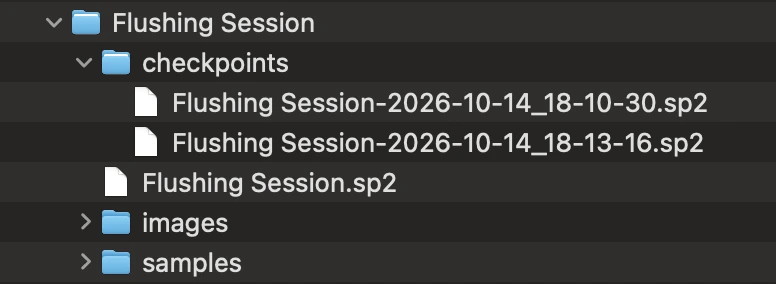
Because the session file records where its samples live relative to the folder, you can copy a session folder to another drive or another computer and it still opens with every sample in place.
Creating a session folder
Two commands in the File menu create one:
| Command | What it does |
|---|---|
| Save as Session Folder | Wraps the session in a new folder without moving any samples. The folder gets the session file and empty samples and images folders; samples that live elsewhere on your drive keep pointing where they are. Use it to start keeping checkpoints straight away. |
| Collect Samples into Session Folder | The same, plus it copies every sample and image you added yourself into the folder and points the session at the copies. This makes the folder portable: use it before you hand a session to someone else or archive it. Core Library and sound pack samples aren't copied, so install those on the other computer too. |
A session you've already saved is wrapped where it is: My Song.sp2 becomes a My Song folder in the same place, holding My Song.sp2, with nothing to fill in. Only a session that has never been saved asks for a name and location.
Once a session lives in a session folder, Save as Session Folder is greyed out.
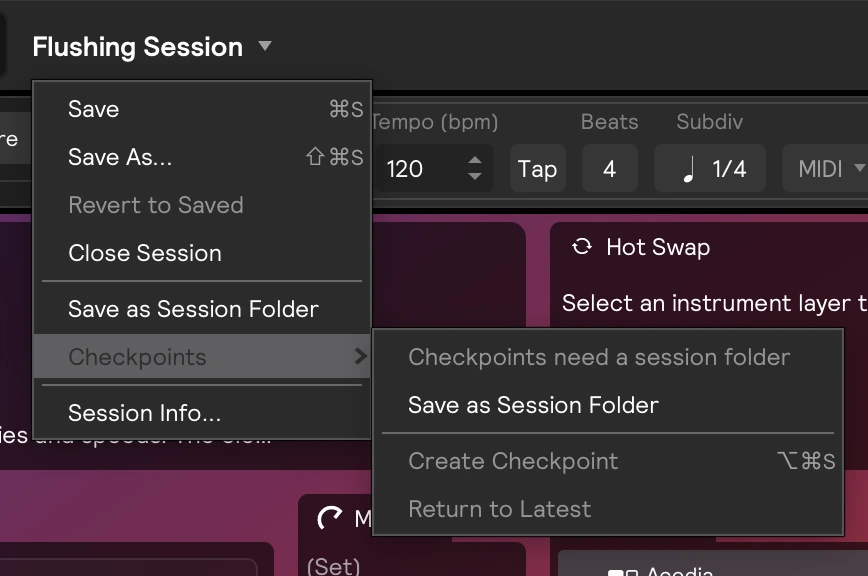
A session saved on its own, outside a folder, works exactly as before. It just can't hold checkpoints.
Checkpoints
A checkpoint is a dated copy of your session, kept in the folder's checkpoints folder. Create one before you try something you might want to back out of.
You'll find checkpoints in File → Checkpoints, or in the menu that opens when you click the session's name at the top of the window.
| Item | What it does |
|---|---|
| Create Checkpoint (⌥ + ⌘ + S) | Saves the session, then files a copy of it under the current date and time. The session itself doesn't change and stays open, so you carry on working. |
| Return to Latest | Goes back to your current session, leaving the checkpoint behind. Greyed out unless you're looking at a checkpoint. |
| The checkpoint list | Every checkpoint in the folder, newest first. Choose one to load that version. The tick shows which one you're looking at. |
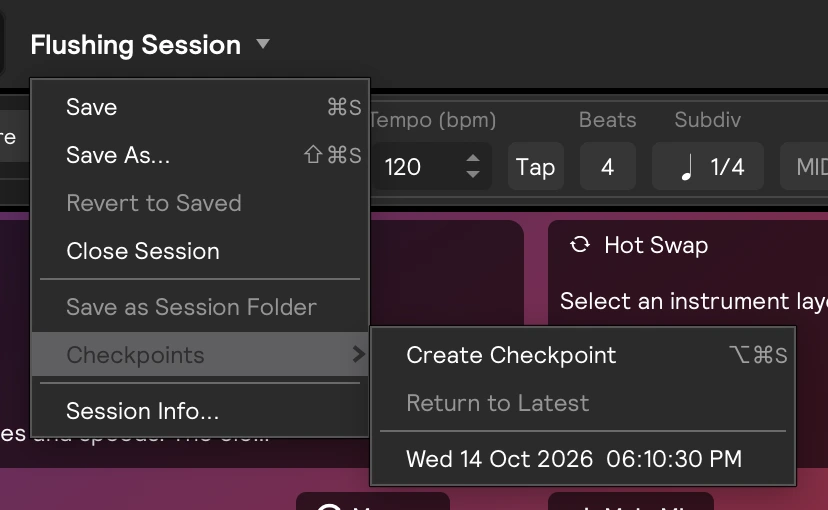
Checkpoint files are named after the session plus the date and time, for example My Song-2026-10-14_18-10-30.sp2.
If the session isn't in a session folder yet, the Checkpoints menu says so and offers Save as Session Folder instead:
Looking at a checkpoint
While you're looking at a checkpoint, its date appears as an orange badge next to the session name, and Return to Latest becomes available.
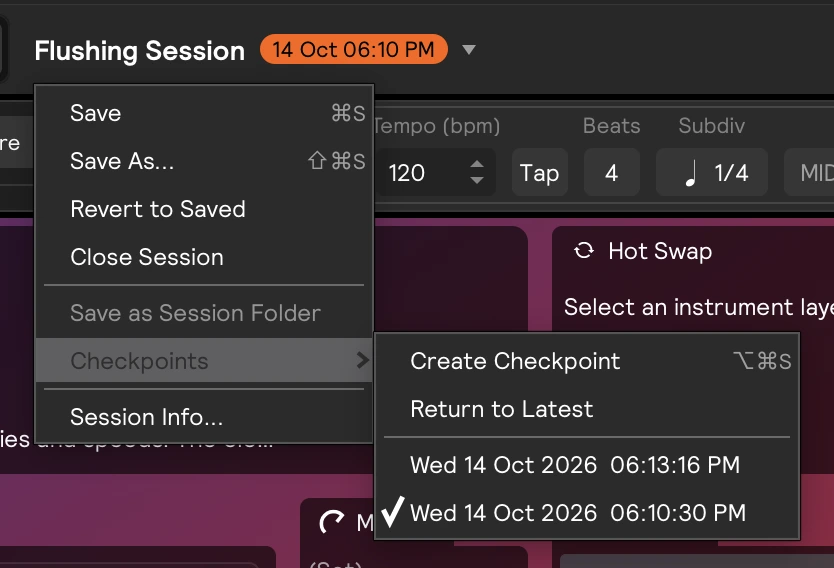
Loading a checkpoint never loses work. Before the older version appears, Sensory Percussion creates a checkpoint of where you were, including any unsaved changes. So Return to Latest always brings your work back, and that checkpoint stays in the list from then on.
Going back to an older version
Loading a checkpoint doesn't change which file Save writes to: the session still belongs to its own .sp2 file and keeps its name. If you Save while you're looking at a checkpoint, that older version becomes your current session. That's how you commit to going back.
Everything you were doing before is already checkpointed, so nothing is lost either way.
Make a habit of Create Checkpoint (⌥ + ⌘ + S) before big changes, like reworking a set's routing or swapping out a kit. If you don't like where it goes, pick the checkpoint and save.