Presets
Every module, generator, controller, and effect has a preset menu in its header. Presets store and recall the settings for that object's type, so a reverb you've dialed in can be saved once and pulled back up on any other reverb, and the factory presets give you a starting point on everything.
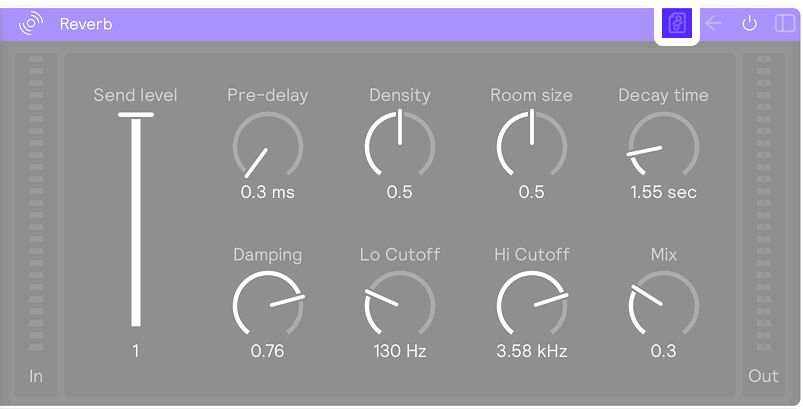
Click the preset button in the object's header to open the menu.
Browsing and applying
The menu lists every preset whose type matches the object you opened it on, with Factory presets first and then your own User presets. The currently applied preset is ticked, and the menu header names it as Preset: <name> — or reads No preset if the settings haven't come from one.
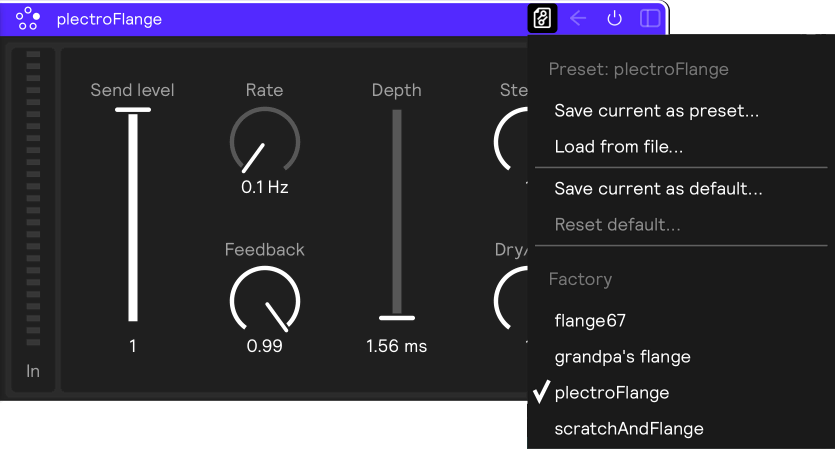
Choosing a preset applies its settings in place. The object keeps its identity and its input wiring; only its settings change. That means you can audition presets on a module that's already wired into your set without rebuilding anything around it.
Presets in the library
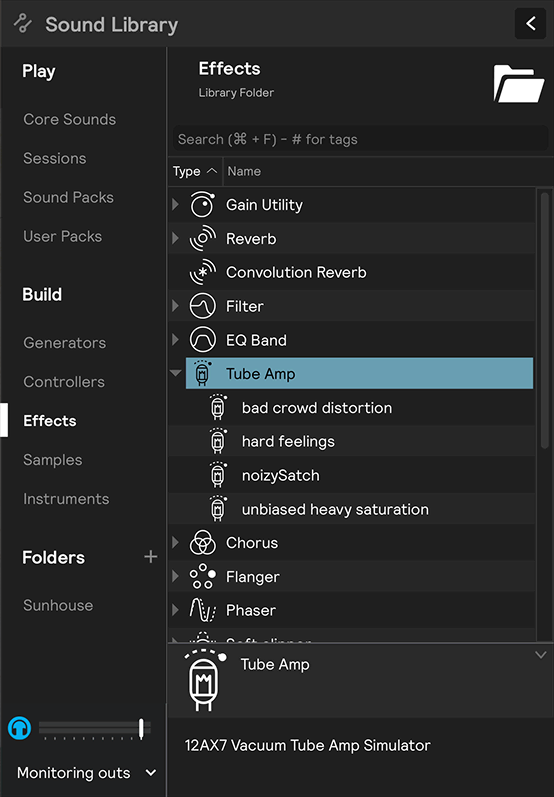
Presets also show up in the Build section of the library. Click the arrow next to a library object to reveal its presets as draggable entries, then drag one straight into your set. Unlike choosing from the menu, this creates a new object from the preset rather than changing an existing one.
Loading from a file
Presets are stored as .spp files. Selecting Load from file... opens a file browser so you can pick a .spp file of the matching type from disk and apply it to the object, exactly as if you'd chosen it from the menu.
You can also drag a .spp file in from the Finder (or File Explorer), which creates the preset's object inside whatever you drop it on — a sampler preset becomes a new sampler, an effect preset a new effect — just like dragging a preset in from the Build library. Preset files inside a bookmarked folder appear in the library's Folders section too, and can be dragged in the same way.
A drop is only accepted where the preset's object type fits, so a module only lights up as a drop target for presets it can actually contain.
Saving presets
Save current as preset... names the object's current settings and stores them as a user preset for that type. It'll show up under User in the preset menu of every object of the same type from then on.
User presets are saved as .spp files in Music/Sunhouse/Sensory Percussion 2/presets, organized into a folder per object type, with the name you gave the preset as the filename. Since they're ordinary files, you can back them up or share them with someone else, who can load them with Load from file... or by dragging them in.
Delete user preset... removes a saved user preset. Factory presets can't be deleted.
Defaults
Save current as default... stores the object's current settings as the default for its type. From then on, a new blank object of that type dragged in from the Build library starts from those settings instead of the factory ones — handy if you always reach for the same reverb decay or the same sampler envelope. Controllers offer both include submodules and do not include submodules variants, so you can choose whether the default carries its contents along with its settings.
Reset default... removes the saved default for that type, returning new objects to the factory settings.
A default only applies to a genuinely blank library template. Dragging in a preset, dropping an audio file, or pulling an object in from a saved set all bring their own settings, so the default is left out of it.