Parameters
Almost every control in Sensory Percussion is a parameter: a single named value belonging to a module, an effect, a modulator, or a macro. They all behave the same way, so once you know the handful of gestures below, they work everywhere.
Types
A parameter's type decides what it can hold, and that in turn decides which control you see.
| Type | Looks like | Holds |
|---|---|---|
| Continuous | Slider, knob, number box | A number over a range, often with units (ms, Hz, %, dB). The range can be linear or curved, so the middle of the travel isn't always the middle of the numbers. |
| Integer | Number box, stepped slider | A whole number, like a MIDI channel or a voice count. |
| Toggle | Switch, tick, lit button | On or off. |
| Trigger | Button, LED | Nothing at all — it fires an action, so there's no value to store. |
| List | Dropdown, radio row | One choice out of a fixed set. |
| Text | Text field | A name, a path, an OSC address. |
Working with a control
| Gesture | What it does |
|---|---|
| Drag | Change the value. Number boxes take a vertical drag; sliders and knobs follow their track. |
| Double-click | Reset to the parameter's default. Works on the controls with a range to return to: sliders, knobs, and number boxes. |
| Type | Start typing a number over a focused slider or number box and an edit field opens. Enter commits. |
| Arrow keys | Nudge a focused slider up or down by one step. |
| Mouse wheel | The same as a small drag, once the control has focus. |
| Right-click | Open the parameter menu: assignments, copy to siblings, and live values. |
Number boxes also take precision modifiers. Hold Shift while dragging or scrolling for a fine adjustment, or ⌘ for a coarse one. The pointer disappears while you drag and reappears where it started, so you can keep dragging past the edge of the screen.
The parameter menu
Right-clicking a parameter is how you reach everything it can do.
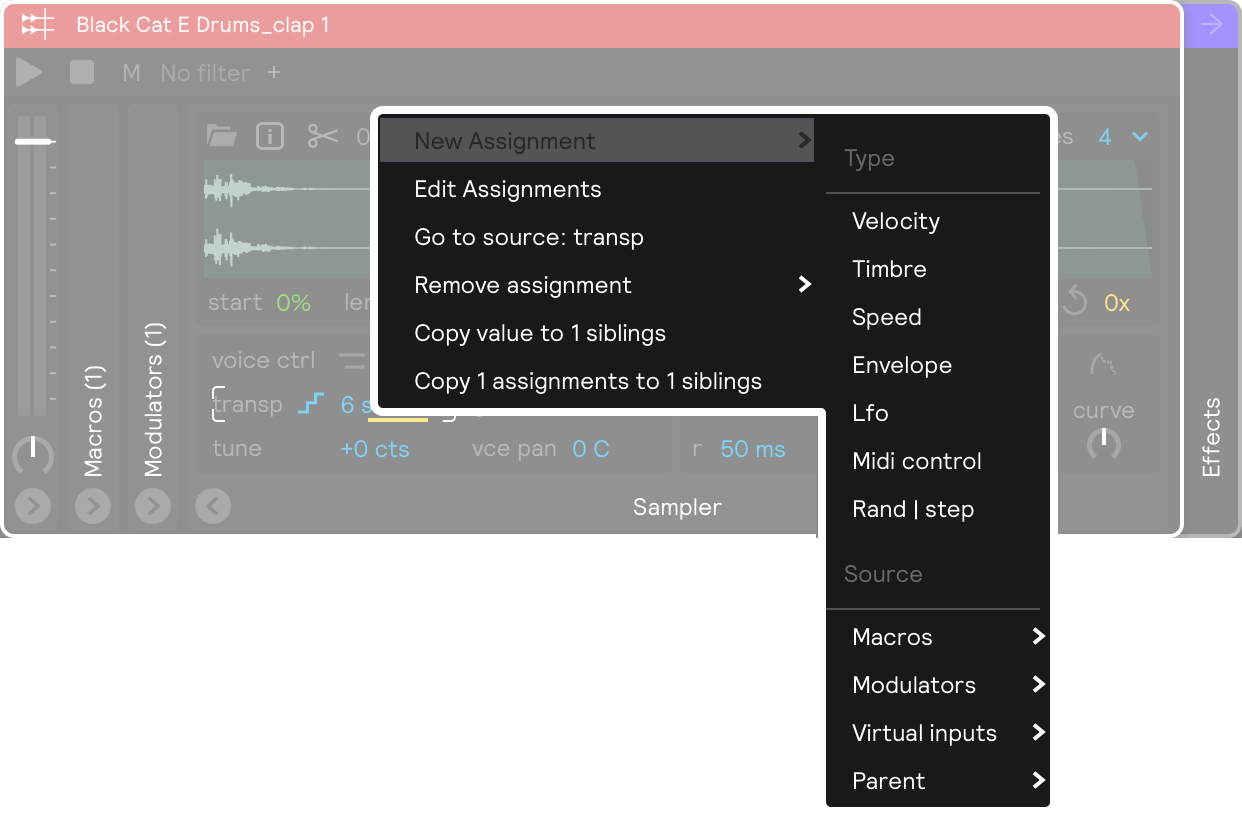
Assignments
An assignment lets something else drive a parameter — your playing, a modulator, a macro, or incoming MIDI. A parameter with at least one assignment gets a yellow underline beneath its control.
Only parameters with something to move can be assigned: continuous values, integers, toggles, and triggers. Lists and text fields can't.
To create one, either drag a source onto the control — valid targets highlight as you drag — or right-click and use New Assignment, which asks for the type (how the source drives the value) and the source (which input, modulator, or macro it comes from). The Assignments and Modulators page covers the available types and what each one does.
The rest of the menu handles assignments that already exist:
| Item | What it does |
|---|---|
| Edit Assignments | Opens the assignment editor for this parameter. Greyed out when there aren't any. |
| Go to source | Jumps to the modulator or input driving the parameter. |
| Remove | Deletes an assignment, picked by name. |
Some assignments are refused because they couldn't work: a parameter can't drive itself, the same source can't be connected twice, and any pair that would form a loop is rejected.
Copying to siblings
If you need to set the same value on the same parameter across several objects at the same level — the same control on every layer, say — the menu offers Copy value to N siblings and Copy N assignments to N siblings. Set it once on one of them, then spread it across the rest.
Live values
A parameter can hold two different numbers at once:
- The saved value is what's written into your session, and what comes back when you reload it.
- The live value is what the engine is actually using right now. Assignments driven by your playing, macros, and incoming OSC or MIDI all move parameters without touching the saved value.
Most of the time these agree. They come apart the moment something other than your own edit moves a control — and then the question is which of the two should survive into the file.
Two modes
Remember live changes is the default: the live value is the value. Saving writes whatever the engine is currently using, so a session comes back sounding exactly as you left it, including everything your playing moved.
Manual makes the saved value the value. Live movement is temporary, and is discarded on save unless you deliberately commit it. This is worth reaching for when you've dialed a session in by hand and don't want a performance quietly rewriting it.
The app-wide default is in Settings → General under Remember live changes.
The divergence dot
In manual mode, a small light blue dot appears on any control whose live value has drifted from its saved one. It shows up on number boxes, sliders, knobs, toggles, and decibel sliders.
The dot means: what you are hearing is not what will be saved.

There's no dot in Remember live changes mode, since there's nothing to reconcile — the live value is already the one headed for the file. It also hides while you're actively dragging a control, so it doesn't flicker under your own hand.
Deciding what to keep
Right-clicking a diverged control adds two more items to the parameter menu:
| Item | What it does |
|---|---|
| Save live value to state | Commits the live value. It becomes the saved value and the dot clears. |
| Reset to saved state | Pushes the saved value back out to the engine, overwriting the live value and returning the sound to what's in the file. |

Both are undoable, and both appear only in manual mode, on a parameter that has actually diverged. Macros carry the same pair.
Per-module override
Right-click a module or effect — anywhere that isn't a control — for a Live values section at the bottom of the menu. Remember live changes there pins that module to a mode of its own, overriding the app-wide setting.
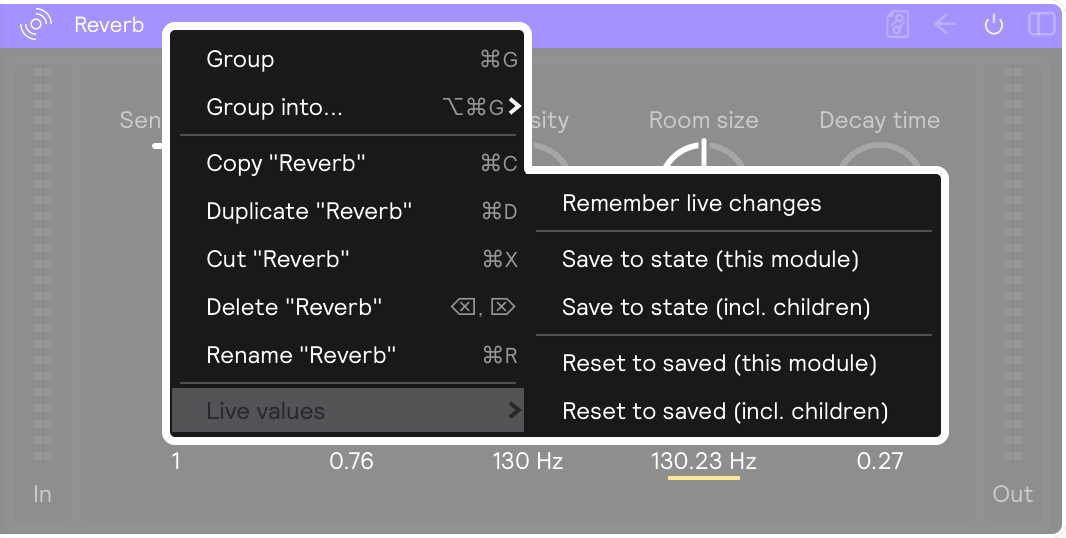
The override is inherited: it applies to everything inside the module, and a nested module can override it again for its own contents. A parameter with no override anywhere above it falls back to the app-wide setting.
In manual mode, once something below has diverged, the same section also offers Save to state and Reset to saved, each in a this module and an incl. children variant. The second reaches all the way down through child modules, effects, modulators, and macros.