Info
The Info panel gives a module a picture and a place for notes. It's available on every module (controllers, generators, and effects), and it's a handy spot for setup instructions, credits, or a reminder of what a module is for.
The panel is hidden by default. Open the panel menu in the module's header and tick Info to show it. Untick it to hide it again.
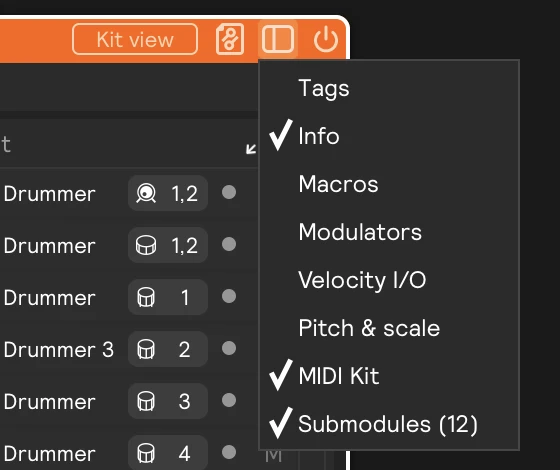
Adding an image and notes
A freshly opened Info panel is narrow and shows two dashed buttons:
| Button | What it does |
|---|---|
| + image | Choose a picture for the module (PNG or JPG). It shows at the left of the panel. To change or remove it, hover over the picture and click … in its top-right corner, or right-click the picture. |
| + notes | Opens a text area for notes or a description. Clear the text and click away to close it again. |
- Empty
- With notes

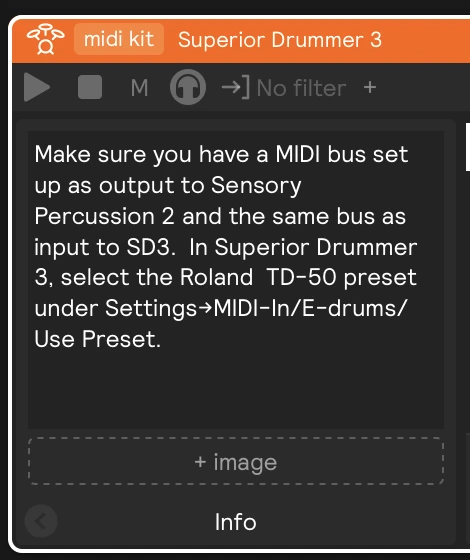
The image and notes are saved with the session, and travel with the module when you copy it.