MIDI Kit
The MIDI Kit turns your whole kit into MIDI for drum software such as Superior Drummer 3, Addictive Drums, or Steven Slate Drums, or for external hardware. It holds one set of zone → note mappings per drum, all sending to the same MIDI output.
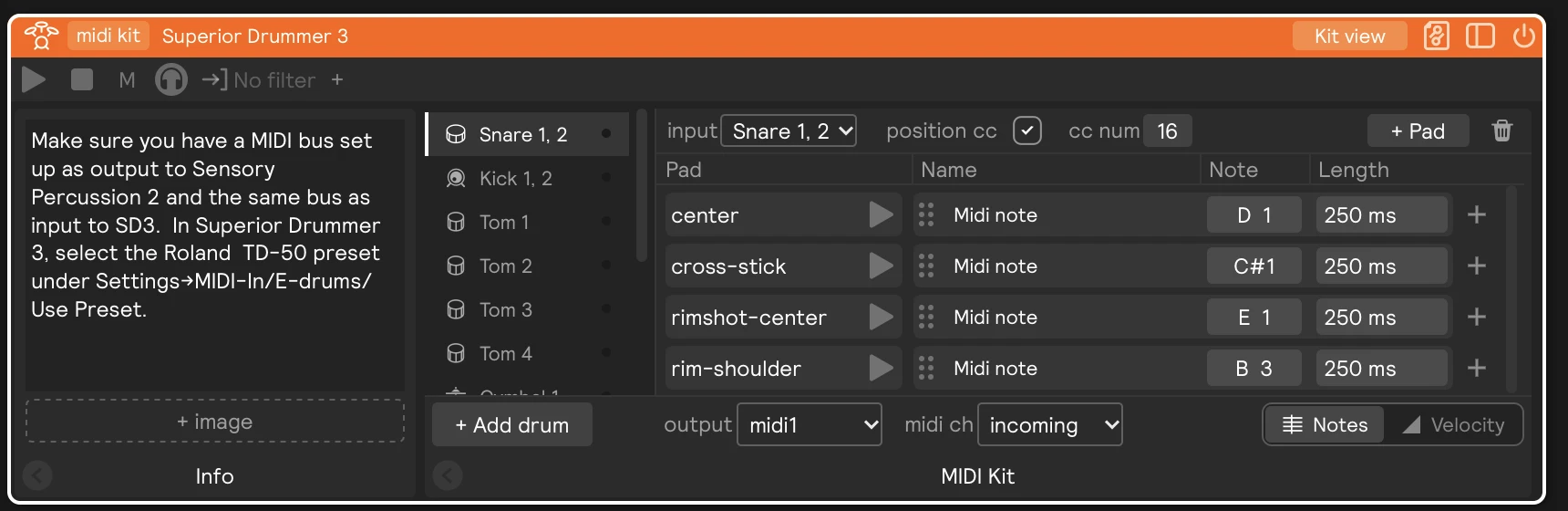
Start from a factory MIDI Kit and you'll be playing in a few minutes. See How to Play Drum Software with a MIDI Kit.
Adding a MIDI Kit
Click + Add Module on an empty layer and choose Instruments → MIDI kit to start from a factory kit:
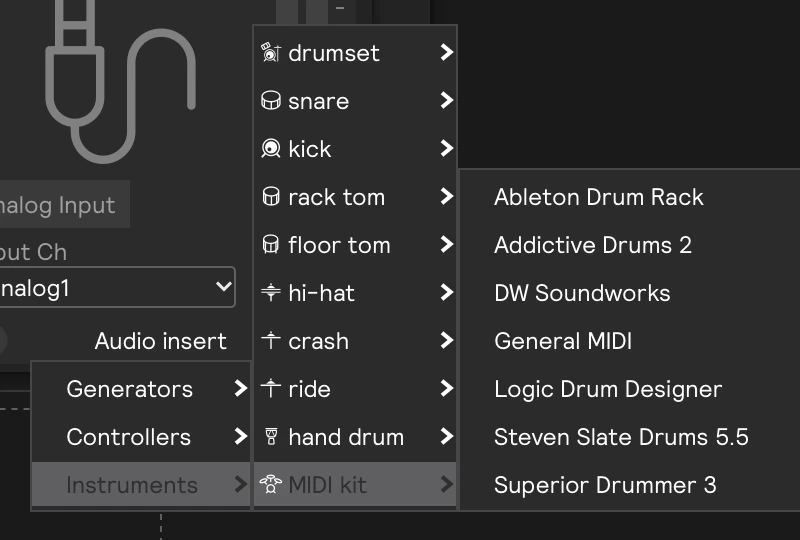
| Factory MIDI kits |
|---|
| Ableton Drum Rack · Addictive Drums 2 · DW Soundworks · General MIDI · Logic Drum Designer · Steven Slate Drums 5.5 · Superior Drummer 3 |
You can also start from a blank MIDI Kit in Generators. A new MIDI Kit starts with one drum for each drum input in your session, each mapping the drum's main zones:
| Drum | Default zones |
|---|---|
| Snare, toms | center, rim-shoulder |
| Kick | open, rim-shoulder |
| Cymbal | bow, crash |
| Hi-hat | bow, pedal |
Other zones play through the nearest mapped zone until you give them rows of their own. See Zones without their own note.
Adding a MIDI Kit from + Add Module creates a MIDI hardware output on MIDI 1 if your session doesn't have one yet. Set its Output Device to the port your drum software listens on.
Drums
The list on the left shows the kit's drums. The light next to a drum flashes when that drum is hit. Click a drum to edit it on the right, or use the up and down arrow keys to move through the list.
+ Add drum, under the list, adds a snare, kick, tom, cymbal, hi-hat, or grid pads. The new drum listens to the first input of that type the kit isn't already using, and its notes continue after the kit's highest note.
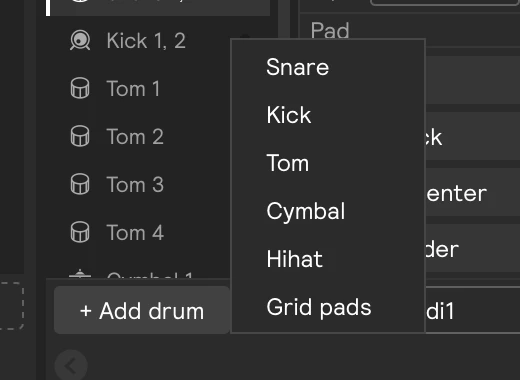
Right-click a drum for more:
| Item | What it does |
|---|---|
| Input | Tick which inputs of that type the drum listens to. Pick one or several. |
| Use own output | Sends this drum on its own output and channel instead of the kit's. Its output number then shows next to the drum. |
| Remove drum | Deletes the drum and its mappings. Delete or Backspace with the drum selected does the same. |

Editing a drum
The right side edits the selected drum. Its top row holds the drum's settings, and the pad → note rows below work just like a MIDI Notes Generator.
| Control | What it does |
|---|---|
| input | Which inputs of that type the drum listens to. Click to tick or untick one. A drum can listen to several (Snare 1 and 2, for example) but always keeps at least one. Inputs another drum in the kit already uses are greyed out. |
| choke, hold, split, cc, position cc | The choke, hi-hat pedal, and snare position controls for that drum type. They work as on a MIDI Notes Generator: see Choke, Hi-hat timing, Open and closed notes, and Snare position. |
| + Pad | Adds, removes, or resets the drum's pad → note rows. |
| Trash | Removes this drum and its mappings. |
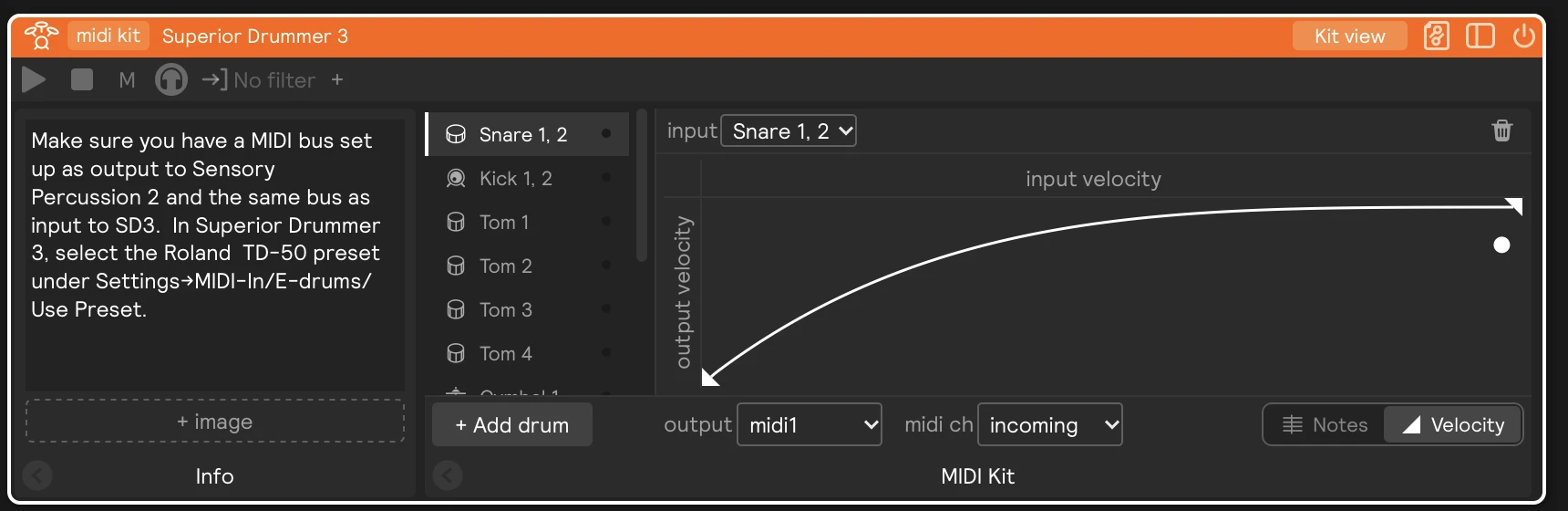
The Notes / Velocity switch at the bottom right flips between the drum's pad → note rows and its velocity curve, which shapes how hard each hit plays. Each drum has its own curve.
Zones without their own note
You only need rows for the zones you want to tell apart. A hit on a zone without a row plays the row of its nearest mapped zone: with only center and rim-shoulder mapped, edge hits play the center note and rim-tip hits play the rim-shoulder note. The + Pad menu shows where each unmapped zone goes, for example bell-tip → bow.
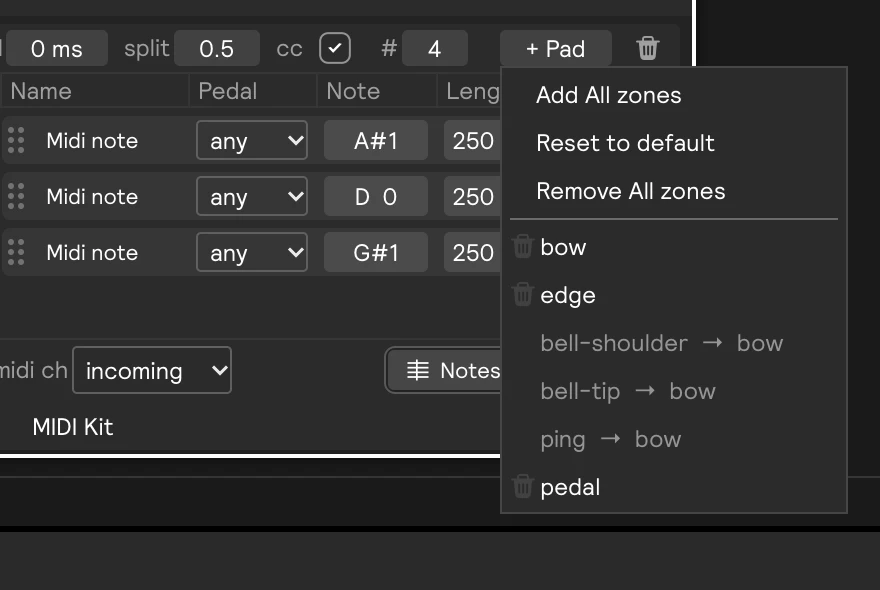
See MIDI Notes Generator to silence a zone instead.
Kit view
Turn Kit view (in the kit's title bar) off to work on the drums as separate modules. The kit shrinks to its output controls, a Submodules list appears, and each drum opens as its own MIDI Notes Generator with all of its panels. The kit still sets the output and channel for every drum that doesn't use its own output.
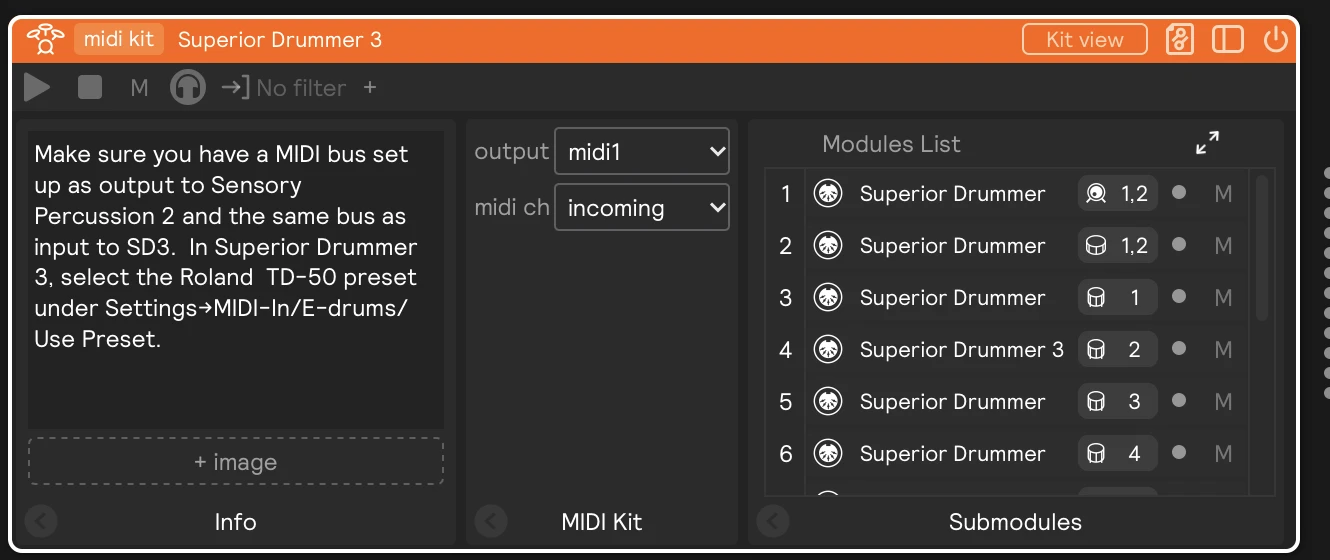
Turn Kit view back on to return to the drum list. The button is greyed out while a drum listens to more than one type of input, to no input, or to something other than snare, kick, tom, cymbal, hi-hat, or grid pads inputs. Give each drum inputs of a single drum type first.
Inside a MIDI Kit, + Add Module only offers MIDI Notes Generators.
Output
Every drum in the kit sends on the kit's output and channel, unless Use own output is ticked for it. To choose such a drum's output and channel, turn Kit view off and set them on the drum's own card.
| Control | What it does |
|---|---|
| midi ch | The MIDI channel notes are sent on, or incoming to keep the channel of the triggering input. |
| output | The MIDI output number (1–16). A MIDI hardware output set to the same number forwards these messages to a real or virtual MIDI device. |
The kit makes no audio, so it has no mixer fader, sends, or audio effects.
Saving your own MIDI kits
Open the kit's preset menu and choose Instruments → Save current as instrument… to save it as a MIDI kit instrument. Your kits appear under + Add Module → Instruments → MIDI kit and at the top of any MIDI Kit's Instruments menu, where choosing one replaces the kit.
Older sessions
Sessions and presets from earlier versions that built a MIDI kit out of a group of MIDI Notes Generators open with that group turned into a MIDI Kit. The kit takes its output and channel from the group's first generator. Generators that sent somewhere else keep their routing through Use own output.
A group that also holds audio effects stays a group, because a MIDI Kit only sends MIDI and can't host them.