Sensor Expansion (Second Portal)
Connect a second EVANS Portal to get seven more sensor inputs. The second Portal is used only for sensors: it has no audio outputs in Sensory Percussion, and your main interface keeps handling all audio.
Setting it up
- Plug the second Portal into your computer over USB.
- Open Settings → Audio. Under Devices, a second card appears next to your main interface, naming the unit it found, for example EVANS Portal (2) · Detected.
- Click Use as sensor expansion on that card, or pick the unit from the Sensor Expansion dropdown under Output Device.
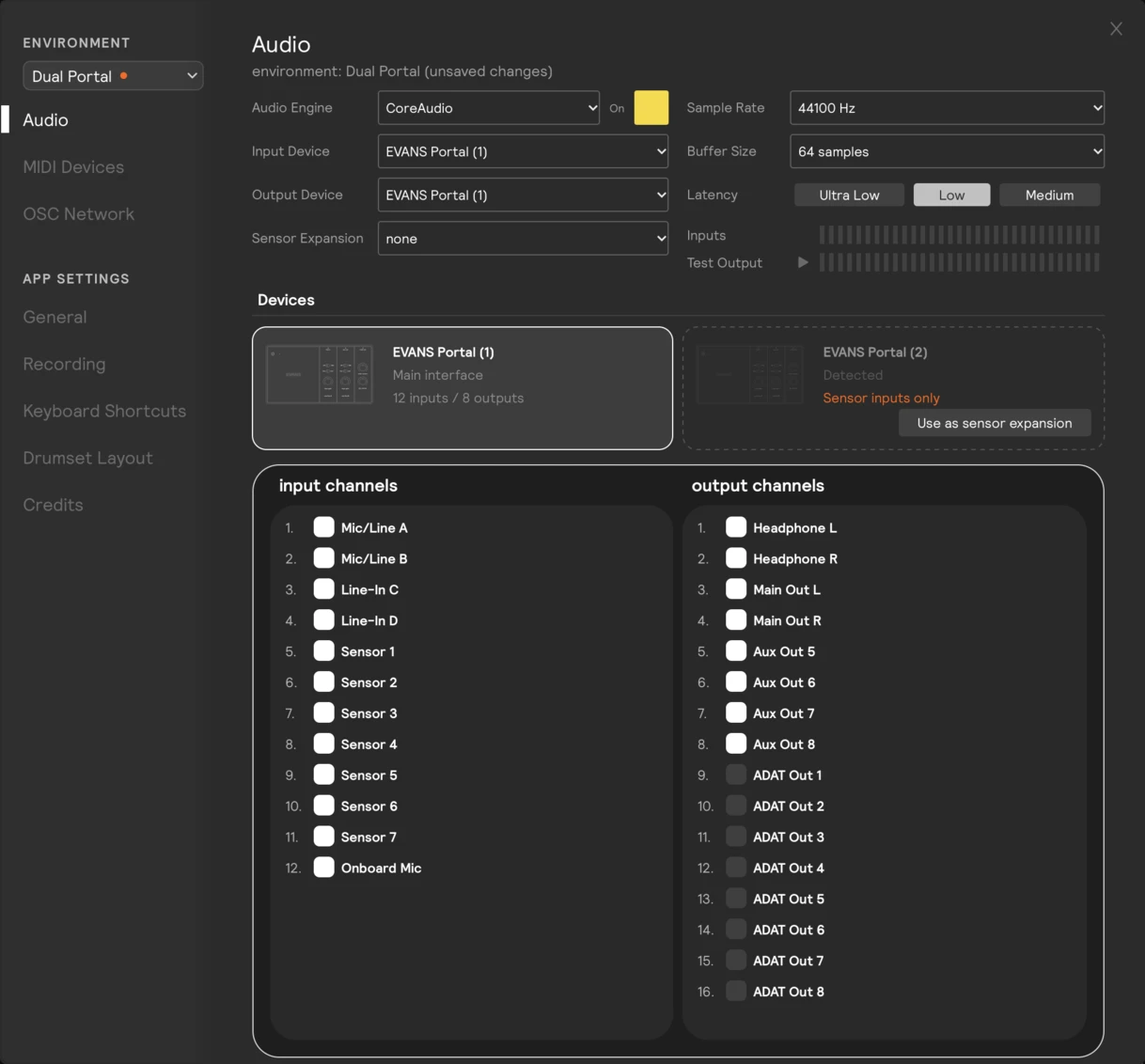
Once it's on, the second card reads Sensor expansion and the Sensor Expansion dropdown shows the unit:
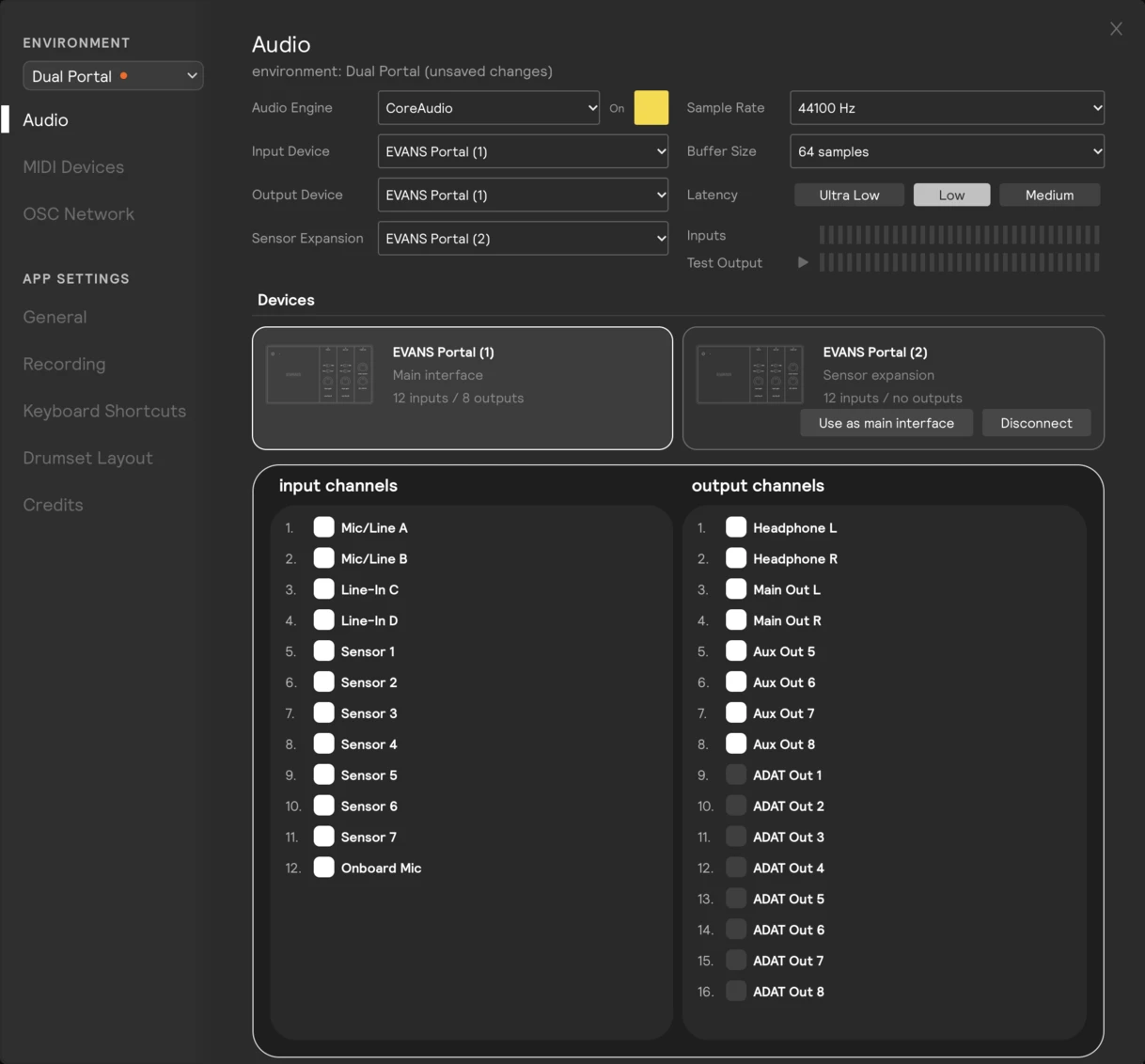
The expansion runs at the same sample rate and buffer size as your main interface. There are no separate settings for it.
Using the extra inputs
In any sensor input's Input Ch menu, the second Portal's channels are listed under Sensor Expansion, starting with P2:. Assign, train, and route these inputs exactly like the ones on your main Portal.
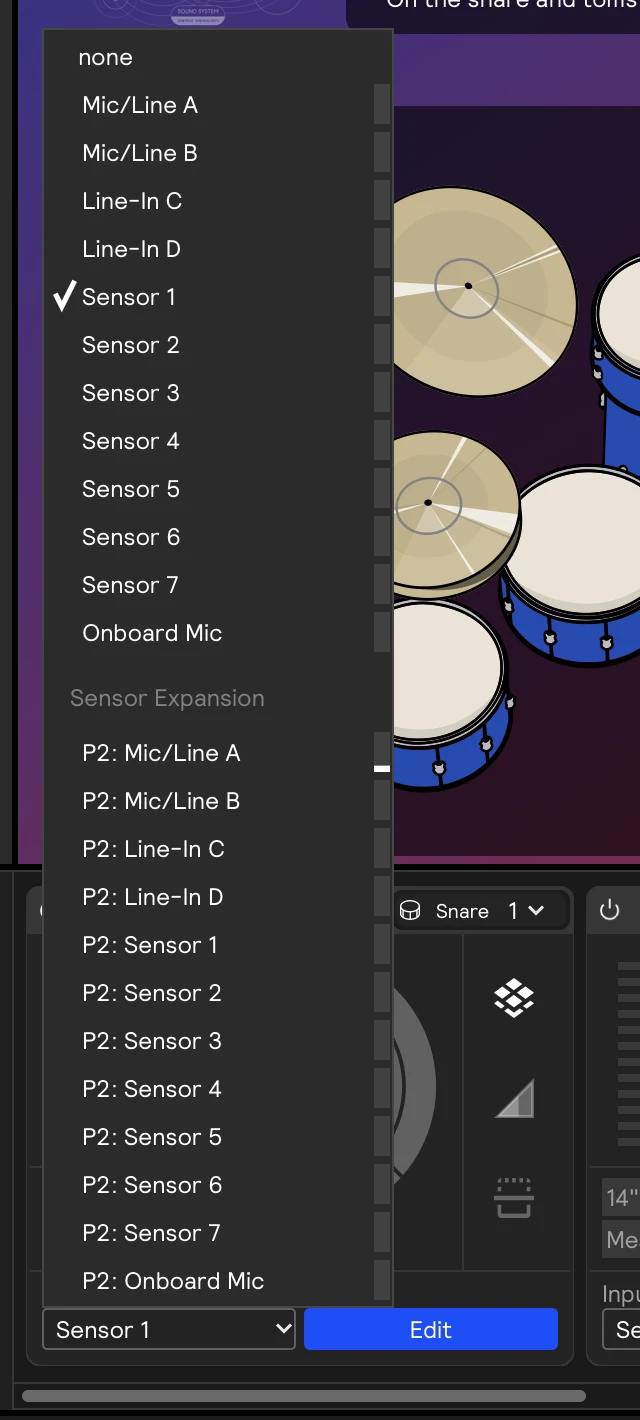
Expansion channels are for sensor inputs only. Analog inputs can't use them.
The Devices cards
The Devices area always shows your main interface on the left. It shows a Portal picture for a Portal, and a generic interface picture for anything else (or when your input and output are different devices). Click a card to see that unit's channels in the list below: the main interface shows its input and output channels, and the expansion shows its inputs only.
The right card appears whenever a Portal could be a sensor expansion: a second Portal when your main interface is a Portal, or any connected Portal when your main interface is something else. So a single Portal can be the sensor expansion next to a third-party interface. When one Portal is connected and not in use yet, both cards offer it, the left card as main interface and the right as sensor expansion.
| Button | Where | What it does |
|---|---|---|
| Use as sensor expansion | Right card | Starts using the detected Portal for sensor inputs. |
| Disconnect | Right card, while the expansion is active | Stops using the second Portal and clears it. |
| Use as main interface | Right card, while the expansion is plugged in | Makes the expansion Portal your main interface, after confirming. See Swapping Portals. |
| Forget | Right card, when the expansion isn't found | Clears the stored expansion. |
| Use Portal as main interface | Left card, when a Portal is connected but isn't your main interface | Switches your main interface to that Portal. If the only Portal is your expansion, you're asked to confirm the swap. |
The Portal that's running as sensor expansion is greyed out in the Input Device and Output Device dropdowns. To use it for audio, swap it to main interface, or set Sensor Expansion to none first.
When the expansion is unplugged
If the second Portal is unplugged, its inputs go silent and are marked disconnected, but they keep their settings and training. They come back on their own when you plug it back in.
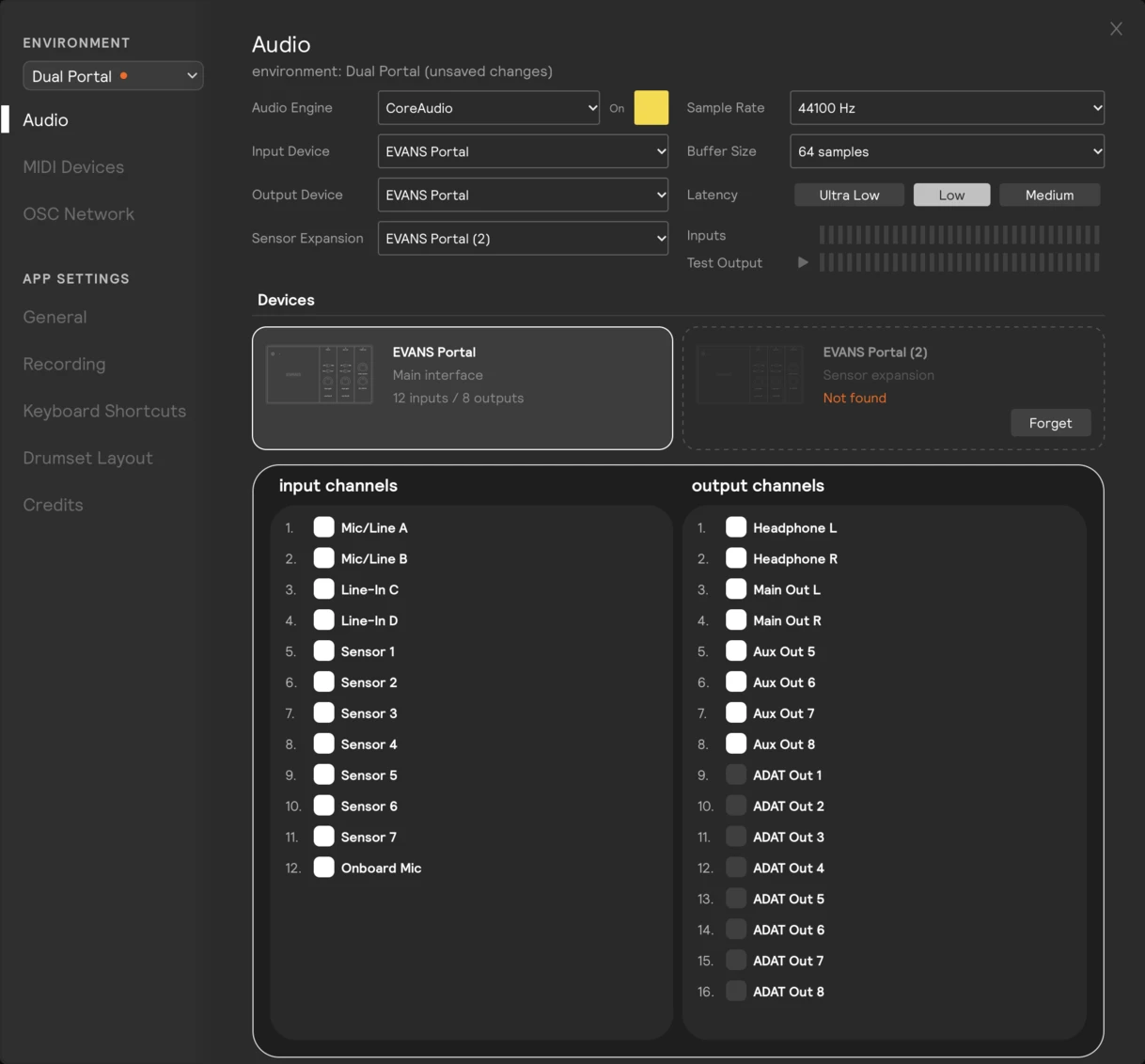
While it's unplugged, its card is drawn with a dashed outline and its status in orange, and it's greyed out in the Sensor Expansion dropdown. Click Forget if you don't plan to use it again.
Swapping Portals
Use Use as main interface when the output cables ended up on the wrong unit, or when your main Portal is unplugged and you want to carry on with the unit that was the expansion. You're asked to confirm first:
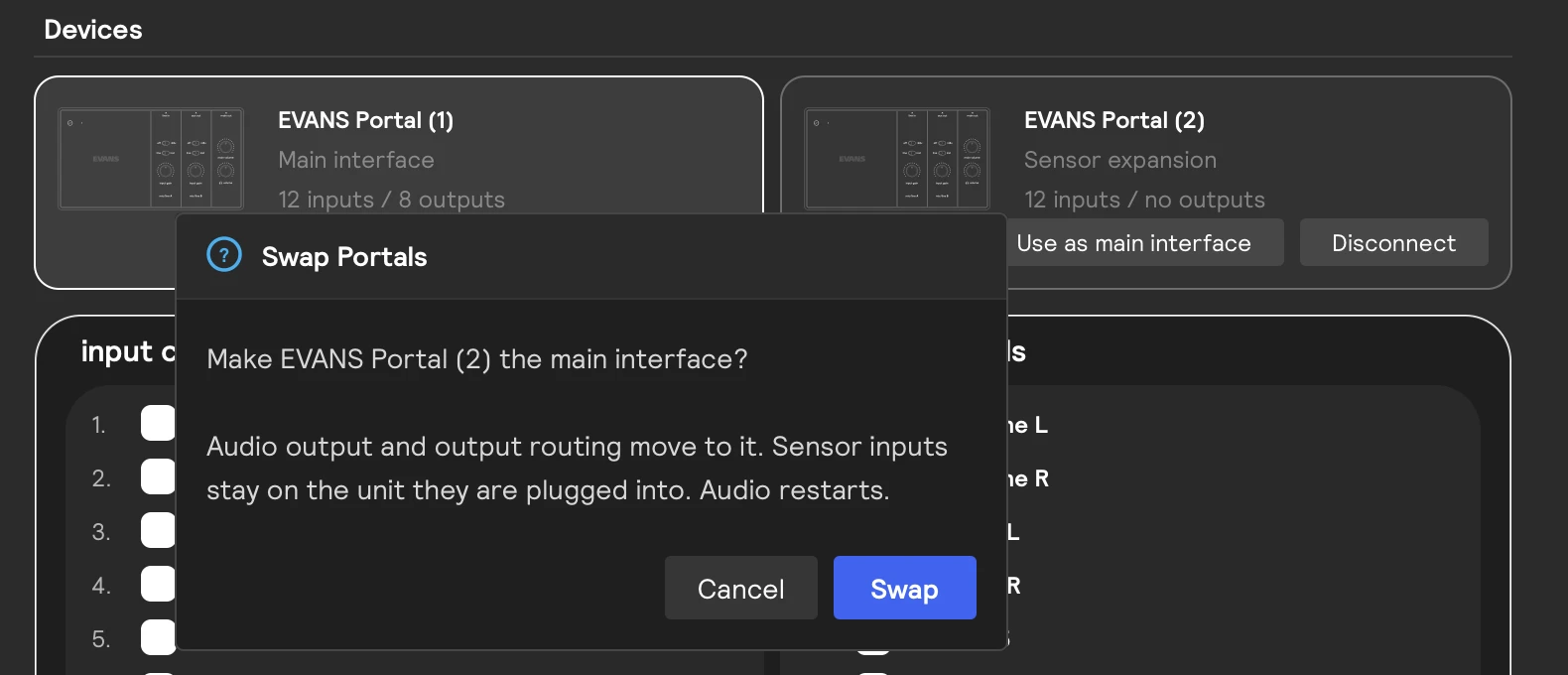
Audio output and your output routing move to the promoted Portal. Sensor inputs stay on the unit they're plugged into, so nothing needs re-training. Audio restarts briefly.
If the old main interface was a Portal, it becomes the expansion. If it's no longer connected, its card shows Not found until you plug it back in or click Forget. If the old main interface was another kind of device, it's simply released, and the expansion card disappears until another Portal is plugged in.
Telling the two Portals apart
The Sunhouse logo in the top-left corner of each Portal is its link light. It shows what Sensory Percussion is using that unit for:
| Link light | Meaning |
|---|---|
| Solid | This unit is your main interface. |
| Pulsing (on for 1.5 seconds, off for half a second) | This unit is your sensor expansion. |
| Off | Sensory Percussion isn't using this unit. |
So with both units on your desk, you can see at a glance which one to plug your outputs into. On Windows, both logos are solid while Sensory Percussion is using a Portal, so this only works on a Mac. The lights go out shortly after you quit Sensory Percussion. See Sunhouse logo (link light).
In the footer
Once a sensor expansion is set up, the device area at the bottom right of the main window shows one Portal icon per unit: the main Portal first, then the expansion. The icon lights while the unit is in use. Hover over the area to see both units by name. A unit that's been unplugged is marked not found.
