Drum Trigger Inputs
A Drum Trigger input connects a conventional drum trigger, like a piezo pad or an acoustic drum trigger, to Sensory Percussion through an audio input on your interface.
Unlike a drum sensor, a trigger doesn't analyze timbre and doesn't need training. On each hit, it measures the velocity and plays one zone. Skipping the timbre analysis also skips its delay, so trigger inputs respond a few milliseconds faster than sensor inputs.
Adding a Drum Trigger input
In the hardware inputs panel, click + and choose Drum Trigger. Give it a Trigger Name, then choose its Zones:
| Zones | Use it for |
|---|---|
| Single zone | A trigger on one input channel that plays one zone. This is the default. |
| Dual zone | A trigger on a stereo pair of input channels, such as a dual-zone trigger with its head and rim piezos on separate cables. The trigger works out which zone you hit and plays exactly one zone per stroke. |
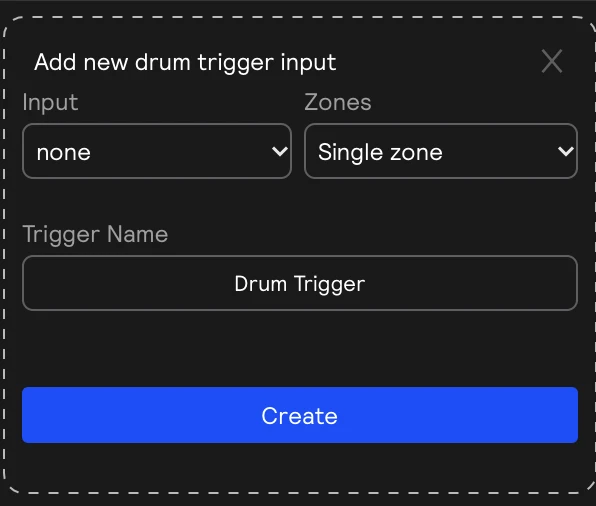
Your choice decides what the Input Ch list offers: single channels for a single-zone trigger, stereo pairs for a dual-zone one.
The input card
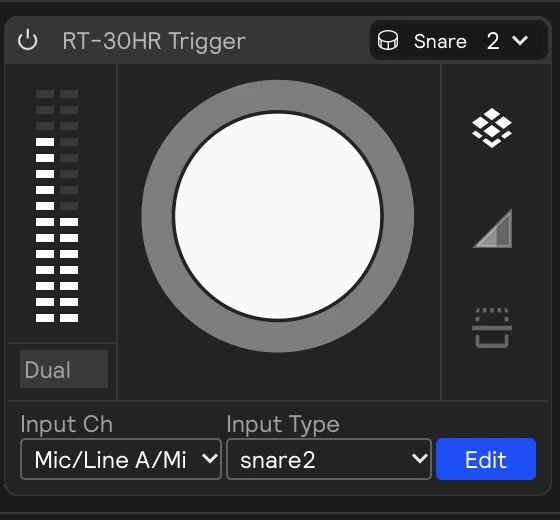
The card works like a sensor input card: an input meter on the left, and three views on the right — the pads display (a hit lights up the zone it played), the velocity curve, and the threshold view showing the incoming signal.
| Control | What it does |
|---|---|
| Input Ch | The channel the trigger is plugged into: a single channel for a single-zone trigger, a stereo pair for a dual-zone one. |
| Input Type | The drum this trigger plays. The menu lists the surface types (snare, tom, kick, cymbal, hi-hat); hover one to pick a specific drum, such as kick3. |
| Edit | Opens the trigger settings window. |
| Power | Turns the input off. While it's off, the trigger is virtually disconnected from the software. |
You can change Input Type at any time. Point a trigger at tom2 and it becomes that tom: everything assigned to Tom 2 now plays from this trigger. A trigger can also share a drum with a sensor input, so both play the same sounds. Sensor inputs are different: their drum is fixed when you create them.
Trigger settings
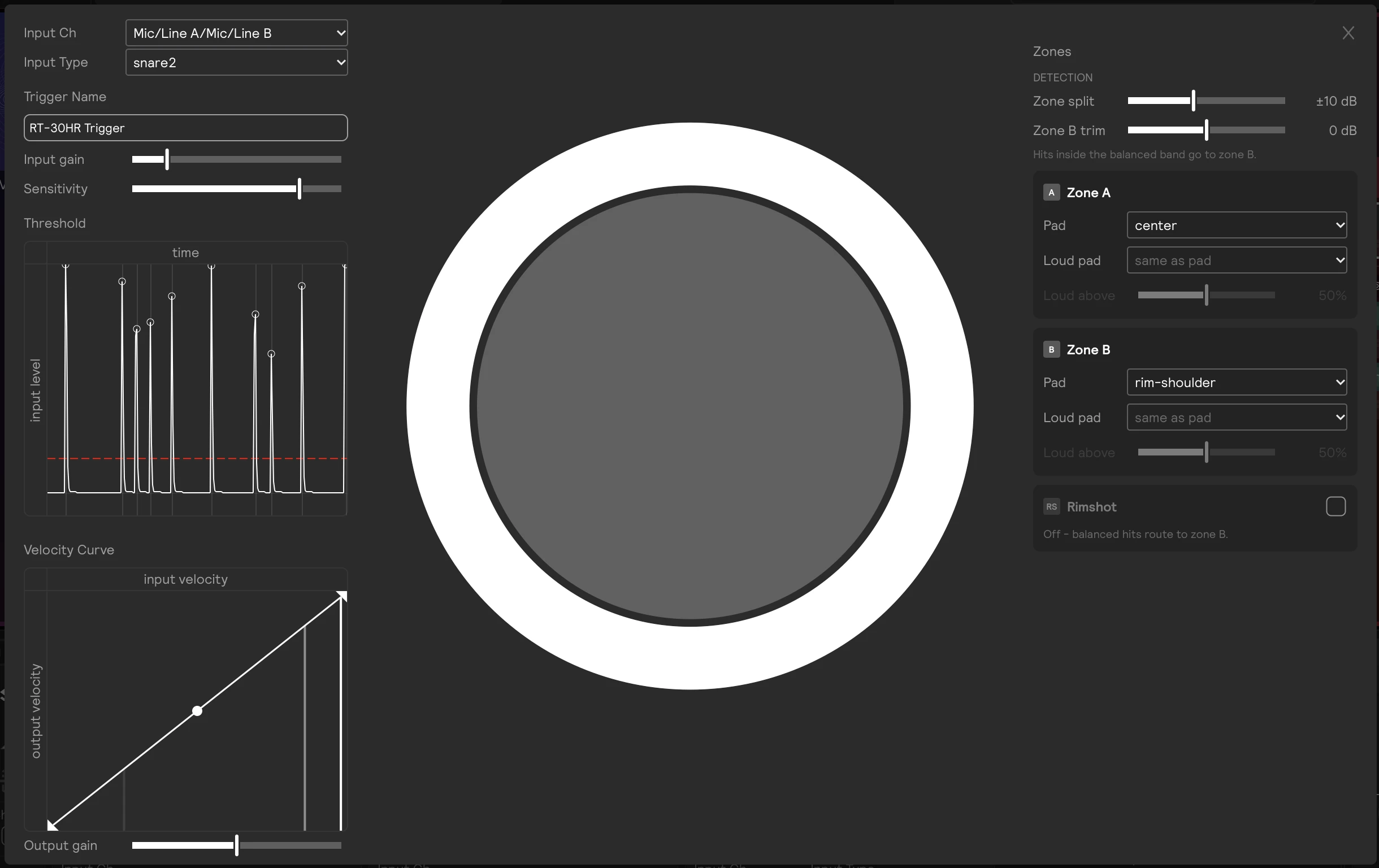
Edit opens the settings window. It's laid out like the sensor settings window: input, threshold, and velocity controls on the left, the pads display in the middle (a hit lights up the zone it played), and the Zones column on the right, with the dual-zone Detection controls at its top.
Input and velocity
| Control | What it does |
|---|---|
| Input gain | The gain going into hit and velocity detection. Defaults to -16 dB, so solid hits don't max out the velocity. |
| Sensitivity | Playing sensitivity. Raise it to catch softer hits; lower it to reject crosstalk and noise. |
| Threshold | Shows the incoming signal. Drag the dashed line to set the level below which hits are ignored. |
| Velocity Curve | Maps input velocity to output velocity. Drag the curve to shape the response. |
| Output gain | Adjusts the final velocity of each hit. Defaults to 0 dB. |
| Input Type | The same as the card's Input Type selector. |
Zones
A single-zone trigger shows one Pad card: the pad the trigger plays, an optional Loud pad, and its Loud above level. The other controls below only appear on dual-zone triggers.
| Control | What it does |
|---|---|
| Pad | The pad each zone plays. Zone A (the first input channel) defaults to the drum's main pad, Zone B (the second channel) to its rim pad, and Rimshot to its rimshot pad where the drum has one. If you change a pad from its default, a ↺ button appears next to it; click it to reset. |
| Loud pad / Loud above | Any zone can split into two pads by velocity: hits at or above Loud above play the loud pad, softer hits play the zone's pad. The loud pad defaults to same as pad, which turns the split off. |
| Zone split | Dual zone only, under Detection. How much louder (in dB) one piezo has to be than the other to win. Zone A plays when the first channel beats the second by at least this much, Zone B when the second wins by the same margin. Hits in between are "balanced" and count as rim hits. Lower it if head hits land on the rim zone; raise it if rim hits land on the head zone. |
| Zone B trim | Dual zone only, under Detection. A level trim on Zone B's piezo, to balance piezos with different sensitivities. |
| Rimshot | Dual zone only. Detects a third zone: a balanced hit, with both piezos firing inside the Zone split margin, plays the Rimshot pad. When it's off, the Rimshot card collapses and balanced hits go to Zone B. |

How dual-zone detection works
Both piezos hear every stroke, so one physical hit always plays exactly one zone. On the first onset the trigger opens a short decision window, compares the two channels, and picks a winner. A clearly louder channel plays its own zone. Balanced hits play the Rimshot zone when Rimshot is on, and Zone B otherwise. That zone's velocity split then picks between its pad and its loud pad.
On a pad with a single rim piezo, a hard rim-only stroke looks electrically identical to a rimshot. Leave Rimshot off and set Zone B's Loud pad to rimshot-center, so how hard you hit the rim decides between a rim click and a rimshot.
You can use the same idea on the head: Zone A with pad edge and loud pad center grades head hits by force.