eKit Inputs
An eKit input connects an electronic drum kit (Roland, Alesis, Yamaha, and so on) to Sensory Percussion over MIDI. One eKit input stands for your whole kit. It maps the notes your kit sends to drums and their zones (snare center, snare rimshot, tom center, hi-hat bow, and so on), so the rest of the software sees your eKit exactly as if each drum had a sensor on it. Instruments, Drum Pads, and assignments all work the same way.
The hi-hat pedal comes through too. Your kit's pedal is turned into the same continuous pedal stream a hi-hat sensor produces, so open/closed blending and pedal-driven modulation work unchanged.
Use an eKit input when you want to play your eKit like a drum kit: each pad becomes a drum with zones, and sets and instruments built for sensors just work. Use a Pad input when you want a grid of pads to trigger a Grid Pads controller.
Adding an eKit input
- Enable your kit's MIDI port in Settings → MIDI Devices.
- In the hardware inputs panel, click + and choose eKit.
- Choose your kit under MIDI Input, give it an eKit name, and create it.
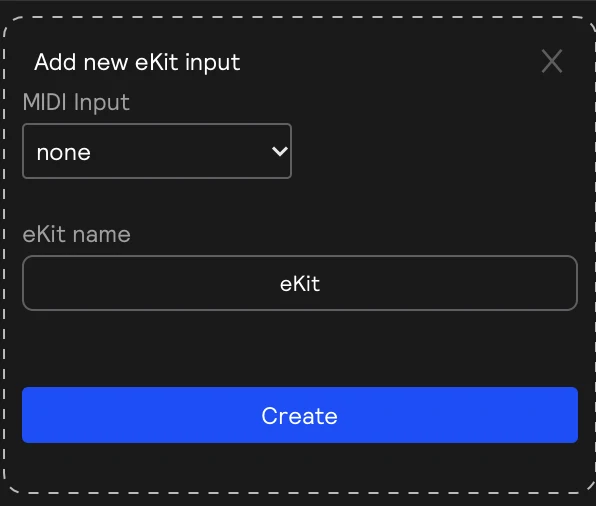
A new eKit input starts with a General MIDI drum map. Pick your kit's model from the preset menu in the card's title bar to load its factory map. If your kit isn't listed, map it by hand with MIDI Learn and save it as a user preset for next time.
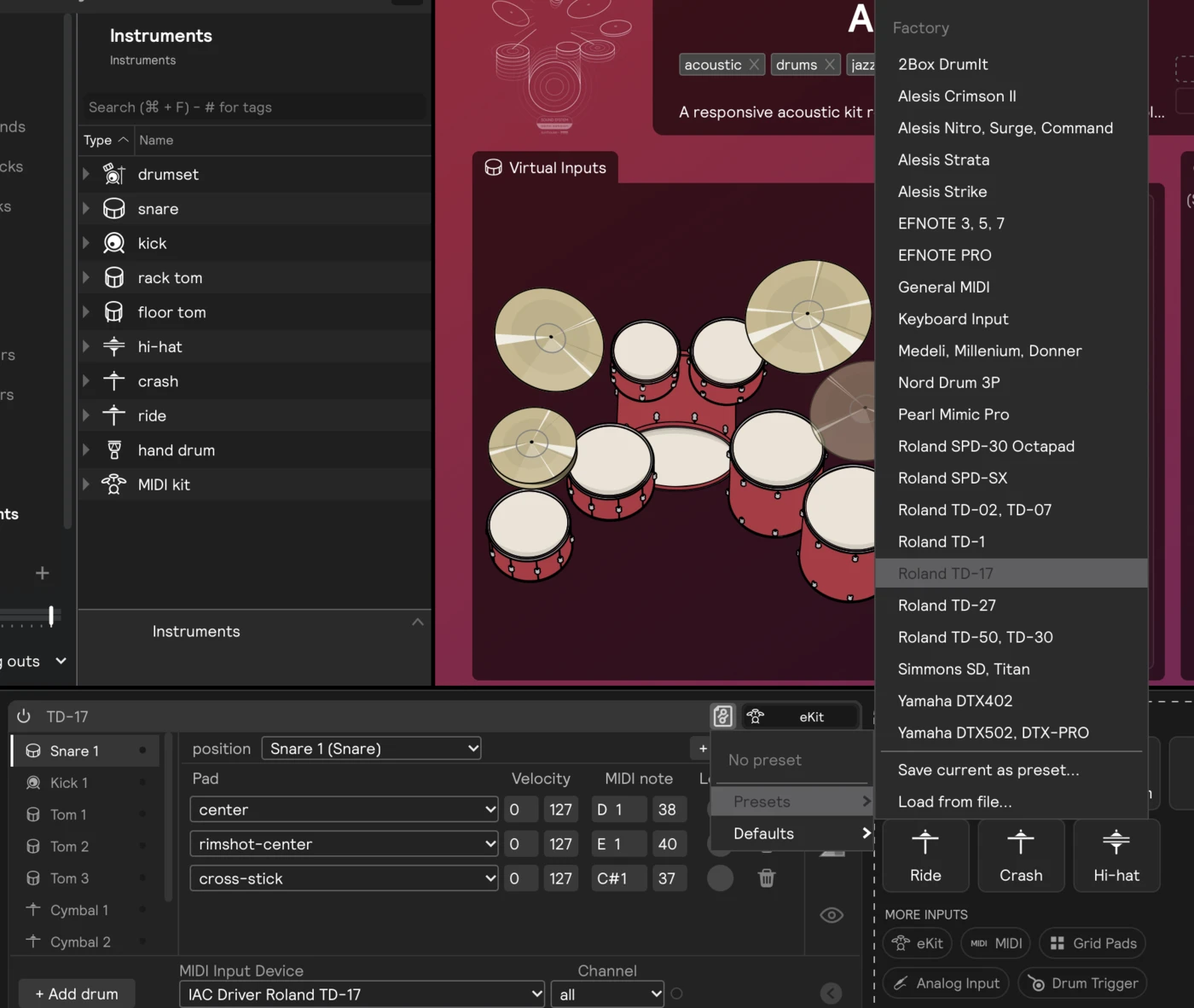
Factory eKit presets
| Brand | Presets |
|---|---|
| Roland | TD-1 · TD-02, TD-07 · TD-17 · TD-27 · TD-50, TD-30 · SPD-SX · SPD-30 Octapad |
| Alesis | Crimson II · Nitro, Surge, Command · Strata · Strike |
| Yamaha | DTX402 · DTX502, DTX-PRO |
| EFNOTE | EFNOTE 3, 5, 7 · EFNOTE PRO |
| Others | 2Box DrumIt · Medeli, Millenium, Donner · Nord Drum 3P · Pearl Mimic Pro · Simmons SD, Titan |
| General | General MIDI, the standard GM drum map most kits and drum software understand · Keyboard Input, for playing from a MIDI keyboard, a DAW track, or a pad controller |
Card controls
| Control | What it does |
|---|---|
| Preset menu | In the card's title bar. Loads a factory or user kit map, and saves your own. Changing presets keeps your MIDI device and channel. |
| MIDI Input Device | The kit's MIDI port. |
| Channel | Receive on all channels, or on a single one. Most kits send on channel 10. |
| Power | Turns the input off. Incoming notes are ignored until you turn it back on. |
The kit list
The left side of the card lists your kit's drums (Snare 1, Tom 2, and so on). Click a drum to show and edit its notes in the note map.
The dot next to each drum lights up when the kit sends one of its notes, so the list doubles as a live monitor of your kit.
+ Add drum, under the list, adds another drum of any type: snare, kick, tom, cymbal, or hi-hat. It gets the next free number.
The arrow under the view tabs collapses the card down to just the kit list, which is handy while playing. The collapsed card still lights up as you play. Click a view tab or the arrow to expand it again.
The note map
The note map shows the selected drum. The top row is the drum itself, and each row under it is a pad: one MIDI note mapped to one zone.
| Control | What it does |
|---|---|
| position | On the drum's row. Picks which drum in the software this kit drum plays. Drums are shown with their drum-map position, for example Cymbal 1 (Ride 1) or Tom 2 (Floor Tom 1). |
| + Pad | Adds another pad to the drum. |
| Pad | The zone this pad plays: center, rimshot-center, bow, edge, pedal, and so on. On cymbal and hi-hat drums the list ends with (choke); see Cymbal and hi-hat chokes. |
| Velocity | The velocity window (0–127) this pad responds to. Leave it at 0–127 for a normal pad, or use it to split one note across two zones. |
| Open | Hi-hat pads only. See Hi-hat open and closed notes. |
| MIDI note | The incoming note number. Type it in, or use Learn. |
| Learn | Arm it, then hit that pad on your kit to capture its note. |
| Trash | On a pad row, removes that pad. On the drum's row, removes the drum and all its pads. |
Several pads can share one note (that's how velocity splits work), and several pads can play the same zone, which is useful when a kit sends different notes for the same zone.
Splitting one note by velocity
To make one note play two zones depending on how hard you hit, add a second pad with the same MIDI note and give the two pads adjacent Velocity windows. For example, a soft pad from 0–63 on one zone and a hard pad from 64–127 on another, so a light hit and a hard hit land on different zones.
Hi-hat pedal
Each hi-hat's drum row has a pedal CC box: the MIDI CC number your kit sends the pedal position on. Most kits use CC 4. Set it to -1 to ignore the pedal.
The pedal drives that hi-hat's open/closed blending, so if your kit has two hi-hats on different CCs, each one follows its own pedal. The foot chick (note 44 on most kits) plays the hi-hat's pedal zone.
Hi-hat open and closed notes
Some kits send separate notes for an open hi-hat and a closed hi-hat instead of (or as well as) a pedal CC. Set the Open value on those pads so the note also moves the pedal position: 0 is fully open, 127 is fully closed, and -1 (the default) leaves the pedal alone. The position stays where the note put it until another open/closed note or the pedal CC changes it.
Cymbal and hi-hat chokes
When you grab a cymbal pad, most kits send polyphonic aftertouch, and Sensory Percussion chokes the cymbal. Each cymbal's drum row has an aftertouch choke checkbox to turn this off for that cymbal alone, for example on a pad that sends stray pressure.
If your kit sends a dedicated choke note instead, add a pad on that note and set its Pad to (choke). That note then mutes the cymbal (or stops the hi-hat) instead of playing a zone.
Views
The icon tabs on the right of the card switch between three views:
| View | What it shows |
|---|---|
| Map | The note map for the selected drum. |
| Velocity | The kit's velocity response curve and thresholding. |
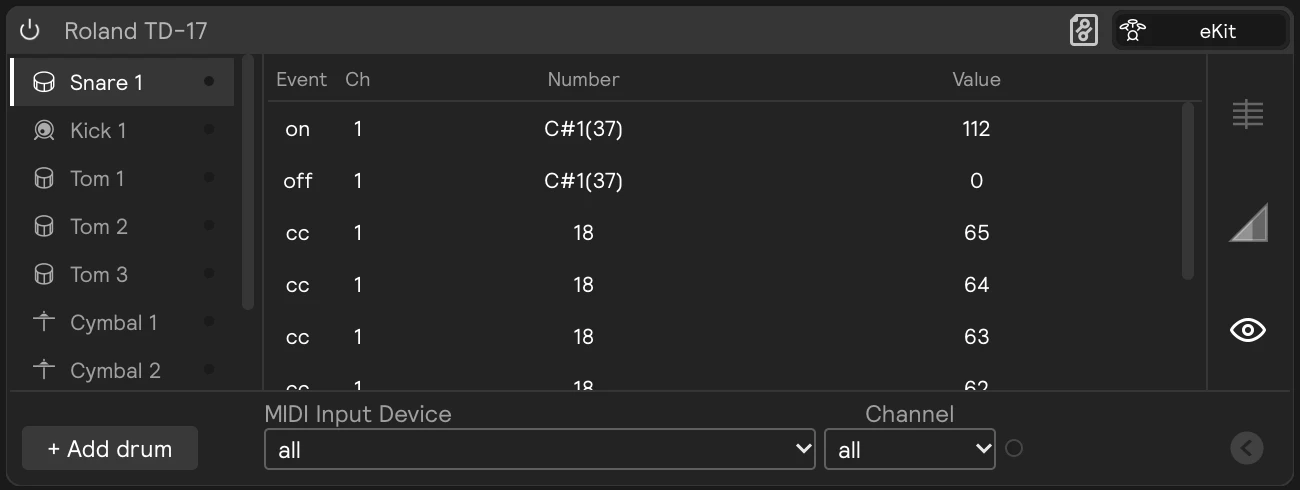
| MIDI log | The notes and CCs your kit is sending. Handy for finding out what your kit actually sends before you map it. |
Limitations
Positional sensing (the center-to-edge CC some kits send) isn't supported yet.