Environments
An environment is a named snapshot of the setup Sensory Percussion is plugged into:
- the audio device and its channels, including a sensor expansion
- your hardware inputs and outputs
- your MIDI devices
- your OSC network settings
Sessions never carry any of this. So with an environment for each setup, like the studio interface at home and the Portal on stage, you can switch setups in one click without touching your sessions.
Environments work a lot like sessions. Out of the box no environment is loaded, and Sensory Percussion simply keeps your settings as you leave them, with nothing to save. Save them as an environment to make a named copy. Loading an environment replaces your current settings with its copy. From then on, any change you make is an unsaved change to that environment until you save it back.
If you never use environments, nothing changes for you.
In the settings window
The Environment dropdown sits at the top of the settings window, above the pages it covers: Audio, MIDI Devices, and OSC Network. It reads No environment until you load one. An orange dot after the name means the environment has unsaved changes.
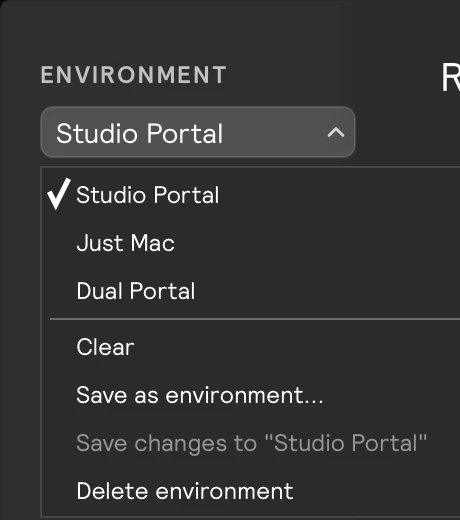
| Item | What it does |
|---|---|
| An environment's name | Load that environment. Its audio, hardware inputs and outputs, MIDI, and OSC settings replace your current ones. Choosing the active environment again reloads it as it was last saved. |
| Clear | Start from scratch, like a new session: all hardware inputs and outputs are removed and no environment is loaded. Your audio, MIDI, and OSC device settings stay as they are, so the audio keeps running. Always asks first. |
| Save as environment… | Saves your current settings and hardware inputs and outputs under a new name, and makes it the active environment. The environment you came from keeps its last saved state. If the name is taken, a number is added, like Studio (1), so the existing one is left alone. |
| Save changes to "name" | Saves your current settings into the active environment. Only available when it has unsaved changes. |
| Delete environment ▸ | Deletes an environment, after confirming. Only environments that aren't active are listed, so load another one or Clear first. |
Each of these pages also says which environment you're working in, in a grey line under the page title: for example environment: Studio Portal (unsaved changes). With none loaded it reads no environment loaded: settings are kept automatically.
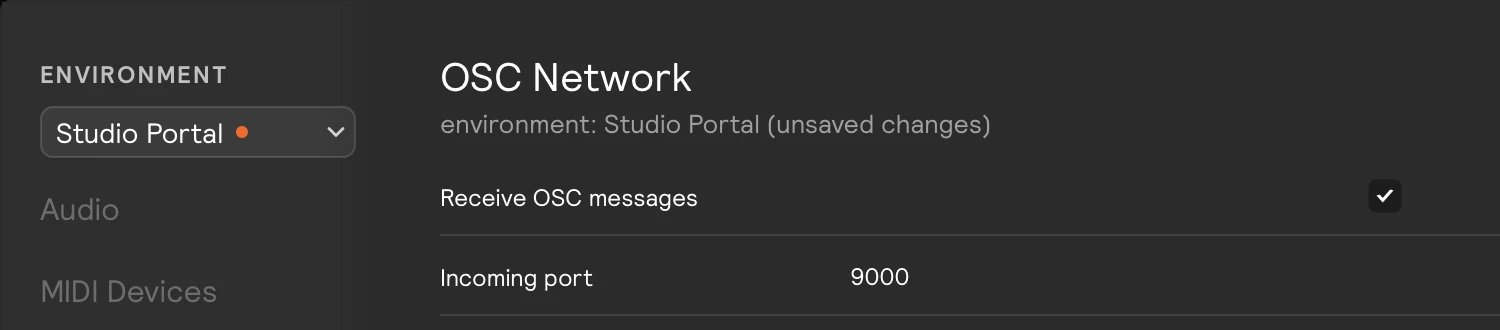
Unsaved changes
If the active environment has unsaved changes when you load another one, choose Clear, or reload it, you're asked what to do with them first:
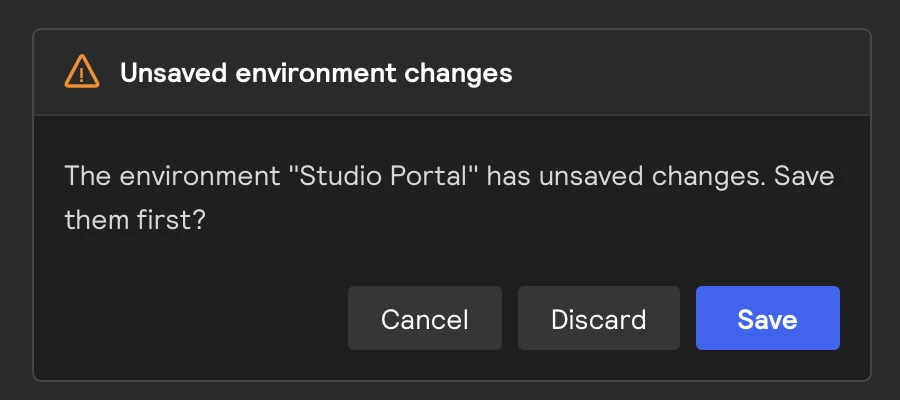
- Save writes your changes to the environment, then carries on.
- Discard drops them and carries on.
- Cancel stays where you are.
Quitting never asks. Your current settings are kept exactly as they are, the environment file isn't touched, and next time you launch, the same environment is loaded with the same unsaved changes, just like a session.
In the footer
The environment button in the footer shows the environment's name (or No environment) above your audio devices. The orange dot means unsaved changes.
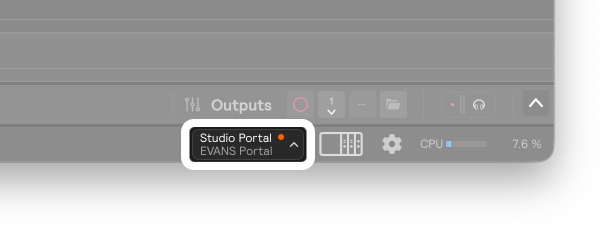
Click it for a quick menu:
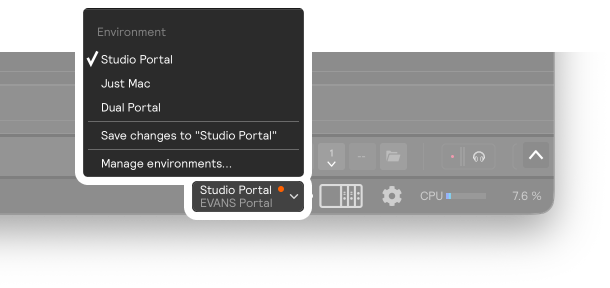
| Item | What it does |
|---|---|
| An environment's name | Load that environment, asking about unsaved changes first. |
| Save changes to "name" | Saves your current settings into the active environment. Only shown when it has unsaved changes. |
| Manage environments… | Opens the settings window, where you can create, clear, and delete environments. |
When the interface isn't connected
If you load an environment, or launch into one, while its audio interface is unplugged, its inputs and outputs show as disconnected. Sensory Percussion doesn't offer to remap them, since you most likely want to plug the interface back in. Once you do, the bar goes away on its own. See Hardware Remap.
In the plugin
In the plugin, the audio, MIDI, and OSC come from your DAW, so the plugin always runs in the Host environment. The footer and the settings dropdown read Host, and environments are read-only: nothing the plugin does is saved back to them, and there's no Clear, Save as environment…, or Delete environment.
What the plugin can do is copy hardware inputs and outputs from the standalone app. Both dropdowns list them under Load inputs & outputs from:
| Item | What it does |
|---|---|
| App's current inputs & outputs | Replaces the plugin's inputs and outputs with the ones the standalone app is using now. |
| An environment's name | Replaces the plugin's inputs and outputs with the ones saved in that environment. |
Only inputs and outputs are copied: the DAW still decides the audio device, MIDI, and OSC. The copied inputs and outputs keep the audio channels they had in the standalone app, so check their channels afterwards. They're saved with your DAW project like the rest of the plugin's state.
The plugin's footer menu also has Audio settings…, which opens the settings window on its Audio page.