Build Your First Set
You can build a complete set without leaving the Play view: load a drumset, swap drums until it sounds right, and fill in anything that's missing, all while you play. This page walks through that. When you're ready to design sounds from the ground up, Going further points you to the Edit view.
1. Start a new set
Click Add New to the right of the sets. A new set starts empty: the drum kit graphic shows your drums, ghosted until they have a sound, and a + sits at the top right of the kit, ready for you to fill it.
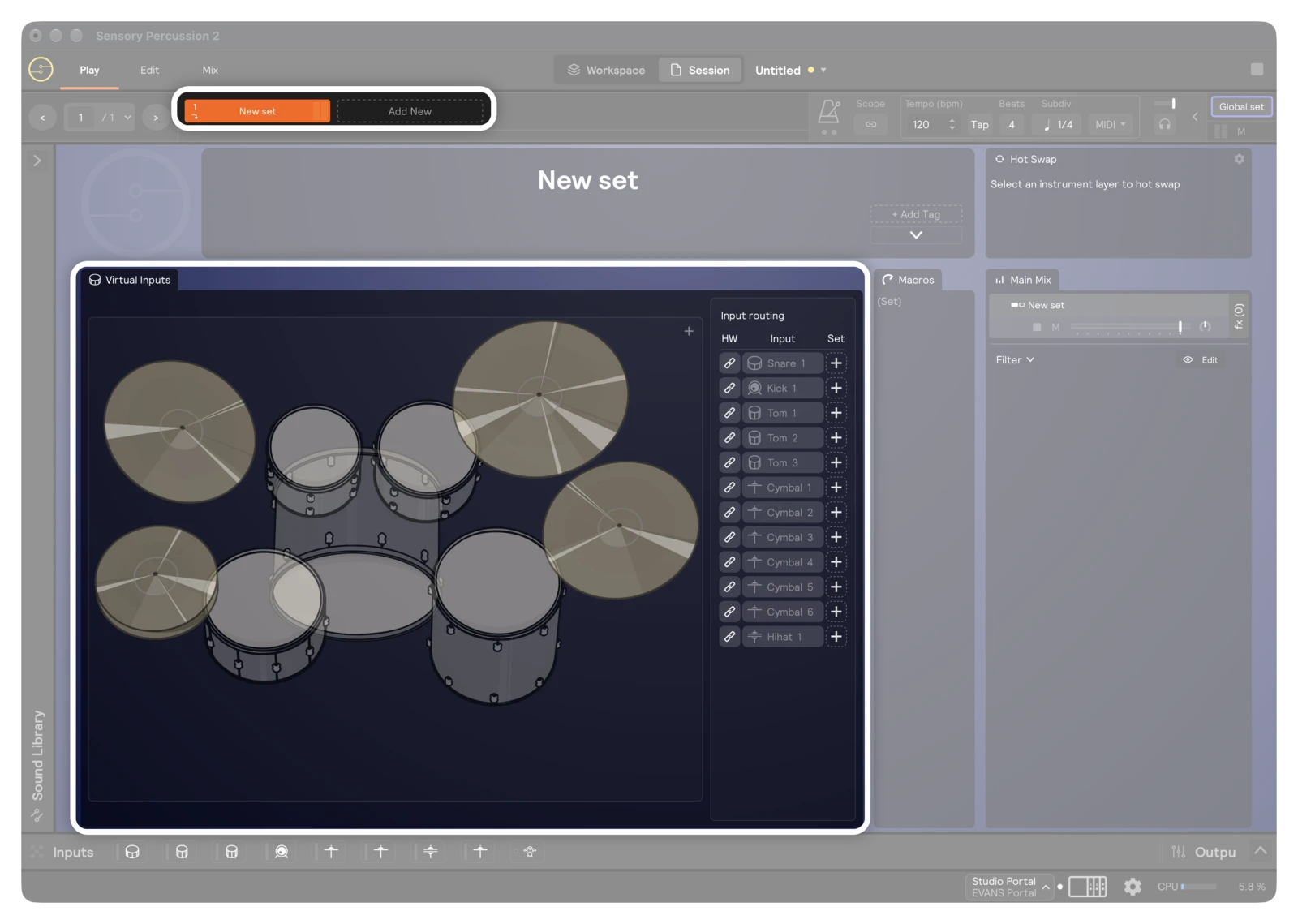
2. Load a drumset
Click the + at the top right of the kit graphic. The Add drum kit menu lists every drumset instrument, grouped by library: the Core Library, then each sound pack you've installed.
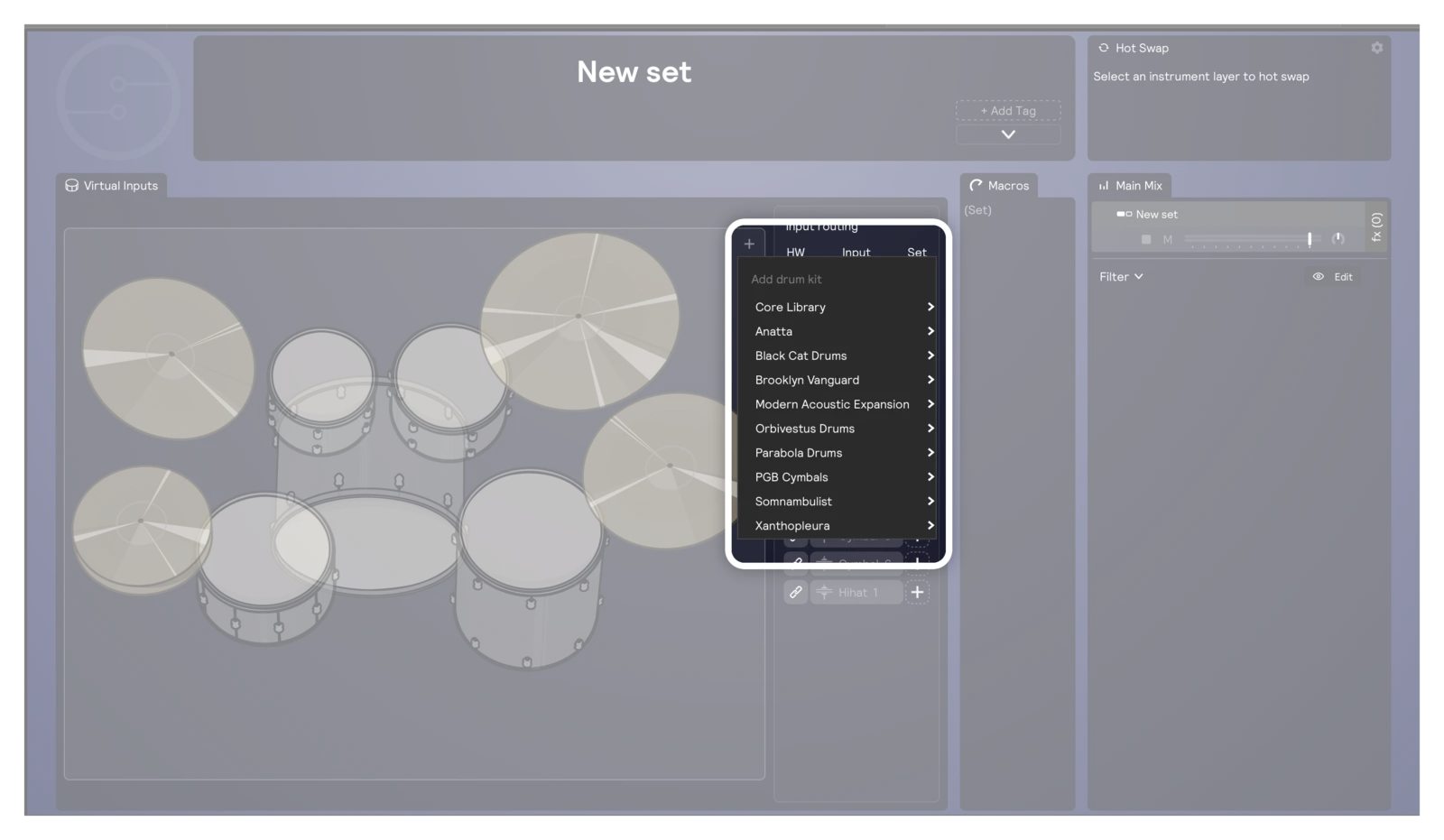
Pick one, and its drums are mapped across the drums your hardware is sending: its snare to your snare, its kick to your kick, and so on. Hit your drums: you're playing a full kit.
You can also drag a drumset from the library's Instruments tab onto the kit graphic.
3. Swap drums with Hot Swap
Like the kit, but want a different snare? Use Hot Swap:
- Click the snare in the kit graphic. The Main Mix panel filters to that drum and selects its instrument, and the Hot Swap panel shows it.
- Click the arrows to page through similar snares. The name next to the right arrow is the one that comes next. Or open the drop-down to see every match.
- Keep playing while you swap. The new snare takes over the same drum, with no rewiring.
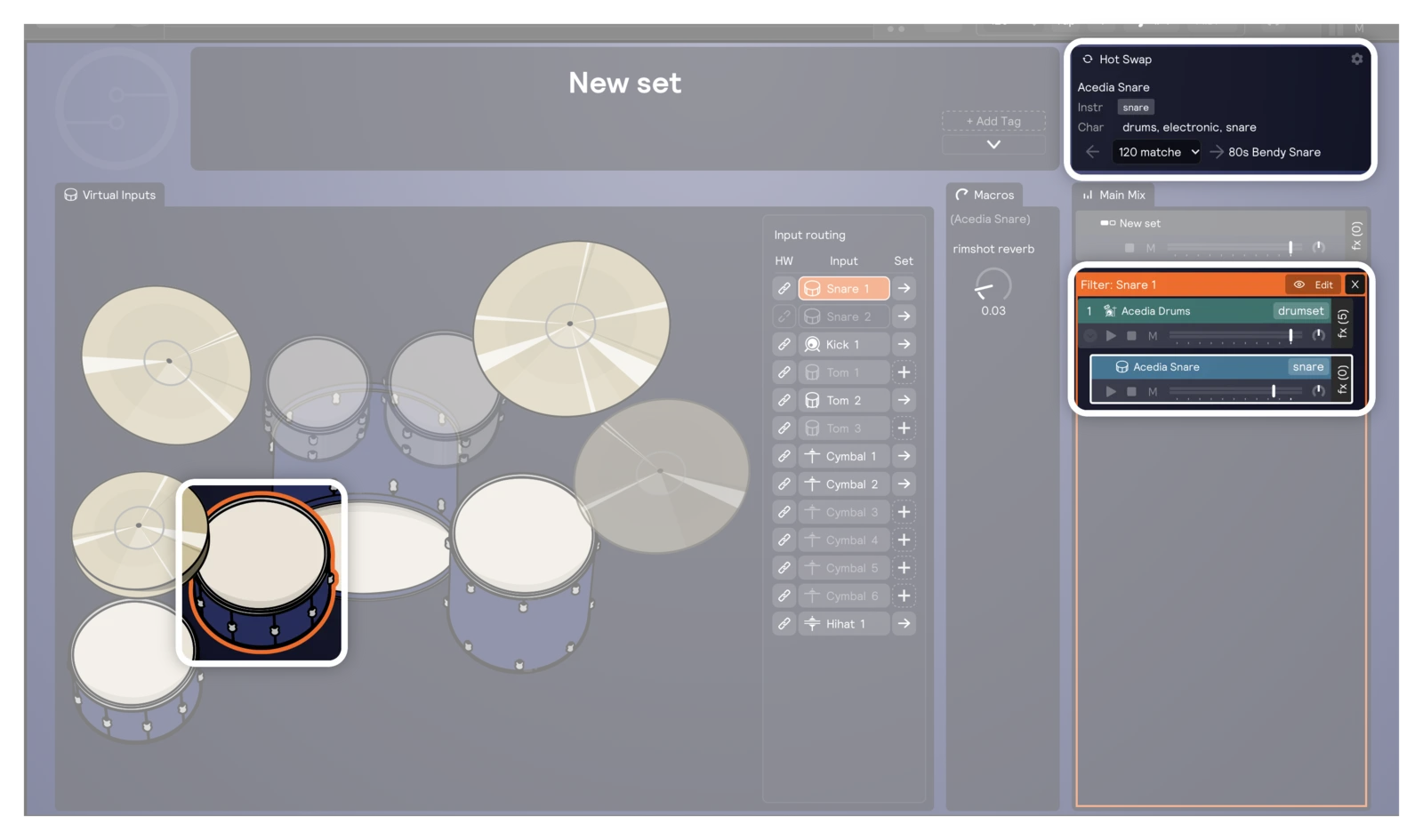
Do the same for any drum. To swap the whole drumset at once, click its layer in Main Mix instead. To clear the filter, click the × at the right of the orange Filter bar.
4. Fill a blank drum
If one of your drums has no sound yet, for example a tom that the drumset doesn't cover, hover over it in the kit graphic. A + appears on its head (on a cymbal, on the bell). Click it for a menu titled with the input it fills:
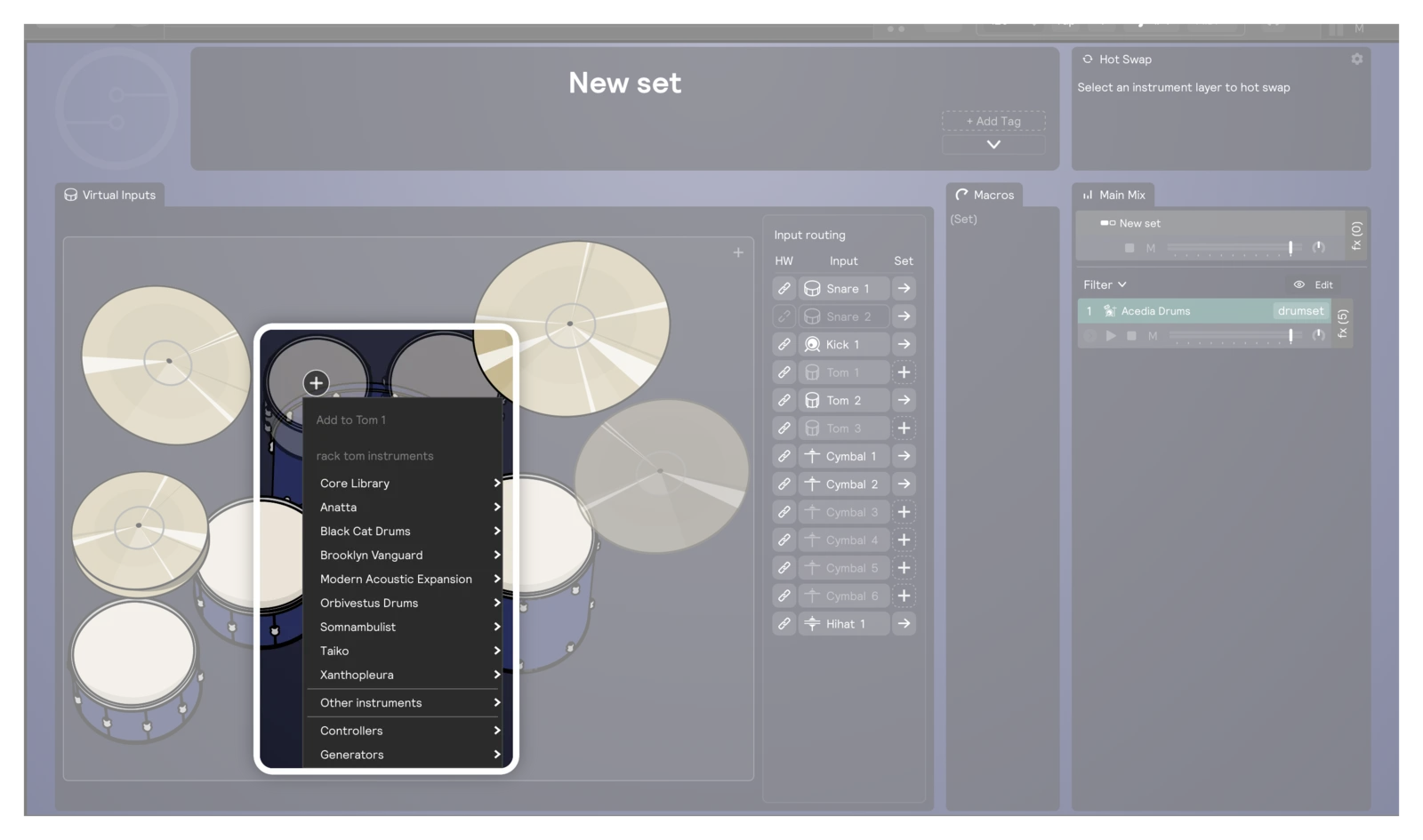
The instruments for that kind of drum come first, grouped by library, followed by Other instruments and blank Controllers and Generators. Whatever you pick is wired to that drum straight away. To layer a second sound on a drum that already has one, right-click the drum for the same menu.
For inputs that aren't drums, like a MIDI controller, a pad, or a mic, use the dashed + next to the input in the Input routing list. See Adding instruments to an input.
5. Make it yours
- Mix it. Use the faders in the Main Mix panel to balance the drums, and mute or solo them as you work.
- Shape it. Turn the knobs in the Macros panel. Each macro can change several settings at once, so they're a quick way to change a set's character.
- Keep it. Save the session (⌘ + S). To reuse a drum you've tweaked in other sets, save it as an instrument: open the preset menu in its header in the Edit view and choose Instruments → Save current as instrument…. See Instruments.
Going further
Everything above uses ready-made instruments. To design your own sounds, head to the Edit view, where every layer is laid out as a tree of modules. How Sensory Percussion Works explains how those pieces fit together.
A few ways to start:
- Add a module. On an empty layer, click + Add Module and choose from Generators, Controllers, or Instruments.
- Build from samples. Add a Drum Pads controller from + Add Module → Controllers, then drag samples from the library onto its pads, one zone per pad.
- Use your own sounds. Bookmark your own sample folders in the library: click the + next to Folders. You can then drag in your samples, and sets and layers you've saved there.
- Organize what you build. Select modules and use Group into… to wrap them in a controller. See Grouping modules into a controller.
For specific techniques, browse the How To section.