How To Use Environments
If you play Sensory Percussion in more than one place, you've probably set up your inputs and outputs more than once: sensors on the Portal at home, an eKit at the rehearsal space, a different interface and in-ear outputs on stage. An environment saves one of those setups by name, so you can switch between them in one click. Your sessions don't change at all: every set plays on whichever setup you load.
An environment holds:
- your audio device, sample rate, buffer size, and channels (including a sensor expansion)
- your hardware inputs, with their training and settings, and your hardware outputs
- your MIDI devices
- your OSC settings
This page walks through a common example: a Home setup and a Stage setup.
1. Save the setup you have now
Get your current setup working the way you like it: inputs trained, outputs routed, MIDI devices on. Then:
- Open the settings window (⌘ + ,).
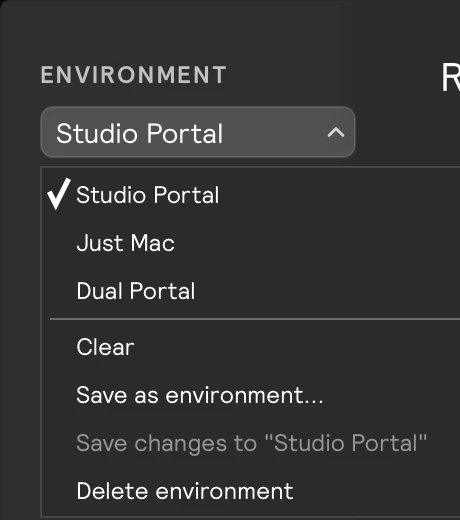
- Open the Environment dropdown at the top and choose Save as environment….
- Name it Home.
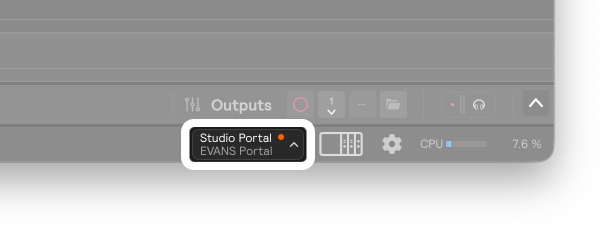
The footer now shows Home above your audio device.
2. Build your second setup
Now set up for the stage. You have two ways to start:
- Start from Home and change what's different, like switching the outputs to your in-ear channels or adding a trigger. This is the quickest way when most of the setup is the same.
- Start from scratch with Clear in the Environment dropdown. It removes all your hardware inputs and outputs (your audio and MIDI device settings stay as they are). Use this when the setups have little in common, like an eKit setup and a sensor setup.
As soon as you change anything, an orange dot appears next to Home. That's a reminder that what you have now no longer matches what's saved, and it's how you know Home itself is still safe.
When the stage setup is ready, choose Save as environment… again and name it Stage. Home keeps its last saved state.
3. Switch between them
Click the environment name in the footer and pick the one you want. Its audio device, inputs, outputs, MIDI, and OSC settings replace your current ones.
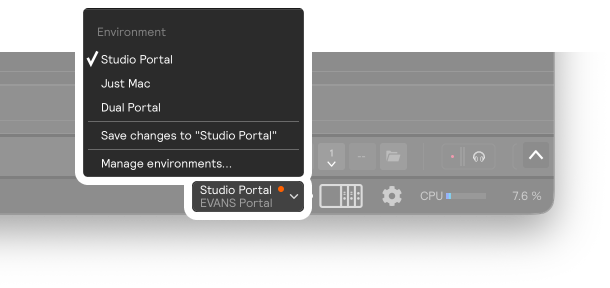
If the environment you're leaving has unsaved changes, you're asked first:
- Save writes them into that environment, then switches.
- Discard drops them, then switches.
- Cancel stays where you are.
4. Keep each environment up to date
Once an environment is loaded, every change you make (retraining a drum, adjusting a threshold, adding an output) is an unsaved change until you save it. When you're happy with a change, choose Save changes to "name" from the footer menu or the settings window.
Quitting never loses anything: your setup stays exactly as you left it, unsaved changes included, the next time you open Sensory Percussion.
Training lives with your inputs, so each environment keeps its own. If your stage kit has different drums or heads than your home kit, train them in the Stage environment and save it. Your Home training stays untouched.
When the interface isn't plugged in
If you load Stage at home, with the stage interface packed away, its inputs and outputs show as disconnected and a bar above the footer names the interface it expects. Nothing is changed or lost. Plug that interface in and select it, and everything reconnects.
If you've replaced an interface for good (a new Portal, say), open the bar's Options menu and choose Remap to device anyway to move every input and output to the same channels on the new one. Then save the environment. See Hardware Remap.
Using your environments in the plugin
The plugin gets its audio and MIDI from your DAW, so it always runs in the Host environment. But it can copy hardware inputs and outputs from any of your saved environments, so you don't have to set your sensors up and train them again inside your DAW. Open the footer menu in the plugin and choose an environment under Load inputs & outputs from, then check their channels. See Environments: In the plugin.