How To Use Your eKit with Sensory Percussion
You can play Sensory Percussion from an electronic drum kit (Roland, Alesis, Yamaha, EFNOTE, and others). An eKit input turns the notes your kit sends into drums and zones: snare center, snare rimshot, tom center, hi-hat bow, and so on. To the rest of the software, your eKit looks just like a kit with sensors on it, so the Core Library, your sound packs, and your own sets all play from it with no changes. The hi-hat pedal comes through too.
You can also mix the two: sensors on your acoustic drums and eKit pads for cymbals, or an eKit at home and sensors on stage.
What you need
- Your kit's drum module connected to your computer with a USB cable. Most modern modules send MIDI over USB with no driver.
- If your module only has a 5-pin MIDI Out, a USB MIDI interface to plug it into. The EVANS Portal's MIDI port is an output only, so it can't receive from your kit.
1. Turn on your kit's MIDI port
Open Settings → MIDI Devices (⌘ + .) and tick your kit under MIDI inputs.
If your kit isn't listed, see No MIDI Input.
2. Add an eKit input
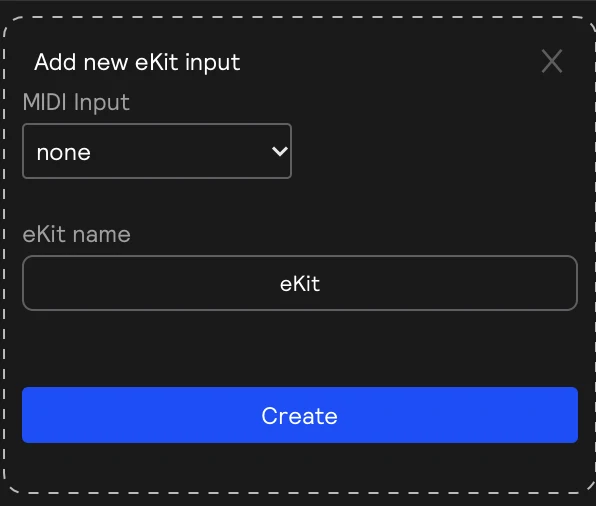
- In the hardware inputs panel, click + and choose eKit under More inputs.
- Choose your kit under MIDI Input and give it an eKit name.
- Create it.
3. Load your kit's map
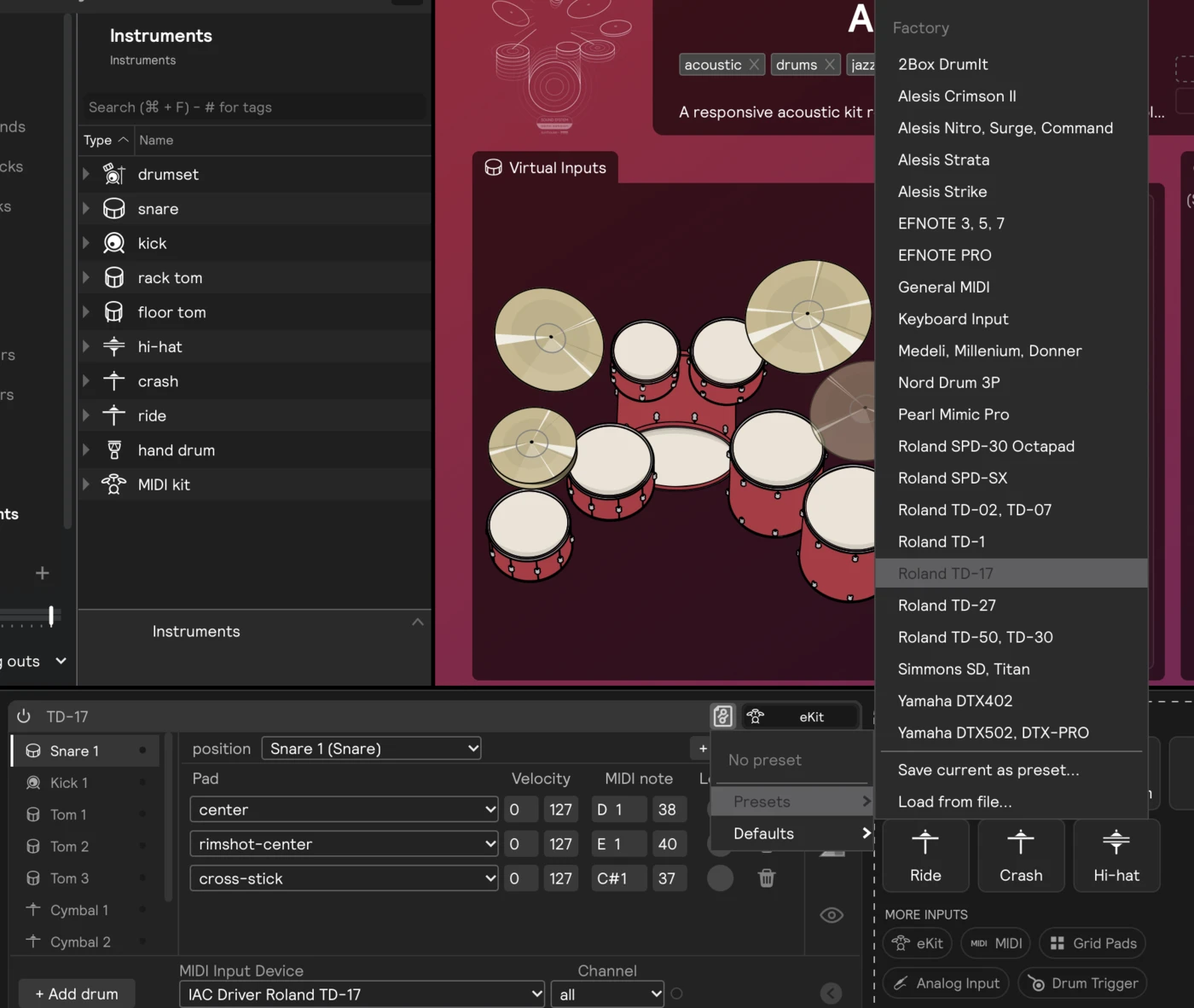
A new eKit input starts with a General MIDI drum map. Open the preset menu in the card's title bar and pick your kit's model. Factory maps are included for Roland TD and SPD models, Alesis, Yamaha DTX, EFNOTE, 2Box, Pearl, Simmons, Nord, and more. See the full list.
If your kit isn't listed, start from General MIDI: most kits follow it closely, and you'll fix the rest in the next step.
4. Check every pad
Play every pad on your kit, including rims, bells, cymbal edges, and the hi-hat pedal. The dot next to each drum in the kit list lights up when the kit sends one of its notes.
If a pad doesn't light anything, or lights the wrong drum:
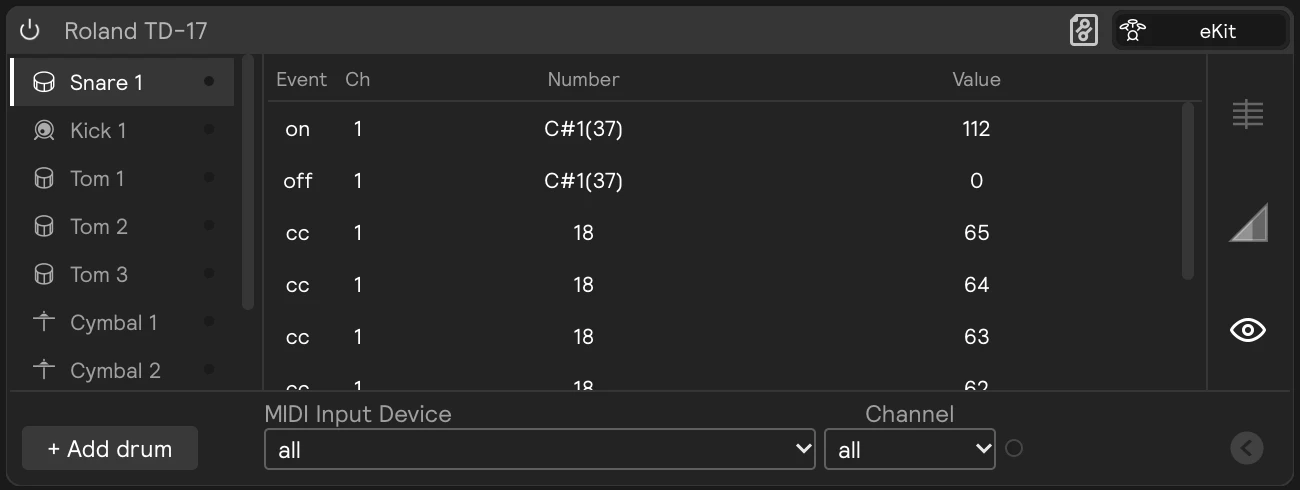
- Switch the card to the MIDI log view and hit the pad to see which note it sends.
- Click the drum it should play in the kit list.
- Click Learn on the pad row for the right zone, hit the pad on your kit, and the note is captured. Use + Pad to add a zone that isn't in the list yet.
Pads your kit has that aren't in the map yet (a second crash, an extra tom) can be added with + Add drum under the kit list.
When everything plays the right zone, save the map from the preset menu as a user preset, so you never have to do it again.
5. Check the hi-hat
- The pedal doesn't open and close the hi-hat? Select the hi-hat in the kit list and check its pedal CC. Most kits send the pedal on CC 4.
- Your kit sends separate notes for open and closed hi-hat? Set the Open value on those pads: 0 is fully open, 127 fully closed.
- Grabbing a cymbal should choke it? Most kits send aftertouch when you grab a cymbal, and Sensory Percussion chokes it automatically. If your kit sends a choke note instead, add a pad on that note and set it to (choke).
6. Decide where your eKit drums land
Each drum in your kit list has a position that picks which drum in the software it plays, like Snare 1 or Tom 2 (Floor Tom 1).
If you also have sensors, a pad set to the same drum as a sensor shares its sounds. That's what you want if, for example, an eKit snare stands in for your acoustic snare. If you want separate sounds, give the eKit drum a position nothing else uses, like Snare 2.
Check that Settings → Drumset Layout matches your kit (one rack tom or two? ride and crash, or two crashes?), so sets from the library land on the right drums.
7. Play
Load a set from the library and play. The kit graphic in the Play view lights up as you hit each pad.
- Shape the feel in the eKit card's Velocity view: the velocity curve and threshold apply to the whole kit.
- Turn down your module's own sounds (its master or kit volume) if you only want to hear Sensory Percussion. Or leave them up and layer the two.
- Hear a delay between hit and sound? Lower the buffer size in Settings → Audio.
Positional sensing (the center-to-edge data some kits send) isn't supported on the eKit Hardware input yet.
If you switch between your eKit and your sensors, save each setup as an environment.