How To Use a MIDI Sample Pad in Sensory Percussion
A sample pad (like a Roland SPD-SX or Octapad) or a pad controller (like an Akai MPD) makes a great partner for your kit: one-shots, loops, and chords under your hands, next to your drums. There are two ways to bring one into Sensory Percussion, and you can pick whichever fits how you want to play:
| You want to… | Use | Set it up with |
|---|---|---|
| Give each pad its own sound, like a grid of one-shots, loops, or chords | A Pad input and a Grid Pads controller | The steps below |
| Play the pads as extra drums, using sets and instruments built for a drum kit | An eKit input | How To Use Your eKit. There are factory maps for the SPD-SX and SPD-30 Octapad. |
You can also use the pads to control things rather than play sounds, like switching sets or starting a sequence. See How To Control Parameters with MIDI Input and Change Sets with an Assignment.
1. Connect the pad and turn on its MIDI port
Connect the pad to your computer with USB. Some sample pads have a USB mode setting; make sure it's set to send MIDI.
Then open Settings → MIDI Devices (⌘ + .) and tick the pad under MIDI inputs.
2. Add a Pad input
- In the hardware inputs panel, click + and choose Grid Pads under More inputs.
- Select your pad as the input device.
- Set the grid to match your pad. It starts at
3 x 3(the layout of an SPD-SX's nine pads) and goes up to8 x 8. A 16-pad controller is4 x 4.
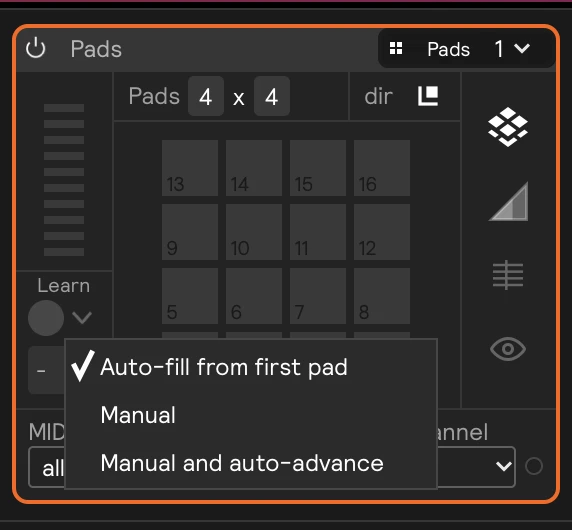
3. Learn your pads
The Pad input needs to know which note each pad sends. Choose a mode from the Learn menu:
- Auto-fill from first pad: if your pads send notes in ascending order (pad 1 is note 36, pad 2 is 37, and so on), click Learn and hit your lowest pad. Every other pad is filled in for you.
- Manual and auto-advance: click Learn, then hit each pad in turn. Each hit fills one grid cell and moves to the next.
- Manual: select a cell, click Learn, and hit one pad.
Hit each pad and check that the right cell lights up. The Log tab shows the notes coming in if something doesn't match.
4. Add a Grid Pads controller
In the Play view, find your Pad input in the Input routing list of the Virtual Inputs panel. Click the dashed + in its Set column and choose Controllers → Grid Pads.
You can also drag Grid Pads in from Build → Controllers in the library. If you do, check that its device filter shows All Pads or your Pad input's badge.
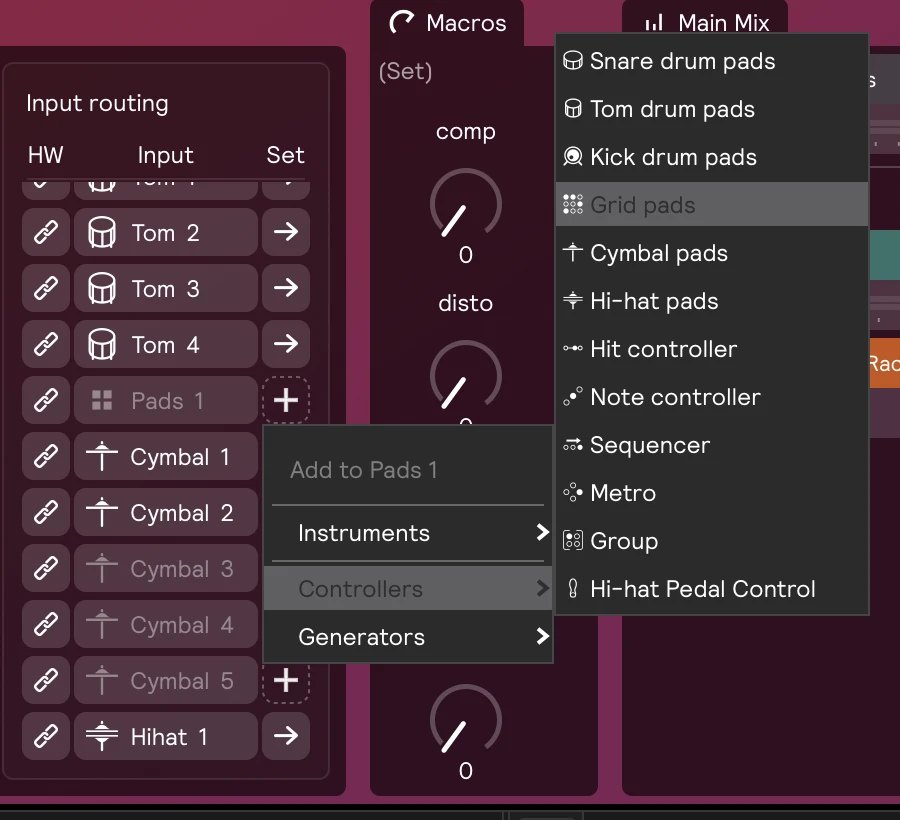
5. Put sounds on the pads
Drag samples from the library (or from Finder or Explorer) onto the pads of the Grid Pads controller. Each sample becomes a sampler on that pad. You can drop any other module onto a pad too:
- a Sequencer full of chord samples, so each hit plays the next chord (see How To Sequence Chords, Chops, and Loops)
- a looping Sampler for a groove you start and stop by hand
- a MIDI notes generator, to play a synth or drum machine from your pads (see How To Send MIDI Out)
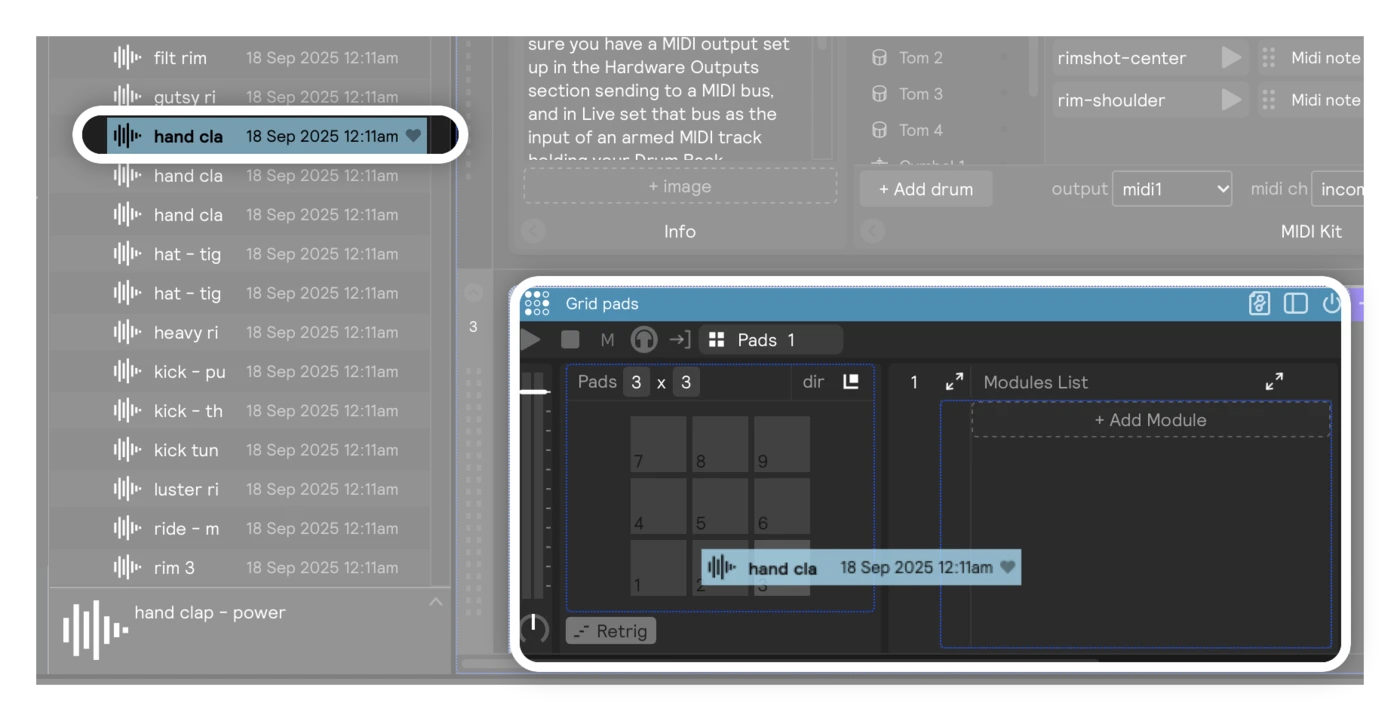
6. Adjust the feel
Open the Pad input's Sensitivity tab to shape the velocity response, so soft and hard hits sit where you want them. If you only want to hear Sensory Percussion, turn down the sample pad's own sounds.