How To Use a Drum Trigger
Sensory Percussion can play from conventional drum triggers alongside your sensors: an acoustic drum trigger clipped to a hoop, a piezo trigger pad, or a practice pad with a trigger output. A trigger plays a drum just like a sensor does, so every set and instrument built for sensors works with it.
What you need
- A trigger with a 1/4" output.
- A free audio input on your interface. On the EVANS Portal, use the Mic/Line A/B combo inputs on the front or the Line-In C/D inputs on the back. The Sensor inputs are made for Sensory Percussion sensors, so keep triggers off them.
- For a dual-zone trigger (separate head and rim piezos), two inputs side by side, like A and B or C and D. Most dual-zone triggers put both zones on one TRS cable, so you'll need a TRS-to-dual-TS splitter (often sold as an insert cable or Y-cable): the tip carries the head, the ring carries the rim.
For a piezo trigger plugged into Mic/Line A or B, switch +48v off, set the line/inst switch to inst, and start with the gain knob low. You'll set the final level in the software in step 4.
1. Plug in and check the channel
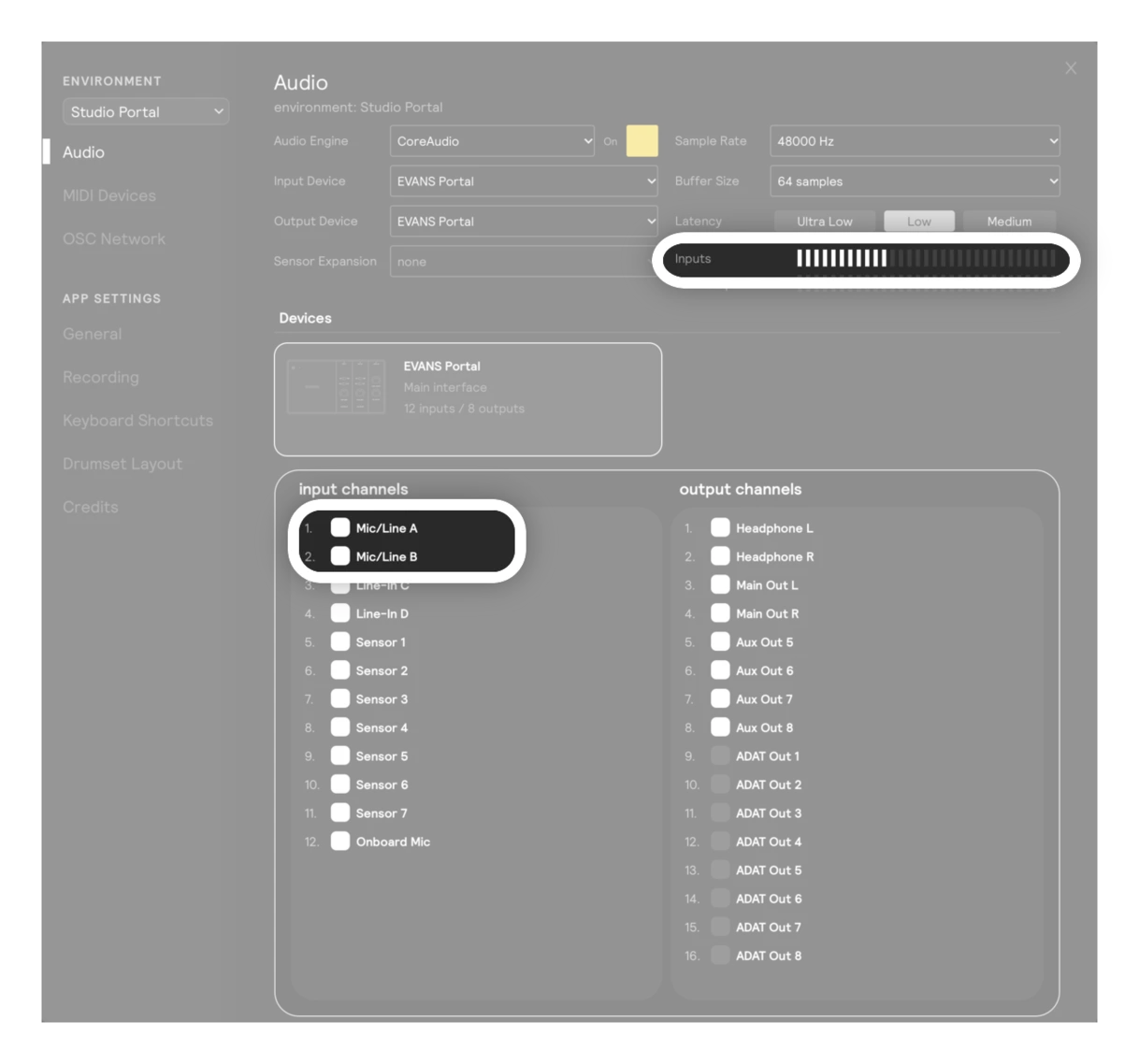
Plug the trigger in, then open Settings → Audio (⌘ + ,). Make sure the input channel (or both channels, for a dual-zone trigger) is turned on in the input channels list.
Hit the trigger and watch the Inputs meter. If nothing moves, check the cable and the gain knob before going further.
2. Add a Drum Trigger input
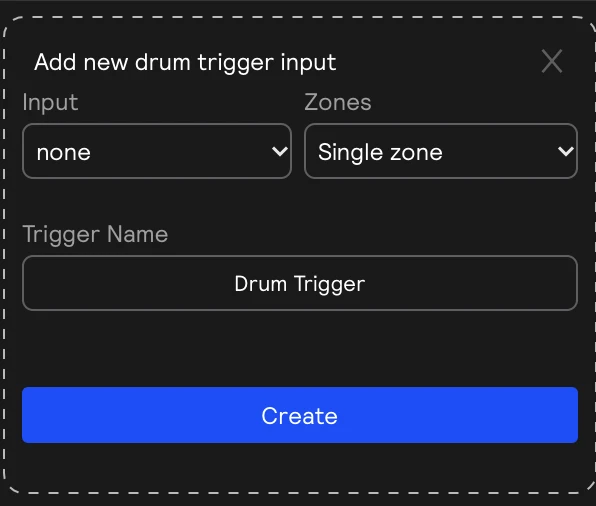
- In the hardware inputs panel, click + and choose Drum Trigger under More inputs.
- Choose Zones: Single zone for one piezo, Dual zone for a head-and-rim trigger. This decides what the Input list offers: single channels, or stereo pairs.
- Choose the Input the trigger is plugged into.
- Give it a Trigger Name, and create it.
Hit the trigger. The meter on the left of the card should move, and the pads display should light up the zone you played.
3. Choose which drum it plays
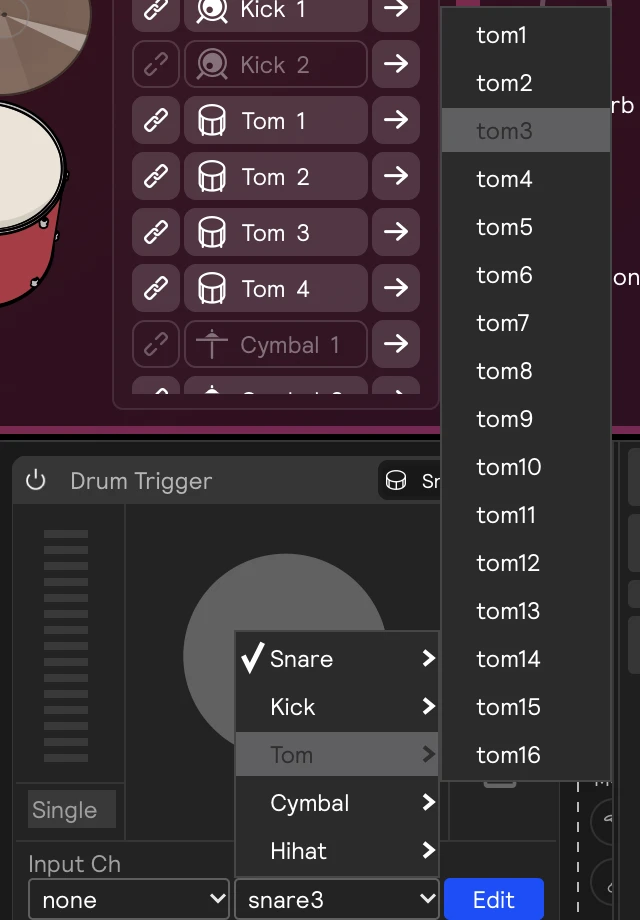
The card's Input Type decides which drum the trigger plays. Hover a surface type (snare, tom, kick, cymbal, hi-hat) and pick a specific drum.
- To add a new drum to your kit, pick a number nothing else uses, like
tom3. Then give it a sound: in the Play view, hover the new drum in the kit graphic and click + (see Virtual Inputs). - To play the same sounds as a drum you already have, pick that drum, like
kick1. A trigger can share a drum with a sensor, so both play the same sounds. This is handy for a trigger pad you play with your hand while your foot plays the kick.
You can change Input Type at any time without touching your sets.
4. Set the level
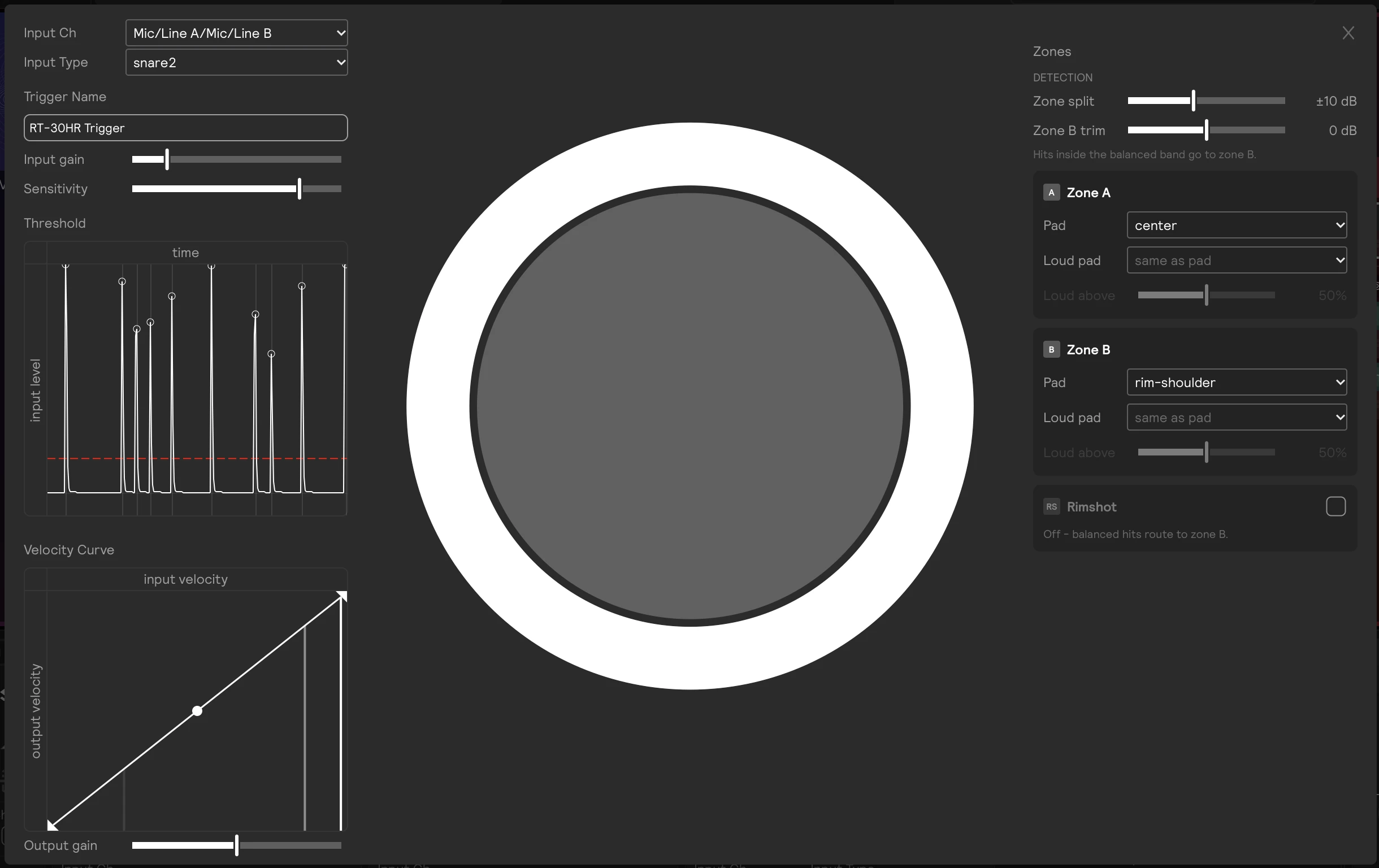
Click Edit on the card to open the trigger settings window. Play a few of the softest notes you want to hear, then a few of the hardest.
| Control | What to do with it |
|---|---|
| Input gain | Starts at -16 dB. If your hardest hits reach the top of the velocity range, turn it down. If you have to hit hard to get any volume, turn it up. |
| Threshold | Drag the dashed line up until noise and bleed from other drums stop registering, but your softest notes still do. |
| Sensitivity | Lower it if one hit plays twice (common on loose or ringy pads). Raise it if fast, soft notes get missed. |
| Velocity Curve | Shape how your dynamics map to volume once the level is right. |
See Drum Trigger Inputs for every control.
5. Dial in the zones (dual-zone triggers)
Play the head, then the rim, and watch which zone lights up in the pads display.
- Head and rim are swapped? Swap the two cables on your interface, or pick the pair the other way round.
- Head hits land on the rim zone? Lower Zone split.
- Rim hits land on the head zone? Raise Zone split.
- One piezo is much hotter than the other? Use Zone B trim to balance them.
Turn on Rimshot if you want a third zone for hits that land on the head and rim at once. Each zone's Pad decides which zone of the drum it plays, so you can, for example, send the rim to rimshot-center instead of the default rim pad.
Any zone can split into two pads by velocity. Set Loud pad to a second zone and Loud above to how hard you need to hit to reach it. With Zone A on edge and its loud pad on center, soft head hits play the edge sound and hard ones play the center sound.
6. Play
Load a set and play. Because the trigger is a drum, whatever the set has on that drum plays from the trigger. To build sounds for it, see How To Drop Sounds onto the Drums.
If you use the trigger in some setups and not others, save each setup as an environment so you can switch in one click.