How To Sequence Chords, Chops, and Loops
The Sequencer plays the modules inside it one step at a time: every hit plays the next step. Put a chord on each step and a single drum walks through a progression. Put slices of a sample on each step and you can play a chopped-up phrase. Put loops on the steps and each hit moves to the next section of a song.
If you'd like to hear this before building it, the Chord Sequences and Patterns packs in the Core Library are built this way. Open one of their sets in the Edit view and look at Tom 1 or Tom 2.
Chords
1. Add a Sequencer to a drum
In the Play view, drag a Sequencer from Build → Controllers in the library onto the drum you want to play the chords from in the kit graphic. Sensory Percussion adds it as a new layer that plays from that drum. Floor toms and rack toms work well, since you usually play them less often than the snare. Then switch to the Edit view to fill it.
To play the chords from just one zone, like the rim, drop the Sequencer onto that zone of a Drum Pads controller in the Edit view instead.
2. Drop in your chords, in order
Drag your chord samples onto the Sequencer one at a time, in the order you want to play them. Each sample becomes a sampler on the next step. You can select several samples and drag them together.
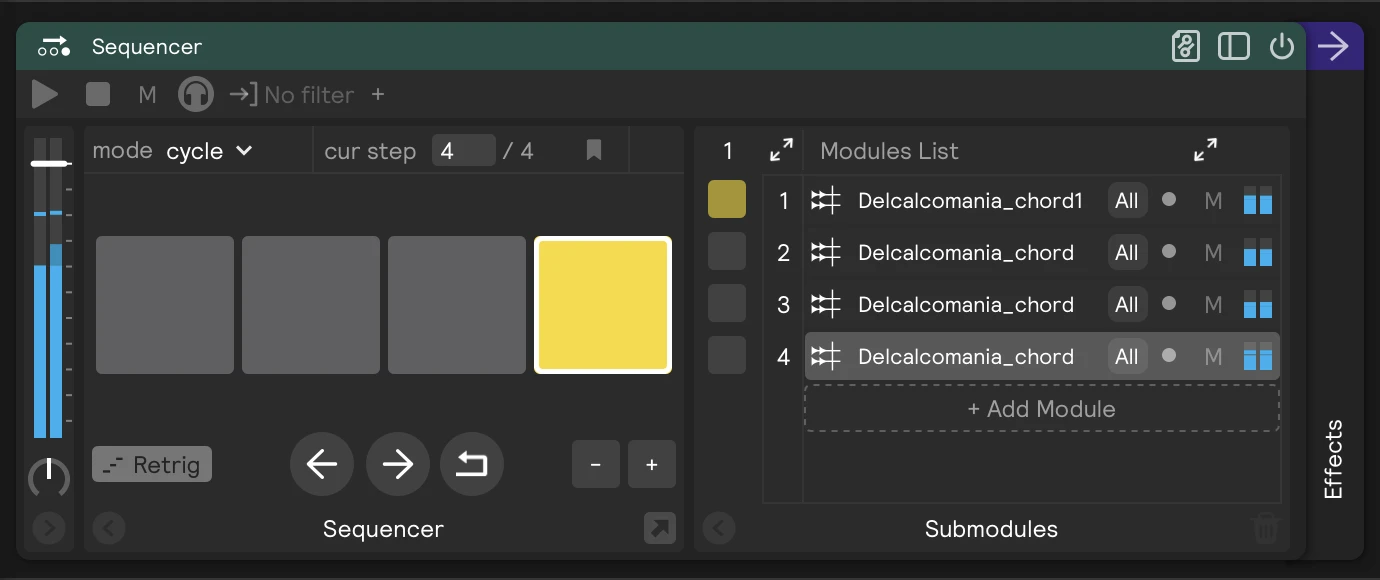
3. Choose how the chords end
- Turn on retrig so each new chord cuts off the one before it. This is what you want for most progressions.
- Leave retrig off to let chords ring into each other, for pads and washes.
4. Move through the song
| You want to… | Do this |
|---|---|
| Start over from the first chord | Right-click the Sequencer's reset (loop) button and add an assignment from a zone you don't use much, or from a MIDI footswitch. |
| Change chords from a different zone than the one that plays them | Set the mode to manual, then assign a zone to the next button. The drum plays the current chord until you move it on. |
| Come back to the same chord after switching sets | Turn on Save Step. |
To keep the progression from moving when you don't mean it to, see Velocity thresholding below.
Chops
A chop is a short slice of a longer sample: a word from a vocal, one hit from a drum break, a stab from a horn line. Each hit plays the next slice.
If your slices are already separate files
Drag them all onto a Sequencer at once. They're added one per step in the order they arrive, so name them in order (chop_01, chop_02…) before you drag.
Chopping one sample inside Sensory Percussion
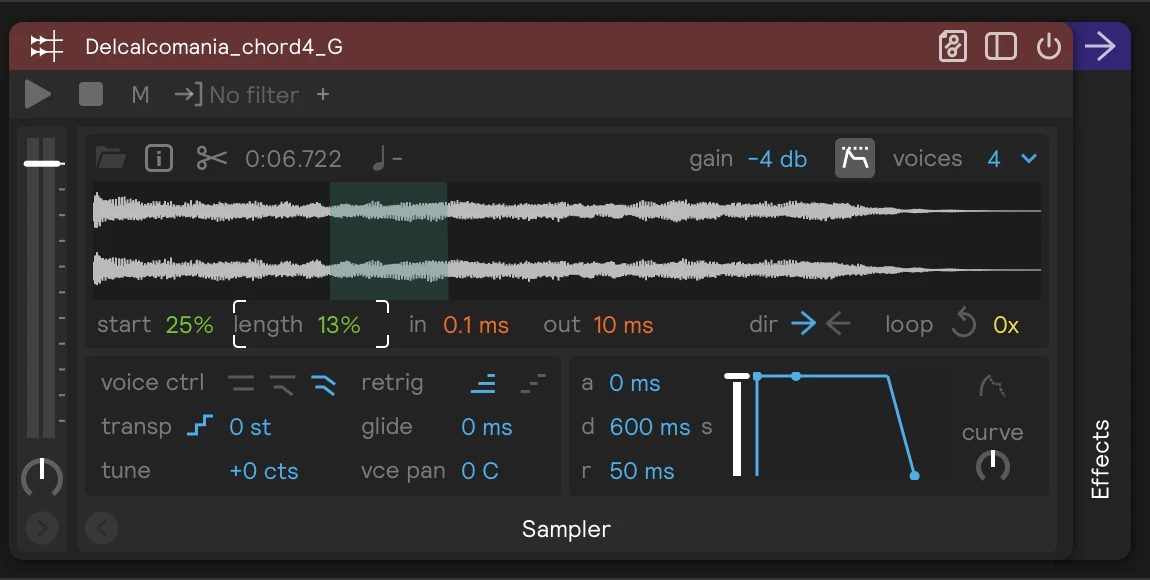
- Drag the sample onto the Sequencer. Then copy and paste the sampler until you have one per slice: eight copies for eight slices.
- On each sampler, set Start and Length (both percentages of the whole sample) to frame one slice. For eight equal slices, every sampler gets a Length of 12.5%, and the starts are 0%, 12.5%, 25%, and so on. The green box on the waveform shows exactly what will play.
- Turn on retrig on the Sequencer so each slice cuts off the one before it.
Chopping with an LFO
Instead of framing each slice by hand, let an LFO move the start point for you. Each hit plays a short piece of the sample from wherever the LFO is at that moment, so a single sampler gives you an endless supply of chops. You don't need a Sequencer for this.
- Drop a longer sample, like a vocal phrase or a drum break, onto a drum or a zone.
- Set the sampler's Length short. Length is a percentage of the whole sample, so how short depends on the sample: on an 8-second phrase, 3% is about a quarter of a second.
- Right-click Start and choose New Assignment → LFO.
- Pick the LFO's Shape:
sawtoothsweeps from the beginning of the sample to the end, so your hits move forward through the phrase.rev. sawmoves backward.randomjumps to a new spot on every hit.sineandtriangledrift back and forth through the sample.
- Set the Rate. It decides how far the start point moves between hits. At a slow rate (0.1 Hz takes ten seconds to cross the whole sample), hits close together play neighboring pieces of the phrase. At a fast rate, they land far apart.
- Narrow the assignment's range so the start stops short of the very end of the sample, for example 0% to 95%. Otherwise the last chops run out of sample and come out shorter than the rest.
- Set the sampler's voice mode to Retrig, so each chop cuts off the one before it.
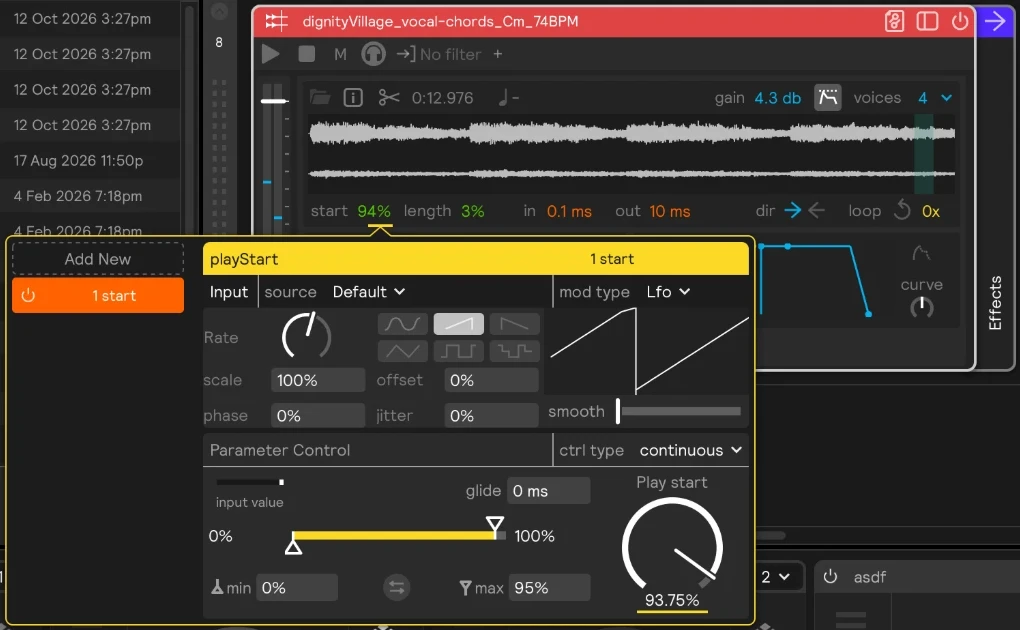
The LFO keeps moving between hits, so where each chop lands depends on your timing. For chops that step forward by exactly one slice per hit, use a Rand | Step assignment on Start instead, in steps mode. With 8 steps, each hit moves the start along by an eighth of the sample. See Random | Step.
Make it less predictable
Try the Sequencer's random modes:
rand hoppicks a random slice but never the same one twice in a row.shuffleplays every slice once in a random order, then reshuffles.
Put a Sequencer inside a Sequencer for patterns that repeat but shift, or give a slice more than one step (in the matrix view, turn on advanced mode) to make it come up more often.
Loops
Make a sample loop
Click the yellow loop arrow on a sampler to turn looping on. The number next to it is how many times it plays: 0x loops forever, until something stops it.
Step through loops
Put one loop per step in a Sequencer with retrig on. Each hit stops the current loop and starts the next one, so you can move from verse to chorus from the drum.
Loops start the moment you hit, and the sampler plays them at the tempo they were recorded at. It doesn't stretch them to the session tempo, so if you also use the metronome or Metros, set the session tempo to match your loops.
Stop a loop
- Hit something with retrig on in the same controller.
- Assign a zone or a footswitch to the layer's stop button. See How to Choke Sounds.
- The Global Stop button stops everything.
Velocity thresholding
Chords, chops, and loops share one weak spot: anything that reaches them plays them. A ghost note, a light brush of the stick, or cross-talk from another drum can move a chord progression on, fire a chop, or switch a loop in the middle of a groove. Velocity thresholding fixes that, because only hits above a level you choose get through.
Set the threshold on the controller
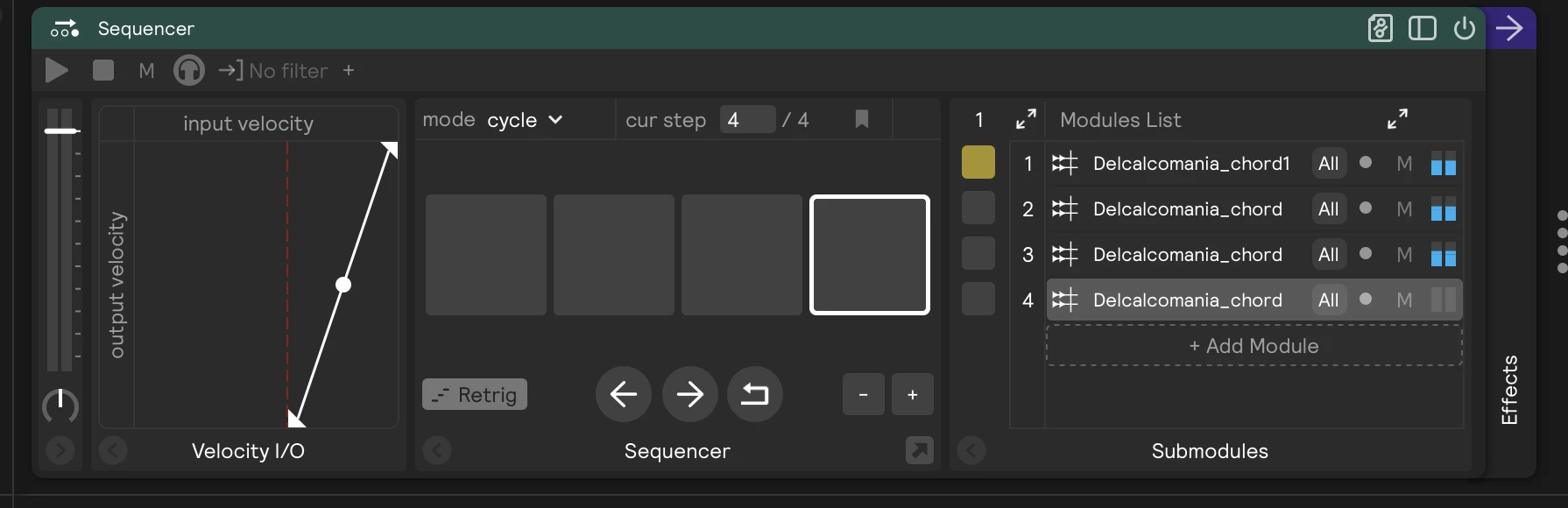
Every module and controller has a Velocity I/O panel. Open it on the Sequencer (or on the sampler, if it's on its own) and drag the bottom-left node to the right. Hits softer than that point are ignored by that module and everything inside it. The rest of the drum keeps playing as usual, so your soft notes still play your drum sounds.
Set it on the Sequencer rather than on each sampler inside it. Then every step shares one threshold, and the sequence only advances on hits that actually play something.
Keep the volume steady
A hit that only just clears the threshold plays quietly. If you want every chord, chop, or loop that gets through to play at a steady volume, drag the same bottom-left node up as well. That raises the softest output velocity, so the difference between a medium and a hard hit gets smaller.
The assignments that run the sequence, like a zone on the reset or next button, have their own velocity threshold. Raise it so only a firm hit resets or advances the sequence. See Use Thresholding for more ways to use thresholds.