How To Play to a Click Track
Sensory Percussion has a built-in metronome that plays only in your headphones, so the audience and your recordings never hear it. This page shows how to set it up, how to make a click of your own, and how to follow a click from a DAW or other gear.
The quick way: the built-in metronome
1. Choose where you'll hear the click
The metronome only plays through your monitoring outputs, usually your headphones. To make an output a monitoring output, open the hardware outputs panel and click the headphone icon next to that output's meter so it turns from grey to blue.
With the EVANS Portal, turn it on for the output that feeds your headphones (Headphone L/R). Leave it off on the output that goes to the PA (Main Out L/R).
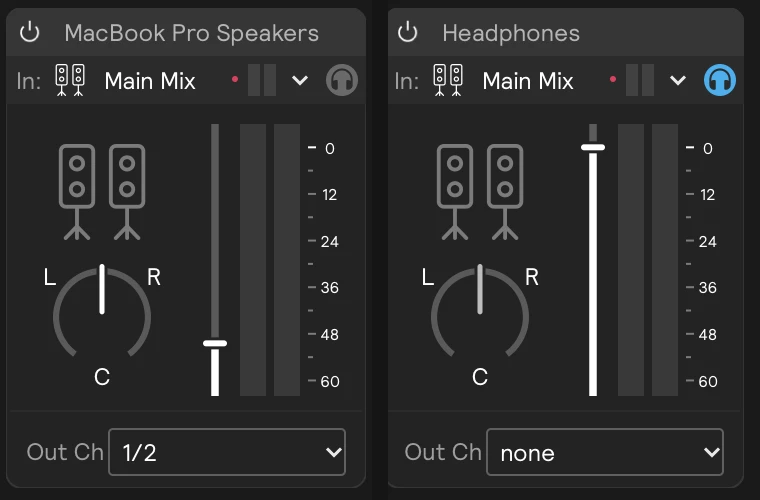
If no output has its headphone icon turned on, the metronome has nowhere to play and you'll hear nothing.
2. Set the tempo and meter
In the tempo bar at the top of the window:
- Tempo (bpm): drag the number or click it to type. Or tap Tap along with the song.
- Beats: how many beats in a bar. The click accents beat 1.
- Subdiv: what the click plays between the beats.
1/4clicks on every beat,1/8adds the off-beats.

3. Turn the click on and start it
Click the headphone toggle at the right end of the tempo bar so it lights blue, and set its level with the small slider above it. Then press the Start/Stop button at the left end of the bar, or the space bar.

The click follows the tempo bar exactly. Stopping the clock stops the click.
Tap, the metronome toggle, and the Global Stop button can all take assignments. Map them to a footswitch or a zone you don't otherwise play, and you can count off, start, and stop without touching the computer.
A different tempo for each song
Out of the box, every set in the session shares one tempo. If each song in your setlist is a set, give each one its own tempo:
- Select the set.
- Click the Scope (link) button in the tempo bar so it turns orange.
- Set that set's tempo, beats, and subdivision.
Now selecting the set brings its tempo with it. To make the click start from beat 1 whenever you select a set, right-click the set in the Set Manager and tick Restart clock on select. See Tempo.
Making your own click
The built-in click sound can't be changed. For a click with your own sounds, accents, or patterns (a cowbell on 1, a shaker on the off-beats, a count-in), use a Metro:
- Drag a Metro into a new layer from Build → Controllers, and choose the Classic Click preset from its preset menu. Or drop your own samples onto it: the first is the downbeat, the second plays the other beats.
- Turn on the layer's Monitor Mix button in its header. The layer now plays to your monitoring outputs only, and stays out of the main mix.
- Start the tempo bar. A new Metro follows the session tempo, so it starts, stops, and changes tempo with the tempo bar.
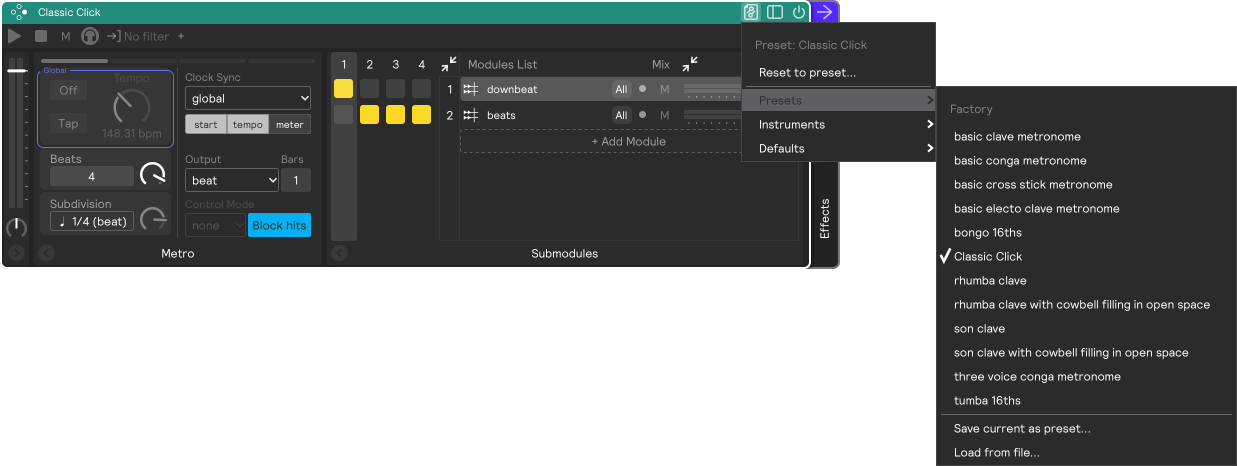
To keep the same click in every set, put the Metro in the Global Set.
Following a click from a DAW or other gear
If the click comes from somewhere else, like a DAW running your show or a drum machine, have Sensory Percussion follow that device's tempo so your Metros and tempo-synced delays stay locked to it:
- Send MIDI clock from the device to Sensory Percussion. For a DAW on the same computer, use a virtual MIDI port (see How to Set Up Virtual MIDI Routing).
- Enable that MIDI port in Settings → MIDI Devices.
- Click MIDI in the tempo bar and set Clock in to that port. The device now starts, stops, and sets the tempo.
In the Ableton plugin, set Clock in to host instead, and the session starts, stops, and changes tempo with your Live set. See Following your DAW.
To play along with a full backing track as well as a click, see How To Play to a Backing Track.