How To Play to a Backing Track
There are three good ways to play Sensory Percussion along with a backing track. Pick the one that matches how you already work:
| Option | Best for |
|---|---|
| Play the track inside Sensory Percussion | Live shows where the laptop runs everything, and you want to start each song from the drums or a footswitch |
| Bring in audio from another device | Playing along with your phone, a music app, or a playback rig at rehearsal |
| Run Sensory Percussion inside your DAW | Shows already built in Ableton Live, with tempo changes and automation |
Option 1: Play the track inside Sensory Percussion
1. Put the track on its own layer
- Open the Global Set. Anything in it keeps playing when you switch sets, so the track won't cut off when you change sounds mid-song.
- Drag your backing track (a WAV, AIFF, FLAC, or MP3) into an empty lane in the Edit view. It becomes a sampler on a new layer.
- On the sampler, make sure looping is off, and set Voices to 1 with Retrig on, so starting it again restarts it instead of playing a second copy on top.
2. Keep your drums from starting it
Click Block all input (the arrow-into-a-bracket icon at the start of the layer's filter row) so hits from your drums never reach the track. The layer's own play button still works. See Block all input.
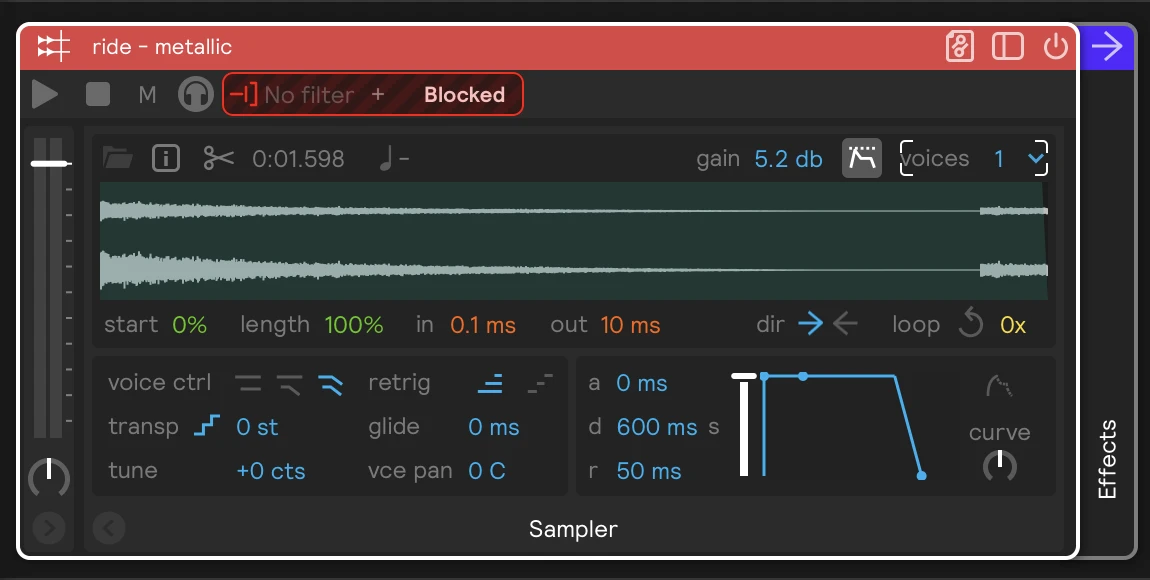
3. Choose how to start and stop it
- Click the layer's play button to start the track and its stop button to stop it.
- Use a footswitch or pad: right-click the play button and add an assignment from a MIDI footswitch or a sample pad. Do the same on the stop button.
- Use a zone: assign a zone you don't otherwise play, like a cross-stick, to the play button. Raise the assignment's velocity threshold so only a deliberate hit starts the song.
4. Add a click that only you hear
If your backing track has a separate click stem, put it on a second layer the same way, and turn on that layer's Monitor Mix button. It then plays only through your monitoring outputs (usually your headphones) and stays out of the main mix. Assign both layers' play buttons to the same footswitch so they start together.
Or set the session tempo to the song's tempo and use the built-in metronome. See How To Play to a Click Track.
5. Send the track where it needs to go
The track plays through the main mix with your drums by default. To give the front-of-house engineer the track on its own channels, create a submix for the track's layer and route it to a separate output, like the Portal's Aux Out 5/6.
If each song is a set, you can put each song's backing track in its own set instead of the Global Set. Change those sets' cutoff mode to Samples & Effects Play Thru if you want a track's tail to ring into the next set. See Set Cutoff Modes.
Option 2: Bring in audio from another device
Plug your phone, a music player, or a playback laptop into an input on your interface and play the track from there. It goes through Sensory Percussion, so you hear it in your headphones mixed with your drums, and you can set its level from the app.
- Connect the device's headphone or line output to the Portal's Line-In C/D (or the Mic/Line A/B combo inputs, with the switch set to line and +48v off).
- Add an Analog input in the hardware inputs panel and select those channels. Play the track and check that the input's meter moves.
- Open the Global Set, so the track keeps playing as you switch sets. Drag an Audio Insert in from Build → Generators and set its channel to your analog input (for example
analog1).
See How to Add a Microphone (or another audio source) for more detail.
On a Mac, other apps can usually play through the Portal while Sensory Percussion is open: pick the Portal as your Mac's sound output, or as the output of your music app or DAW. Their audio goes straight to the Portal's outputs, so set the level in that app. On Windows, whether two apps can share the Portal depends on the audio driver, so if the other app can't play while Sensory Percussion is open, use one of the other options.
Option 3: Run Sensory Percussion inside your DAW
If your show already lives in Ableton Live, load the Sensory Percussion plugin on a track and keep the backing tracks on other tracks.
- In the plugin, set Clock in in the tempo bar to host. The session then follows Live: pressing play starts your Metros and tempo-synced delays in time with the song, including tempo changes. See Following your DAW.
- Switch sets in time with the song: assign the Set Manager's next-set arrow to a MIDI note (see Change Sets with an Assignment), then put that note in a MIDI clip on the track that feeds the plugin's MIDI input.
- Use Live's click (or a click track) on a cue output for your headphones.
The plugin can also load the inputs and outputs from your standalone app, so you don't have to set your sensors up again. See Environments: In the plugin.