How To Drop Sounds onto the Drums
The quickest way to make a drum your own is to drag a sound onto it. You can drop samples from the library or straight from Finder or Explorer (WAV, AIFF, FLAC, and MP3 all work), and whole instruments and kits from the library.
Click any sample in the library to hear it before you drop it. See How To Audition Samples in the Library.
In the Play view: onto a whole drum
In the Play view, drag a sample onto a drum in the kit graphic. The drum highlights while you're over it. Let go, and Sensory Percussion adds a new layer that plays your sample from that drum.
The sample goes on the drum's main zone: the center on a snare or tom, open on a kick, and the bow on a cymbal or hi-hat. Drop several samples at once and they all land on that zone, stacked into one sound.
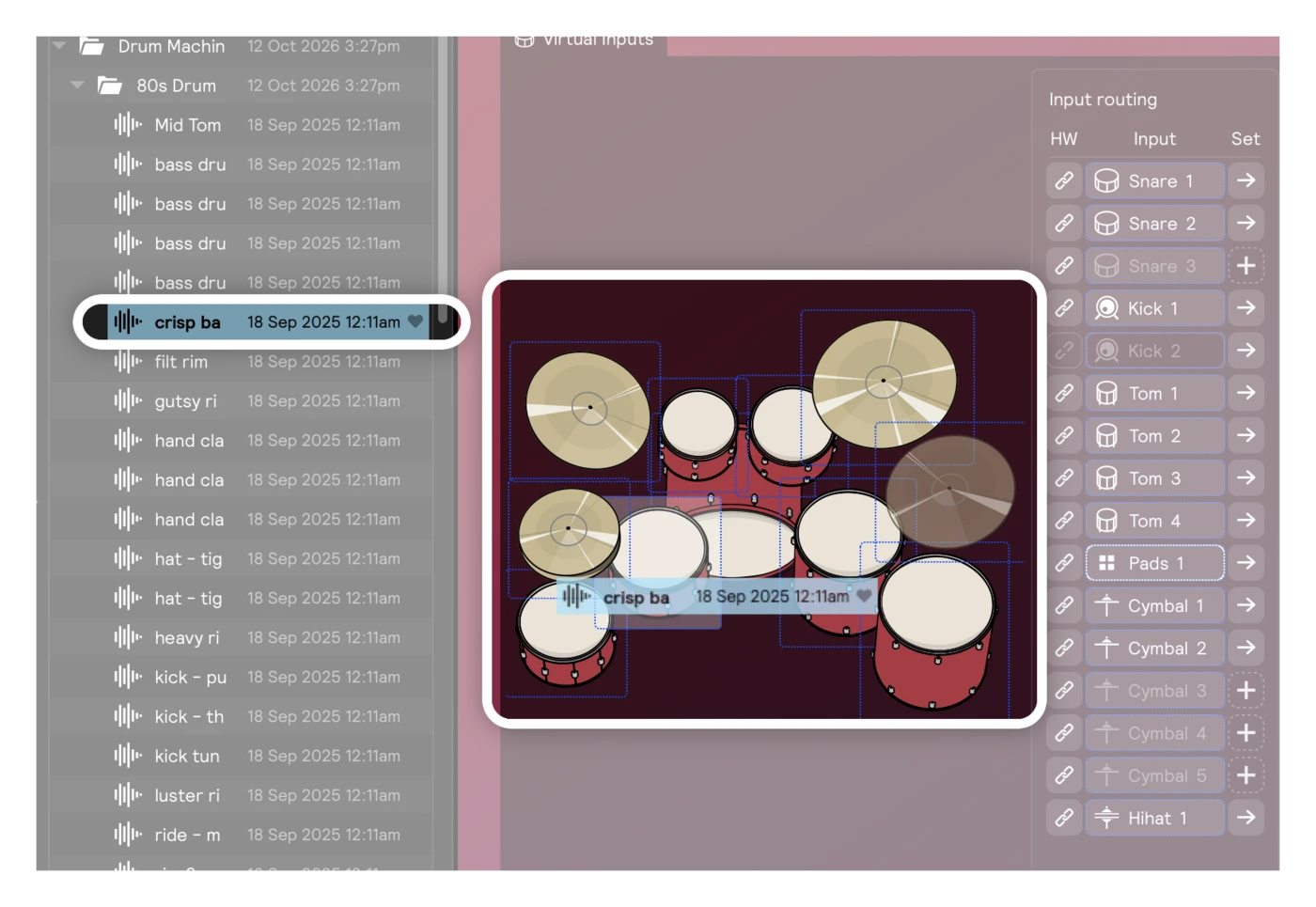
You can drop more than samples:
| Drop this… | …and you get |
|---|---|
| A sample | A new layer playing that sample from the drum |
| An instrument (like a snare from Build → Instruments) | That instrument, wired to the drum |
| A controller or generator from Build | A new layer with that module, wired to the drum |
| A drum kit, onto the area behind the drums | The kit's instruments spread across all the drums your hardware is sending |
The new layer sits on top of whatever the drum already plays, so you hear both. To hear only the new sound, mute the other layer in the Main Mix, or delete it.
Filling an empty drum
If a drum has no sound yet, hover it and click the + that appears on its head (on a cymbal, on the bell). The menu lists the instruments for that kind of drum, grouped by library. See Virtual Inputs.
In the Edit view: onto a single zone
To put different sounds on different parts of a drum, like one sample in the center and another on the rim, use a Drum Pads controller.
- In the Edit view, open the layer you created above, or drag in Drum Pads from Build → Controllers (choose the kind for your drum: snare, tom, kick, cymbal, or hi-hat).
- Click Pads ▽ and turn on the zones you want to use. New Drum Pads start with two: center and rim shoulder on a snare or tom.
- Drag a sample onto a zone. It becomes a sampler that plays when you hit that zone.
Zones you haven't turned on borrow from the nearest active zone, so edge hits play the center sound and rim-tip hits play the rim-shoulder sound. That way, nothing you play falls silent by accident.
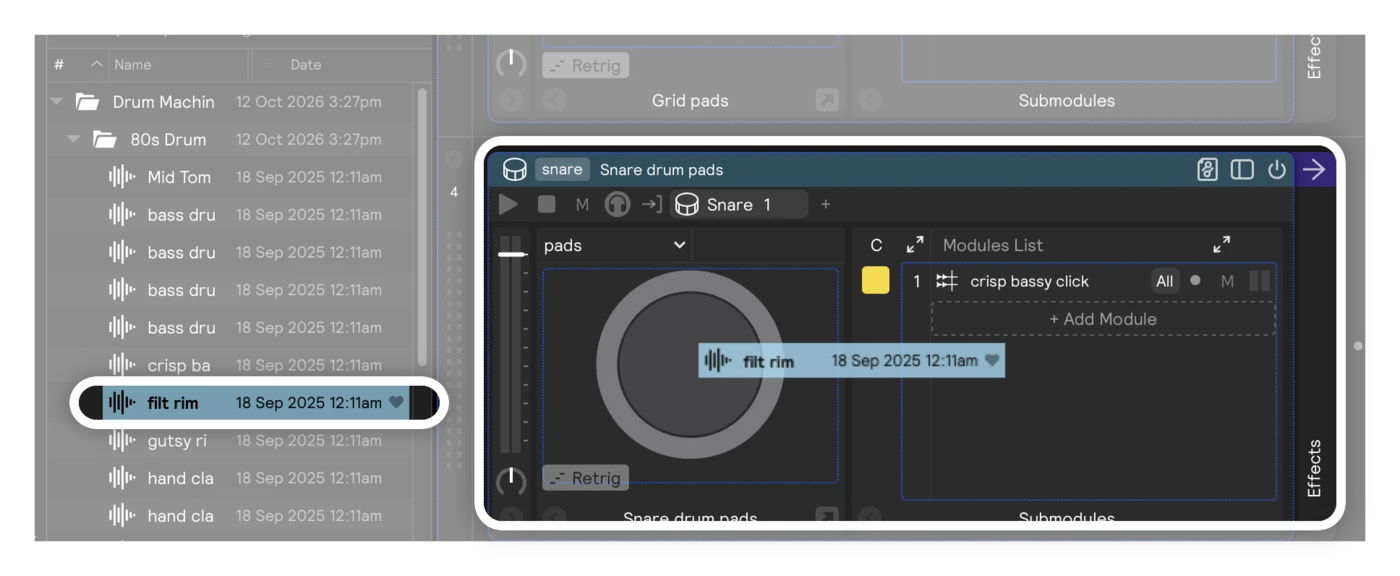
Hold shift and click a cell in the Drum Pads mapping matrix to blend a sound across zones, so it fades in as you move from center to edge instead of switching at a line. See How to Blend Samples Between Zones.
Swapping a sound
- Replace a sample: drop a new sample onto an existing sampler.
- Try other instruments: select an instrument layer and use Hot Swap to page through instruments that match it while you play.
Keeping what you made
Your new sounds are saved with the set, in your session. To reuse what you built in other sets, open the layer's preset menu and choose Instruments → Save current as instrument…. It then shows up under User in the library's Instruments tab, next to the factory ones. See Saving your own instruments.